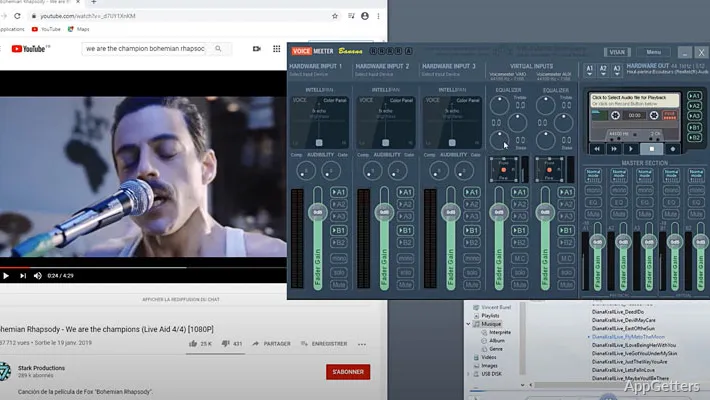
Need separate game audio, chat, and microphone levels for a stream or recording? Voicemeeter Banana mixes hardware and app audio in one routing panel, with separate outputs for monitoring and software capture.
How do the input strips and output buses work?
Banana’s mixer is arranged around input strips and output buses. Three hardware input strips accept sources such as microphones, while two virtual input strips receive audio from Windows applications. The separate strips let you adjust microphone and app levels without first combining them.
Three hardware buses, labeled A1, A2, and A3, send audio to selected physical devices. Two virtual buses, B1 and B2, provide separate routes for software such as a streaming or recording application. Each input strip has routing controls, so you choose which buses receive that source. For example, a game can go to a stream mix while the microphone also feeds a separate recording path.
How do you route an app through Banana?
Choose a Voicemeeter virtual device as the app’s playback output. The audio then appears on one of Banana’s virtual input strips, where it can be balanced with the microphone and sent to the desired buses. Assign a hardware output such as headphones to an A bus for listening, and select a B bus as the destination in capture software when a separate software feed is needed.
What should you connect first?
Select the physical output devices for A1, A2, or A3, then connect a microphone to a hardware input strip. Set an application to play through one of Banana’s virtual audio devices and confirm that its signal appears on the matching virtual strip. Use the strip’s routing buttons to send each source to the hardware and virtual buses you need.
Pros
- Routes audio across three hardware inputs and two virtual inputs
- Provides three hardware output buses and two virtual output buses
- Routes each input independently to A1–A3 and B1–B2 buses
- Separates app audio for streaming, recording, and headphone monitoring
System requirements: Windows 7, Windows 8, Windows 8.1, Windows 10, Windows 11 · 32-bit and 64-bit
Can Banana send different audio sources to different outputs?
Yes. Each input strip can be routed independently to the A1–A3 hardware buses and B1–B2 virtual buses.
How does application audio reach a virtual input strip?
Set the application’s playback device to a Voicemeeter virtual audio device; its audio then appears on a virtual input strip.
Can a microphone and desktop audio be mixed for streaming?
Yes. Route the microphone and application audio to a virtual output bus selected by the streaming software.