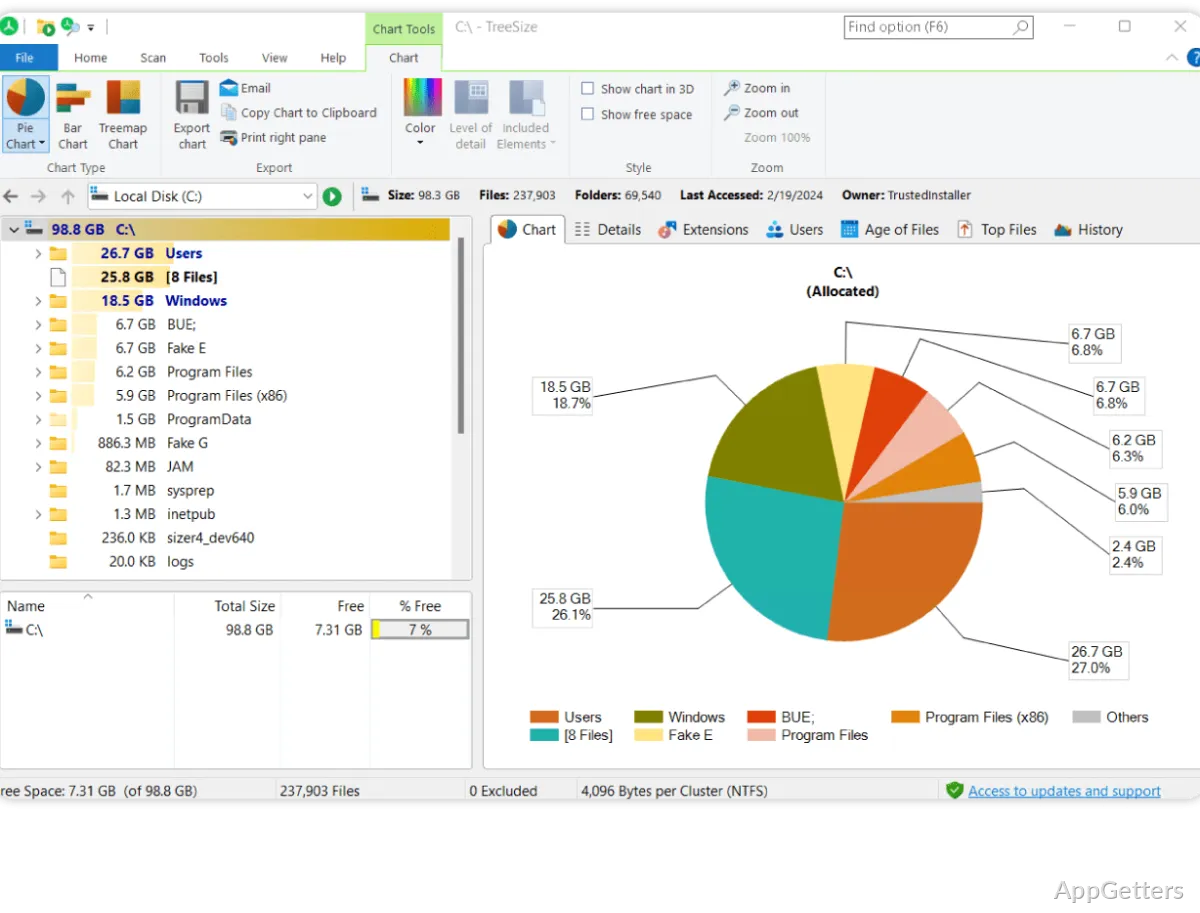
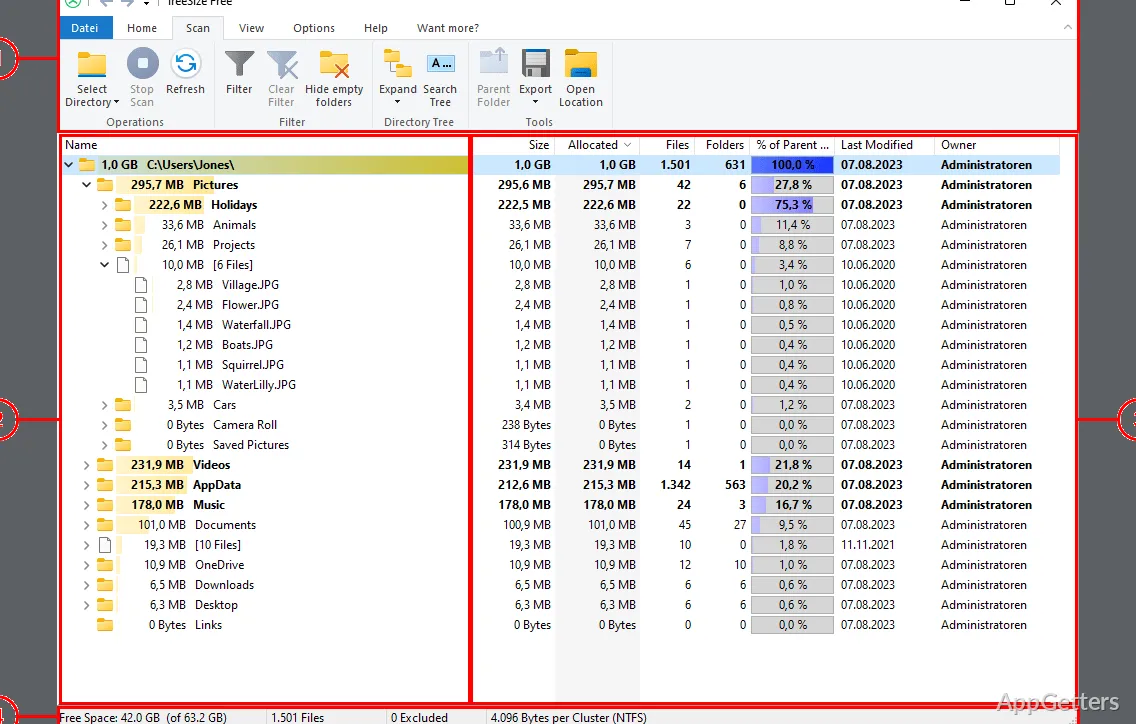
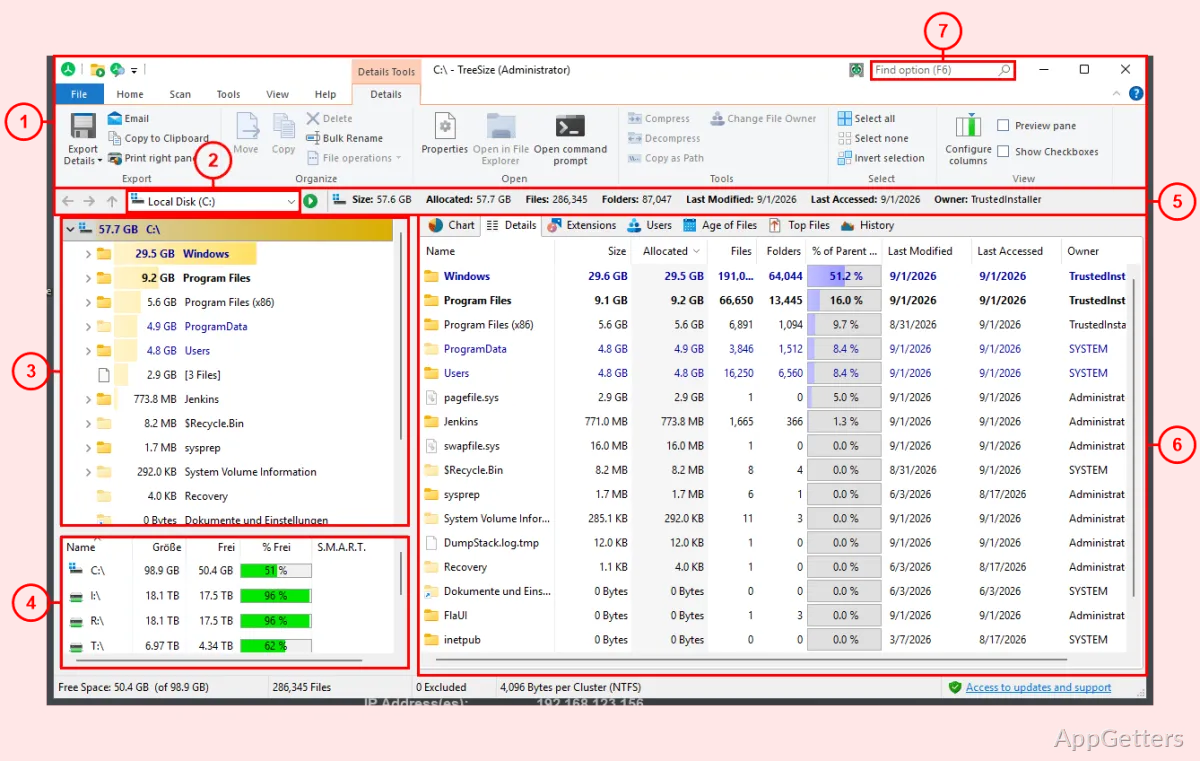
The folder tree can be sorted by size to bring the largest directories into view. TreeSize scans a drive or folder and displays its contents as nested levels, so space use can be traced from a broad location down to individual folders.
Scan a drive or folder
Start with the storage location you want to examine. TreeSize builds a directory listing with size information, giving you a view of how space is distributed across that location.
Sorting the results by size brings larger folders to the top. This gives a practical starting point for finding where a drive's capacity is being used, including folders buried deeper in the directory structure.
Follow large folders into their contents
Open a folder in the tree to see its nested directories and their sizes. Follow those levels to narrow a large result to the part of the folder structure occupying the most space.
Use the scan results to identify areas to investigate, such as bulky downloads or old project folders. TreeSize presents the size breakdown; decisions about removing or moving files remain with the user.
Use the size breakdown to guide cleanup
The directory hierarchy keeps the results tied to their locations, while the size ordering helps prioritize which folders to inspect. This is useful when a drive is running low and the largest contributors are not obvious from a quick look through folders.
Pros
- Sorts folder results by size
- Shows nested folder sizes in a navigable tree
- Makes large directories easier to locate
Cons
- Runs only on 64-bit Windows 10 or Windows 11
System requirements: Windows 10, Windows 11 · 64-bit only
What does TreeSize show after scanning?
It shows folder sizes in a nested directory tree, which can be sorted by size.
How do I find the largest folders?
Scan the drive or folder, then sort the directory results by size to bring larger folders into view.