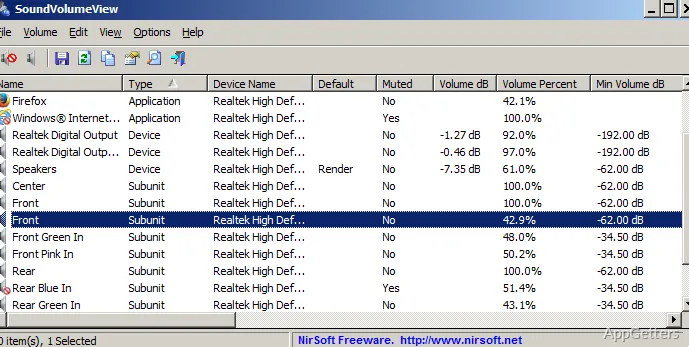
Want one app quieter than the rest, or your headset set as the default device with one click? NirSoft's free SoundVolumeView lists every sound device and app in a table and lets you adjust levels or mute individual items, then save settings for later use.
What sound items appear in the table?
The table organizes sound components and shows their current levels. Application entries let you distinguish one program’s audio from another, while device entries identify playback or capture hardware. Columns also show details such as device state and default-device assignments; sorting the table helps locate a particular item.
How do saved sound profiles work?
A profile file records the current volume and mute state for sound items, along with the default sound devices. Load that file later to bring those settings back—for example, when returning to a familiar arrangement of devices and audio levels.
Can SoundVolumeView change audio from a script?
Command-line options handle common changes without opening the main window. They can set an item’s volume, mute or unmute it, and save or load profiles. The same interface also supports exporting table data; available file types include CSV, XML, plain text, HTML, and JSON.
- Use an item’s command-line-friendly ID to target devices with similar names.
- Create desktop shortcuts for actions such as muting an application or changing a device’s volume.
What can a desktop shortcut control?
The shortcut menu offers mute, unmute, mute-toggle, volume increase or decrease, and device enable or disable actions. For application entries, mute and volume actions can target that program’s audio. A shortcut can also set a default sound device for a specific Windows audio role.
Pros
- Saves and restores volume, mute, and default-device settings in profiles
- Command-line controls can change or mute specific sound items
- Creates desktop shortcuts for volume and mute actions
- Exports sound-item data to CSV, XML, text, HTML, or JSON
System requirements: Windows 7, Windows 8, Windows 10, Windows 11 · 32-bit and 64-bit
Can SoundVolumeView mute one application without muting all audio?
Yes. Select the application’s sound item and mute it, or use a command-line option or desktop shortcut for that item.
Does a saved profile include the default sound device?
Yes. Profiles include default-device assignments as well as volume levels and mute states.
Can it change settings without displaying its window?
Yes. Its command-line options can change volume and mute states and save or load profiles without showing the interface.