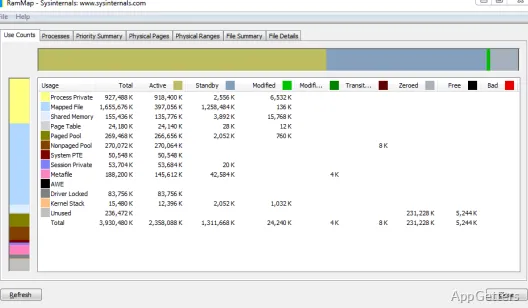
Which files are sitting in RAM, and how much memory belongs to processes, the kernel, or device drivers? RAMMap breaks physical memory use into detailed views, including file cache data and standby lists, so you can investigate how Windows is allocating RAM.
What does each RAMMap tab show?
The tabs organize memory data around different questions. Use Counts summarizes usage by type and paging list, while Processes reports working set sizes. Priority Summary shows standby-list sizes by priority.
For a view closer to the physical layout, Physical Pages reports use page by page, and Physical Ranges shows memory addresses. File Summary lists each cached file with the memory it occupies, and File Details goes down to the individual physical pages associated with a file.
Investigating memory allocation
Start with Use Counts to see which categories account for physical memory, then switch views to examine a particular part of the total. Processes can show application working sets; the file tabs can reveal which files have data cached in RAM. Priority Summary offers another perspective on standby memory.
This breakdown can clarify whether a large memory total comes from application working sets, cached file data, or other categories such as kernel and driver use. RAMMap provides a refresh feature to update the displayed information while investigating.
Memory snapshots
RAMMap can save a memory snapshot and load it again later. Snapshots preserve a recorded view for comparison, while refreshing updates the current display.
Pros
- Use Counts separates memory by type and paging list
- File Summary and File Details show cached data by file
- Save and load memory snapshots for later comparison
Cons
- The display updates when refreshed, so it is not a continuously updating view
System requirements: Windows 7, Windows 8, Windows 8.1, Windows 10, Windows 11
What is RAMMap used to investigate?
It analyzes physical memory allocation, including process working sets, file data cached in RAM, standby lists, and kernel or driver use.
Which tab shows files cached in memory?
File Summary groups cached file data by file. File Details shows the individual physical pages associated with a file.
Can RAMMap save a memory view for later?
Yes. It can save memory snapshots and load them again.