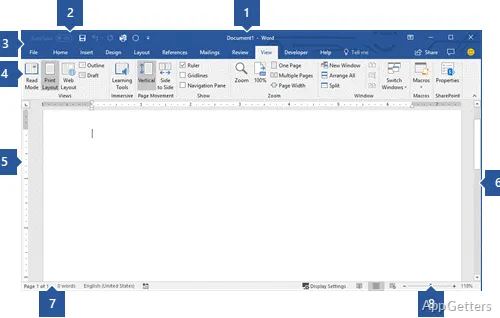
Microsoft Word for Windows When Documents Need Reliable Editing
A document deadline can become messy when a file opens in the browser, refuses editing, loses formatting, or asks for an account at the wrong moment. Microsoft Word for Windows is the desktop word processor people usually want when they need full document editing, layout control, review tools, templates, and stable access to DOCX files on a Windows computer.
Word belongs to Microsoft 365 and Office, so the download choice depends on how your license was purchased. Some users install it through a Microsoft account, some receive it through a work or school account, and some use a one-time Office package. A careful starting point is matching the installer with the account that owns the license.
Do not treat every Word download as the same package. A Microsoft 365 subscription may install Word with the other Office apps and keep it updated through the account. Older Office packages can behave differently, especially when activation, repair, language packs, or reinstall options appear in the installer screen.
Download and Account Checks Before Setup
Word setup usually fails because the user has the wrong account, not because the app itself is broken. Before installing, confirm whether the license belongs to a personal Microsoft account, a business account, a school account, or a product key already redeemed to a dashboard. That account matters later when Word asks for activation.
Use Microsoft Word for Windows from the current Microsoft 365 or Office installer route linked to your license. Check the version and file details shown on the supplied download card before running the installer. Avoid replacing a working Office install with a random setup file, because mixed editions can create activation prompts and missing app shortcuts.
If the computer already has Office apps, open the account screen inside one Office app before making changes. The signed-in account, subscription name, and update channel can explain why Word opens read-only, why Copilot is missing, or why the app says your license cannot edit documents. In shared offices, this check prevents many wrong reinstalls.
Users who only need a free editor may compare Word with LibreOffice or WPS Office, but those choices are not the same as installing Microsoft Word. They can open common document formats, yet template behavior, tracked changes, fonts, macros, and business formatting may differ when files return to Microsoft Office users.
Personal, Work, and School Sign-In
Activation depends on the account tied to the Microsoft 365 or Office entitlement. If Word installs but stays unlicensed, sign out of extra accounts and sign in with the account that owns the subscription or purchase. Work and school devices may also need the organization account, not a personal email address.
Product Key Confusion
A product key usually needs redemption to a Microsoft account before installation. Typing an old key repeatedly inside Word may not fix activation if the key has already been used or attached to another account. Keep the purchase record available, then follow the account path that matches that purchase.
First Run Problems That Look Like Broken Word
The first launch can show setup boxes, license messages, privacy prompts, update checks, or file association questions. Do not skip them too quickly. If Word opens but documents still launch in another program, set the default app for DOCX files in Windows settings after the installation finishes and the system has refreshed shortcuts.
When Word refuses to open, freezes at the splash screen, or closes after launch, test whether another Office app opens normally. If the whole Office group fails, repair the Office installation instead of deleting document folders. A repair can refresh shared Office components while keeping your saved files in place.
If only Word fails, add-ins deserve attention. Word can load templates, COM add-ins, grammar tools, citation managers, PDF tools, and cloud storage plug-ins at startup. A bad add-in can make the app look damaged. Start Word in a reduced mode when available, then disable add-ins one at a time until the startup problem stops.
Repair Before Reinstalling
Windows can repair Microsoft 365 or Office from installed app settings. This action repairs the Office product, not only Word, so close Excel, Outlook, PowerPoint, and other Office apps first. Try the faster repair option before using a deeper online repair, because the deeper option may need a connection and more setup time.
When Shortcuts Disappear
A missing Start menu shortcut does not always mean Word was removed. Search for Word from Windows search, check the Microsoft 365 app list, and confirm that the Office suite appears under installed apps. If the app exists but shortcuts are wrong, pin Word again instead of reinstalling immediately.
Documents That Open Read-Only or in Protected View
Many users install Microsoft Word for Windows because a downloaded file opens but cannot be edited. Protected View is a safety layer for documents from the internet, email, or other potentially unsafe locations. It lets you read the file first, then decide whether editing makes sense. Only enable editing when you trust the file and sender.
Read-only behavior can also come from file permissions, cloud sync status, document protection, or a file stored in a shared location. Save a copy to a normal local folder and test again. If that copy edits normally, the problem is likely location permission, sharing status, or a protection setting rather than a bad Word installation.
OneDrive, SharePoint, and AutoSave
AutoSave works best when Word files live in OneDrive or SharePoint with a signed-in Microsoft 365 account. If a file sits only on the desktop, a removable drive, or an unsupported location, AutoSave may not behave the same way. Save the file to the correct cloud location before relying on automatic saving.
Running Office apps as administrator can also interfere with cloud features when OneDrive runs in normal user mode. If AutoSave, co-authoring, or cloud editing suddenly disappears, close Word and reopen it normally. Administrator mode should not be your regular way to write documents.
Compatibility Mode and Old Files
Older DOC files may open in Compatibility Mode. That mode protects older formatting but can hide newer Word features until the document is converted. Make a separate copy before converting important contracts, forms, resumes, or documents with complex tables. Conversion can change spacing when old fonts, margins, or embedded objects behave differently.
Formatting, Templates, and PDF Workflows
Word is often downloaded because a document must keep its layout across resumes, reports, letters, manuals, or business forms. The app offers rich formatting, page layout controls, comments, track changes, tables, references, and export options. Still, layout problems often come from fonts and templates rather than from the installer.
If a document looks different after moving computers, check fonts first. Missing fonts can change line breaks, page count, table width, and heading positions. Use common fonts when the document must travel, or export a final copy to PDF when the recipient only needs to read it.
For PDF reading or basic PDF handling outside Word, Adobe Acrobat Reader DC may be useful beside Word. Word can open and export some PDF content, but editing a PDF in Word can reflow pages. Keep the original PDF if exact layout matters.
Template Errors
A damaged normal template can cause strange spacing, slow opening, or repeated formatting changes in new blank documents. Before changing anything, close Word and keep a separate copy of important custom templates. Then test with a fresh blank document and remove only the template file that clearly causes the problem.
Track Changes and Comments
Review tools can confuse users when every edit appears marked or the document refuses a clear final view. Check whether Track Changes is turned on, then choose the view that matches your task. Accepting changes is permanent for that copy, so save a separate version before cleaning up a reviewed document.
Copilot, Cloud Files, and Feature Availability
Newer Word builds may show Copilot features when the account, subscription, region, and license allow them. Do not assume every Word install includes the same AI tools. If Copilot is missing, check the signed-in account, update status, subscription type, and whether your organization has enabled that feature.
Cloud features also depend on account access. Co-authoring works best when collaborators use a supported Microsoft 365 setup and the document is stored in OneDrive or SharePoint. If two people edit separate local copies, Word cannot merge every change safely without a proper review process.
Teams that build documents from notes, spreadsheets, or presentations may also use Microsoft 365 Office UWP for broader Office access. Keep Word as the main desktop editor when the file needs precise document layout, document review, and full Office document controls.
Keep Microsoft Word for Windows Ready for Writing Work
Microsoft Word for Windows works better when the installer, license account, file location, and document workflow all match. Check the download card before installing, sign in with the correct account, repair Office before sensitive changes, and keep separate copies before changing protected files, templates, or older document formats.
A stable Word setup should open DOCX files, preserve review marks when needed, save cloud documents under the right account, and export final copies without surprise layout changes. When problems appear, separate account issues from document issues first. That approach can reduce unnecessary reinstalls and keep writing, review, and PDF handoff work easier to manage on Windows.