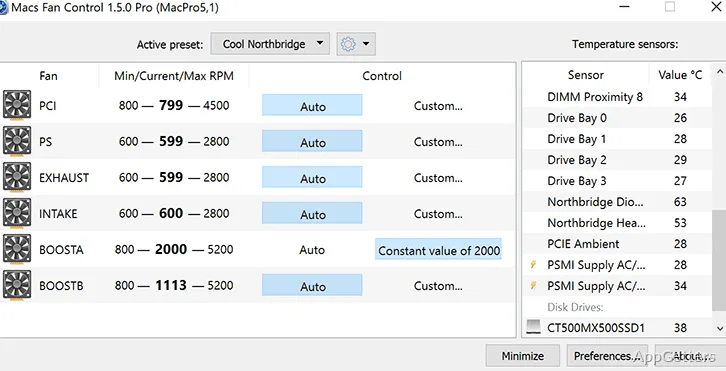
Running Windows on a Mac through Boot Camp and the fans are too loud, or the machine runs hot? Macs Fan Control shows fan and sensor information in separate tables and lets you set fan speed manually or tie it to a temperature sensor.
Fan and sensor tables
The main view separates detected fans from temperature sensors, so readings are easy to locate. Sensor monitoring can include third-party HDD and SSD temperature data provided through S.M.A.R.T. A chosen fan speed or temperature can also sit in the Windows notification area.
This view is aimed at checking thermal behavior on an Apple computer while it is running Windows through Boot Camp. Fans can remain in the system-controlled Auto mode for monitoring, with Macs Fan Control displaying the available readings.
Fixed-speed and sensor controls
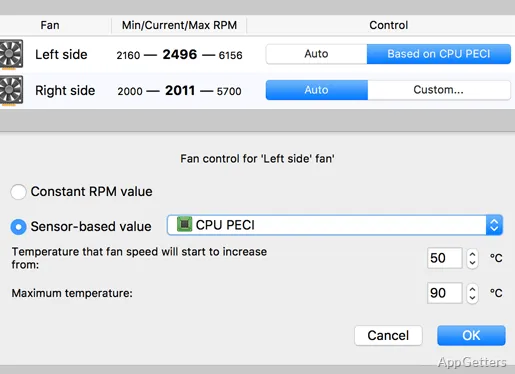
For a fan under app control, choose a constant RPM value or link its speed to a temperature sensor, such as the CPU PECI sensor. Sensor-based control connects fan behavior to a reading from the machine; fixed RPM keeps the selected speed constant.
Fan presets store configurations for switching between Auto and custom control.
- Auto leaves fan control to the system.
- Custom applies a selected RPM or sensor-based setting.
- Quitting the app restores fans to Auto.
Pros
- Separate tables show fans and temperature sensors
- Set a fixed RPM or use sensor-based fan control
- Save presets for quick changes between fan modes
- Show fan speed and sensor temperature in the Windows tray
System requirements: Windows 7, Windows 8, Windows 10 · Windows must be installed on an Apple computer through Boot Camp.
Can Macs Fan Control show temperatures from third-party drives?
Yes. It can monitor temperature sensors for third-party HDDs and SSDs through S.M.A.R.T.
How can a fan be controlled by temperature?
Select custom control for the fan and associate its speed with a temperature sensor, such as CPU PECI.
What happens to fan settings when the app quits?
The app restores the fans to automatic control.