Dual-booting Linux and need a file from that partition while you're in Windows? The free Linux Reader lets you browse Ext2, Ext3 and Ext4 partitions from Windows and copy files off them, without ever writing to the Linux drive.
Which file systems can it browse?
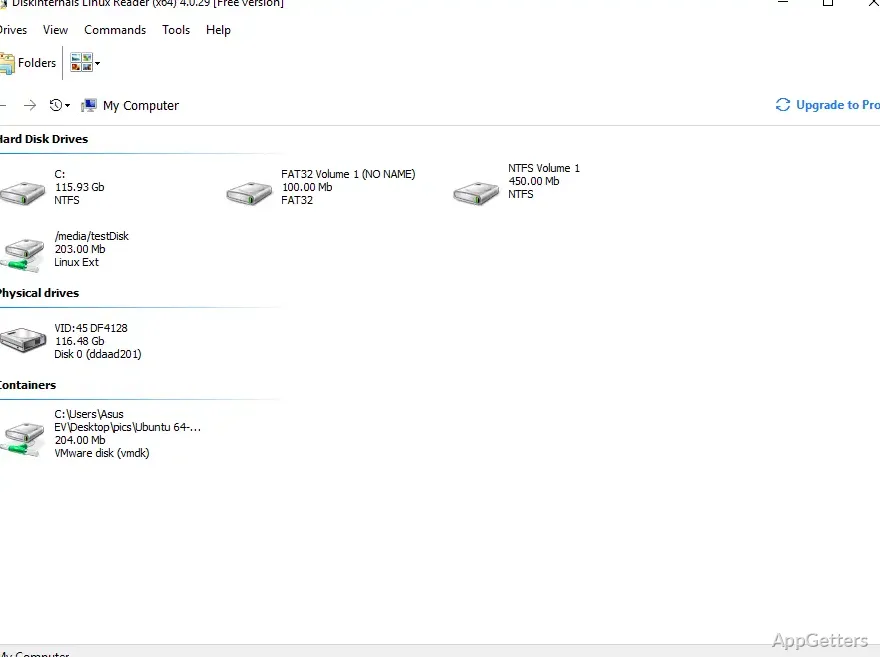
Linux Reader recognizes several file systems that Windows does not normally open directly. The basic reader supports Ext2/3/4, ReiserFS and Reiser4, HFS and HFS+, UFS2, FAT, exFAT, NTFS, and ReFS. APFS and RomFS are available in reader mode.
Browsing and copying files
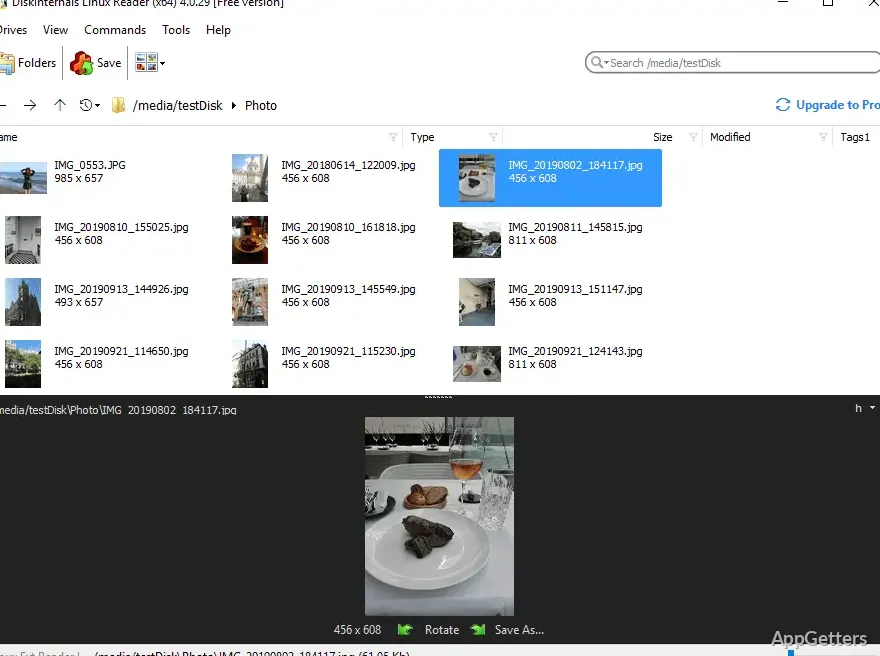
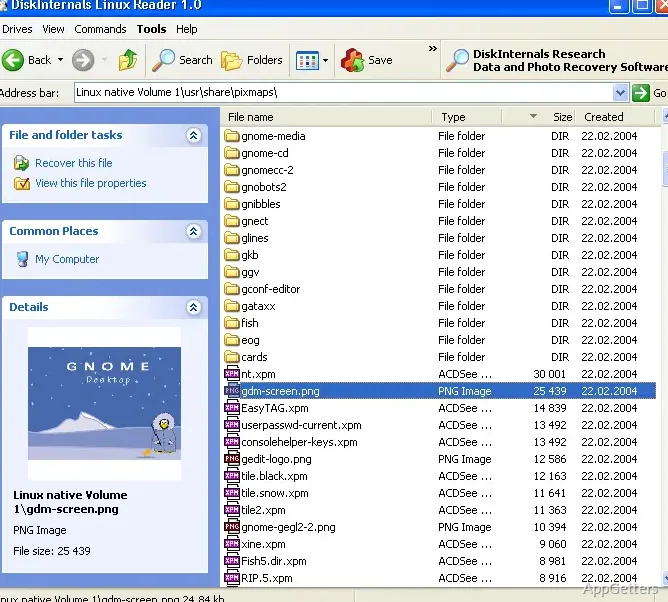
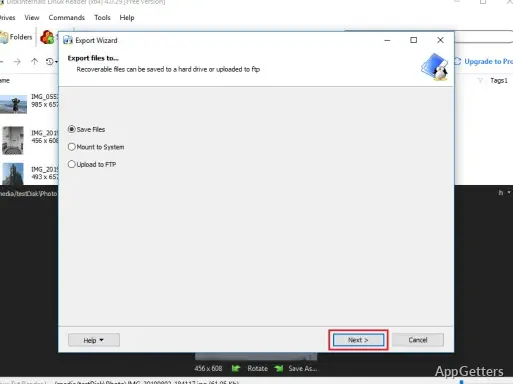
Open a detected partition in Linux Reader to navigate its folders and locate documents, photos, videos, or other files. Select items to copy them to a Windows drive; the original partition remains unchanged during this workflow.
The read-only design is the key operating detail: Linux Reader does not edit or save changes back to files on the source partition.
Previews and disk images
File previews let you inspect content in a separate window before copying it.
Linux Reader can also create a disk image of an accessible drive. The image provides a copy of the drive that can be used for restoration if data is lost.
Pros
- Reads Ext2, Ext3, and Ext4 partitions
- Supports ReiserFS, HFS/HFS+, UFS2, FAT, and exFAT
- Previews file contents and can create disk images
System requirements: Windows 7, Windows 8, Windows 10, Windows 11
Can Linux Reader write files to an Ext partition?
No. It provides read-only access; copy files from the partition to a Windows drive instead.
Can I preview a file before copying it?
Yes. Linux Reader can open a preview of a file's contents in a separate window.
Does Linux Reader support APFS?
Yes, APFS is supported in reader mode.