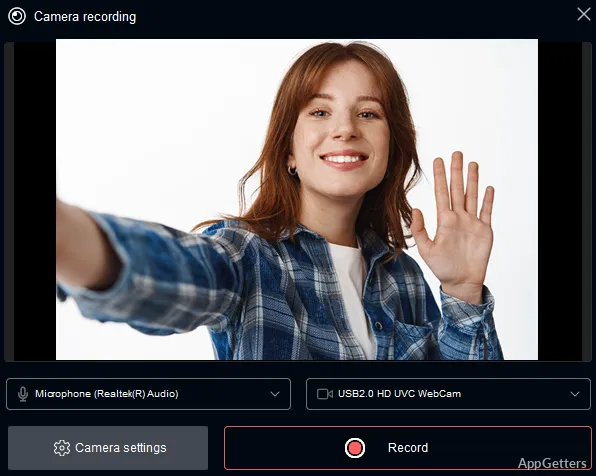
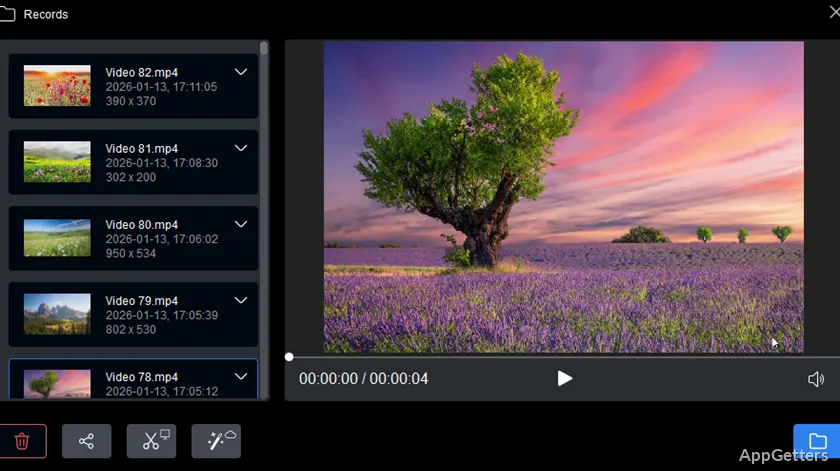
The finished recording can show desktop activity alongside sound and webcam footage. HyperCam records screen activity for tutorials, software demonstrations, and presentations, including mouse movements, clicks, and keyboard input.
Capture desktop activity with audio and webcam
HyperCam records what happens on the desktop and can capture audio and webcam footage as part of a recording. That combination suits a software walkthrough where viewers need to see the application, hear an explanation, and see the presenter.
A recording can document a task as it happens, preserving the sequence of on-screen actions for later viewing. This makes the program a fit for instructional clips, product demos, and presentation material.
Show clicks and keystrokes in a walkthrough
Screen recordings can include mouse movement, clicks, and keyboard input. Those details make it easier for viewers to follow a process, such as navigating an application or completing a sequence of steps.
For a demonstration, the recording can show the actions inside a program window as they occur. For a presentation, captured desktop activity can illustrate a feature or procedure without requiring viewers to be at the computer.
Use recordings for tutorials and presentations
HyperCam's capture workflow centers on recording screen activity, then sharing the resulting clip in a tutorial, demo, or presentation. It is aimed at producing screencasts, with desktop, audio, and webcam capture available for explaining what is happening on screen.
Pros
- Captures desktop activity, audio, and webcam footage
- Records mouse movements, clicks, and keyboard input
- Fits tutorial, demonstration, and presentation workflows
Cons
- Preview and editing require DirectX and specified Windows Media runtimes and decoders
System requirements: Windows 7, Windows 8, Windows 10, Windows 11 · DirectX 8.0 Runtime or higher · Appropriate video and audio decoders for preview feature · Windows Media Format 9 Series Runtime shipped with Windows Media Player 9 or higher · Windows Media Format 11 Series Runtime for WMV file frame accurate editing
What can HyperCam record?
It can capture desktop activity, audio, and webcam footage. Screen recordings can also show mouse movements, clicks, and keyboard input.
What is HyperCam commonly used to record?
It is suited to tutorials, software demonstrations, and presentations that show on-screen activity.