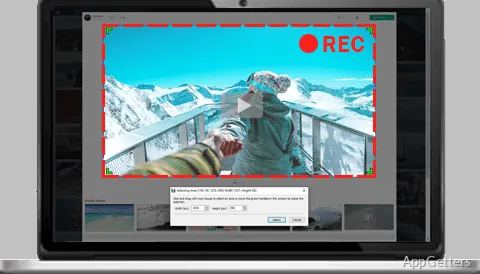
Need to record a tutorial, a call or a webinar on your PC? This NCH screen recorder captures the full desktop, an individual window, a selected screen area, webcam video, or input from a capture device. It can combine screen footage and a webcam overlay, then save the recording in a range of video formats.
Choose a screen, camera, or video input
Debut offers several capture sources in one recording workflow. Select the entire screen, one application window, or a custom area; it also supports multiple monitors. For camera footage, choose a webcam or network IP camera. A video input device can bring in footage from equipment such as a VHS recorder.
Layer webcam video over a screen recording
The video overlay option records the display and webcam at the same time, placing the camera image over the screen footage. Microphone and speaker audio can be captured with the video, which suits demonstrations, calls, and webinars. Recording can also be set to capture video without sound.
- Show keystrokes or highlight the mouse pointer in screen recordings.
- Add text captions, timestamps, or an image watermark.
- Use scheduled start and end times for a one-time, daily, or weekly recording.
Adjust the picture and recording output
Before capture, set the resolution, frame rate, and output size. Debut provides common presets as well as custom width and height settings. Picture controls include brightness, contrast, and gamma; color effects include black and white, negative, and sepia. A preview shows color adjustments before recording.
Save and trim captured video
Recordings can be saved in formats such as AVI, WMV, FLV, MPG, MP4, and MOV. Debut includes trimming to remove unwanted footage from the start or end of a clip. Captions and timestamps can be added to recordings, and the program supports direct uploads to YouTube, Vimeo, and Flickr.
Pros
- Records a selected window or screen region
- Combines webcam video with screen capture
- Adds captions, timestamps, and image watermarks
- Exports recordings in formats including MP4, AVI, and MOV
System requirements: Windows 7, Windows 8, Windows 8.1, Windows 10, Windows 11
Can Debut record my screen and webcam at the same time?
Yes. Its video overlay feature captures the screen and webcam together in one recording.
Can I record only part of my screen?
Yes. Choose the full display, a single window, or a selected screen area.
Which video formats can Debut save?
Supported formats include AVI, WMV, FLV, MPG, MP4, and MOV.