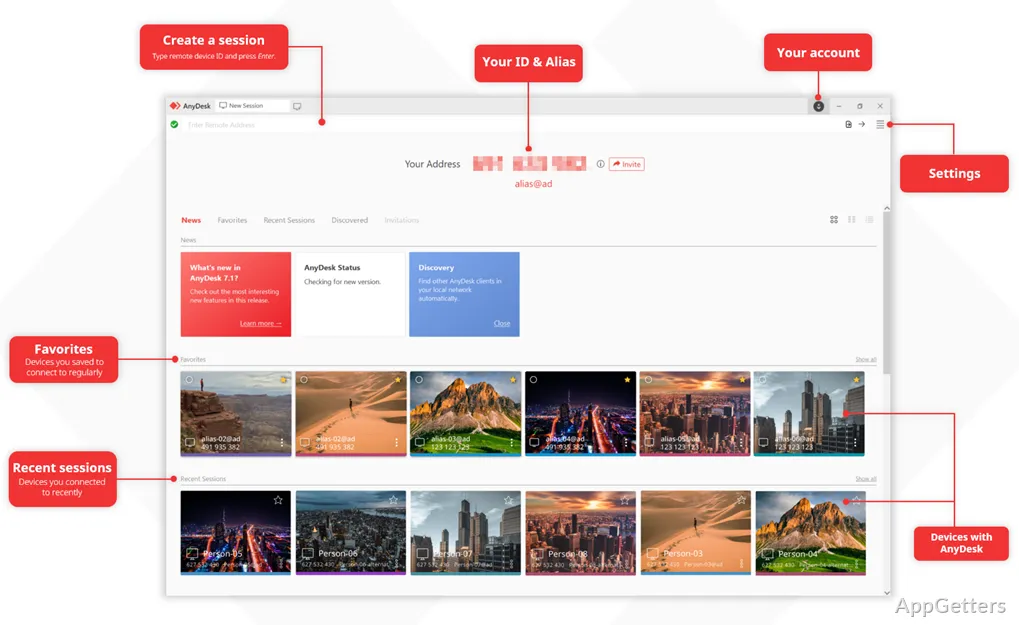
A remote session can fail even when both people have the right device address because the receiving side still controls when a request appears and what the visitor may do. AnyDesk for Windows is a remote desktop client from AnyDesk Software GmbH for attended support, unattended access, file transfer, clipboard exchange, remote audio, and other session functions when the selected permissions and license provide them.
The Windows client can be opened for temporary access or installed for persistent availability. Those modes behave differently after sign-out, restart, and User Account Control prompts. The official download page provides the current Windows release details, while the application settings determine whether a session is accepted manually, authenticated with unattended credentials, limited to viewing, or granted broader control.
AnyDesk for Windows starts with the session you intend to allow
Attended support works when someone at the remote device can review and accept the incoming request. The receiving user decides which permissions apply to that connection, including keyboard and mouse control, clipboard use, file transfer, audio, and other supported actions. Seeing the remote desktop therefore does not automatically provide permission to click, type, copy files, or interact with protected Windows screens.
An AnyDesk address is not an unattended password
The address or Alias identifies the destination, but it does not replace acceptance or authentication. Share it only with the person who should connect, then confirm the name and purpose shown in the request window. A caller who knows the address still needs approval unless unattended access has been configured. Reject unexpected requests rather than treating them as routine notifications.
Unattended access belongs on devices you manage
Unattended access uses a password set on the remote client so a trusted person can connect when nobody is present. Choose a unique password and review the permission profile linked to that mode. Avoid reusing a Windows, email, or banking password. Stored credentials should remain on devices you control because the password and destination address together can provide the access granted by the selected profile.
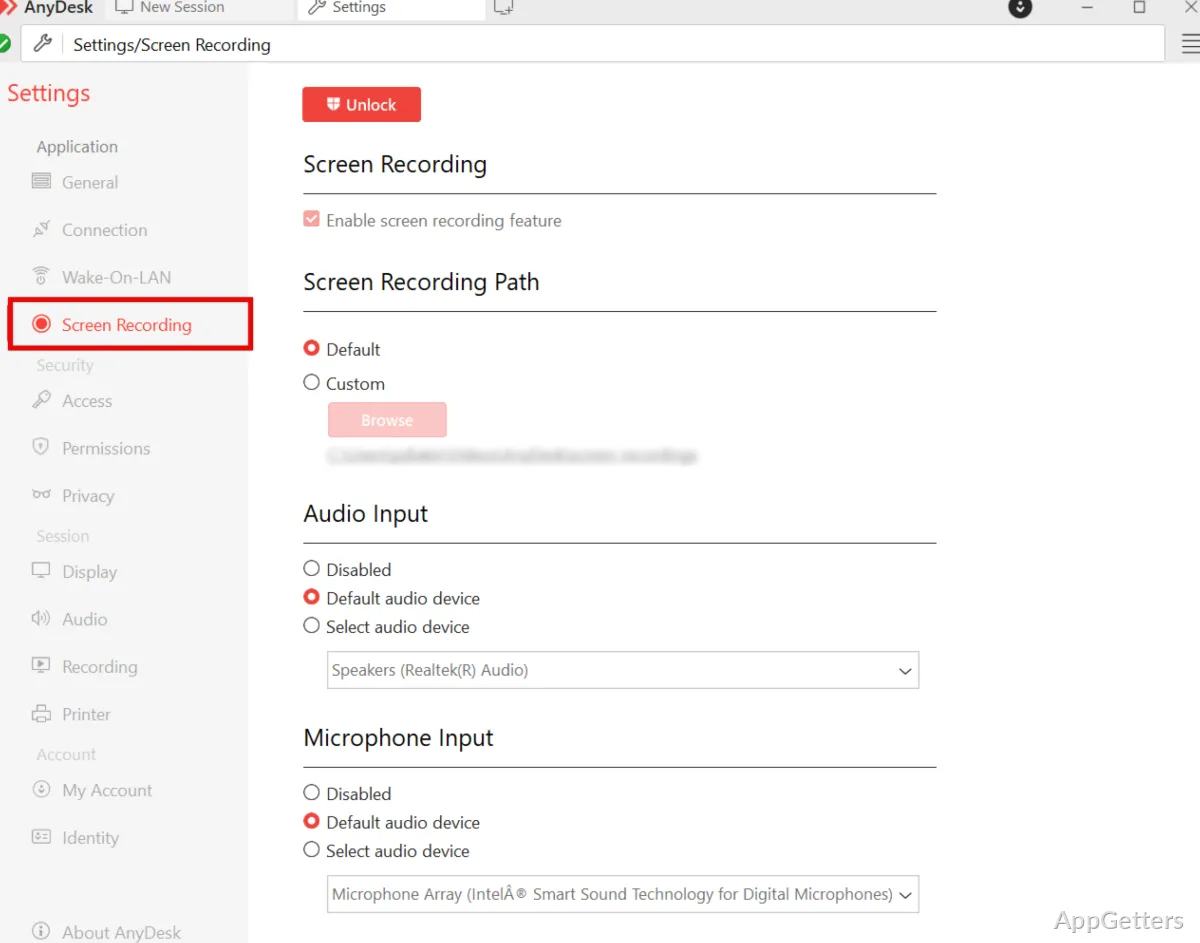
Interactive Access settings also influence whether requests appear. The remote device can be configured to display every incoming request, show requests only while the application window is open, or rely on unattended authentication. When the person at the destination sees nothing, confirm that the client is running and review those settings before replacing the application.
Download choice affects what remains available after restart
The portable client suits a short support session because it can be opened without installing a persistent service. Closing the window or signing out ends its availability, and unattended access remains possible only after the program has been started manually. This approach fits a temporary repair or demonstration where someone remains present and can close the client afterward.
Installed mode supports login-screen and restart workflows
Installing AnyDesk for Windows adds the service required for access outside the current user session. This can keep the device reachable after a restart or sign-out and may support connections at the Windows login screen. It suits a managed office workstation, a personally administered remote PC, or another machine that must remain reachable when no local user is available.
Use the official developer source or the supplied download card for the Windows package. Windows may show a security warning during setup. Continue only when the file came from the official developer source or another trusted source you intentionally chose, and confirm that the displayed publisher information matches the developer. Avoid modified packages, cracked editions, serial-key pages, and unfamiliar mirrors.
Version details matter more than repeated reinstalls
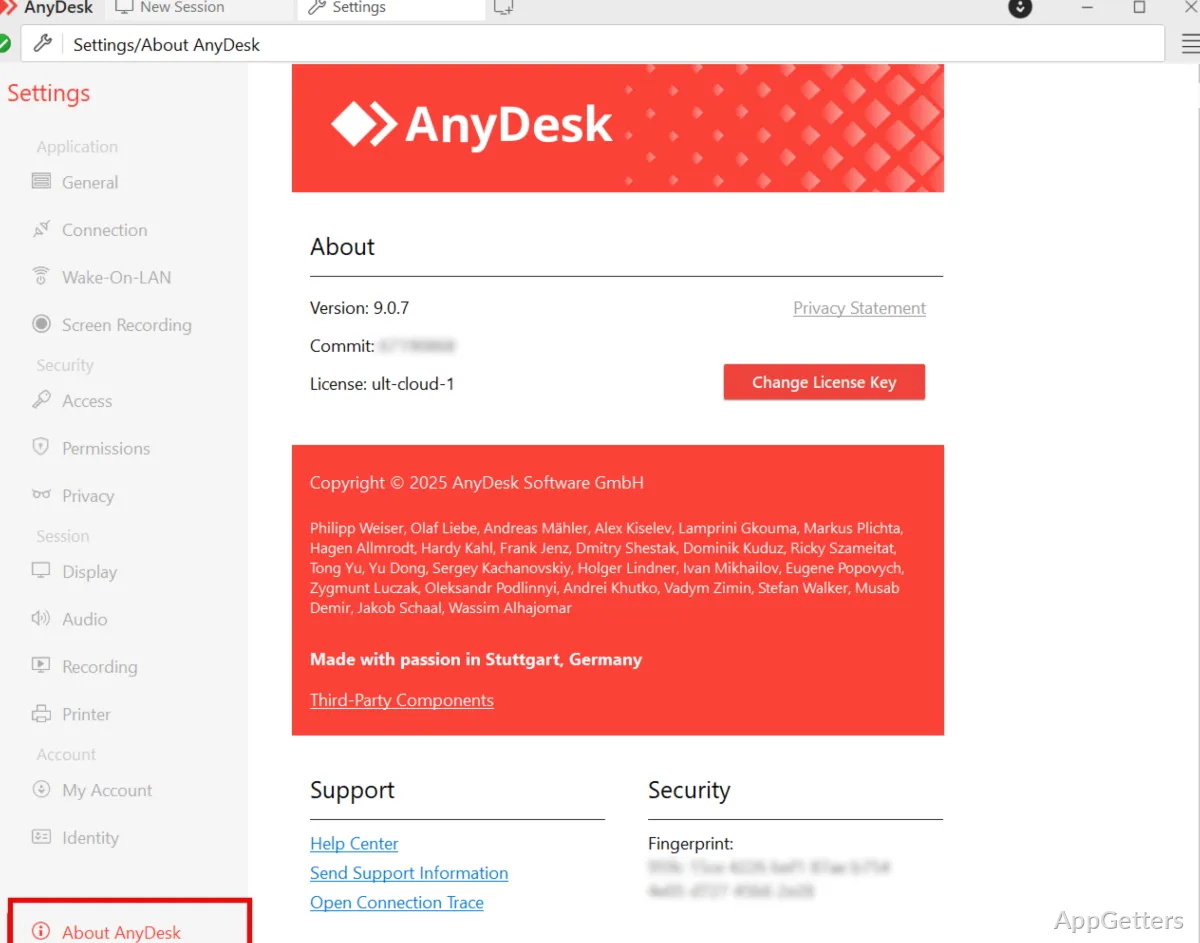
Check the version shown on the download card and compare it with the version screen inside the app. A standard update should retain the existing device identity and settings, although managed or customized clients may follow an organization-specific process. Recording the versions used on both endpoints can reveal mixed deployments when one side behaves differently after an update.
Read the connection status before changing the installation
AnyDesk for Windows reports different states for an unavailable device, a rejected request, an interrupted session, and an inactive display. Treating every message as an installation failure wastes time and may remove settings unrelated to the fault. Start with the displayed status, then check the remote power state, internet connection, client availability, permissions, and display condition.
Client Offline does not always mean the program is damaged
The destination may be switched off, asleep, disconnected from the internet, or running without AnyDesk open. Confirm that the device is powered on, online, and using the intended address. Updating both endpoints may help when one client is considerably older. Wake-on-LAN can work in supported environments, but it depends on compatible hardware, suitable network preparation, and another reachable client on that network.
Waiting for image can begin with the monitor
A connection may open while the picture remains unavailable because the remote display is not producing an active image. Check whether a monitor is connected, powered on, and awake. Headless PCs may need a supported display arrangement, while a Windows server may require the intended user session to remain active. Changing passwords or reinstalling the client will not restore an inactive display path.
An interrupted session can come from outside AnyDesk
A session-process error can appear when Windows or a protection tool terminates part of the remote connection. Check whether Windows security, anti-ransomware protection, or another endpoint tool reports an event involving AnyDesk. In a managed environment, review the documented firewall and security requirements rather than creating broad exceptions. Record the error text and time so an administrator can compare them with system events.
A session that ends after a predictable idle period may be following the remote client’s auto-disconnect setting. Review that timeout before treating the closure as a network fault. Irregular drops point more often to unstable internet access, sleep settings, firewall behavior, or the connection route. Testing another network can separate a local connection problem from a persistent endpoint issue.
Restore missing controls without weakening the remote device
When clipboard text, copied files, sound, or keyboard input disappears, review the active session permissions before changing Windows security settings. The remote endpoint must grant the related capability, and the local user can further restrict permissions during the session. Reconnecting after changing a permission profile can make the updated rules clearer than repeatedly testing controls inside an older session.
Administrative prompts require the right Windows context
Elevating the remote session does not turn a standard Windows account into an administrator account. User Account Control actions may still require administrator credentials. Installed mode can provide better access to protected screens, but the Windows account and local policy continue to govern administrative work. Avoid sending administrator passwords through chat or leaving them visible during the remote session.
Clipboard transfer and File Manager are separate paths
Text or file copying may fail when clipboard synchronization is disabled on either endpoint or excluded by the session profile. AnyDesk also provides file-management and transfer workflows in supported clients. Confirm the destination folder, available storage, and transfer completion before deleting the original file. Large transfers can slow when the connection is unstable, even while normal remote control remains responsive.
Image quality can trade detail for responsiveness
A detailed remote picture uses more connection capacity than a responsiveness-focused view. Close unrelated downloads, test a wired connection, and select a display mode that fits the task. Software configuration and text support often benefit from faster response, while visual inspection may need greater detail. Installing the client instead of relying on portable mode may also improve local-network discovery in supported Windows environments.
License and trust decisions belong in the remote-access plan
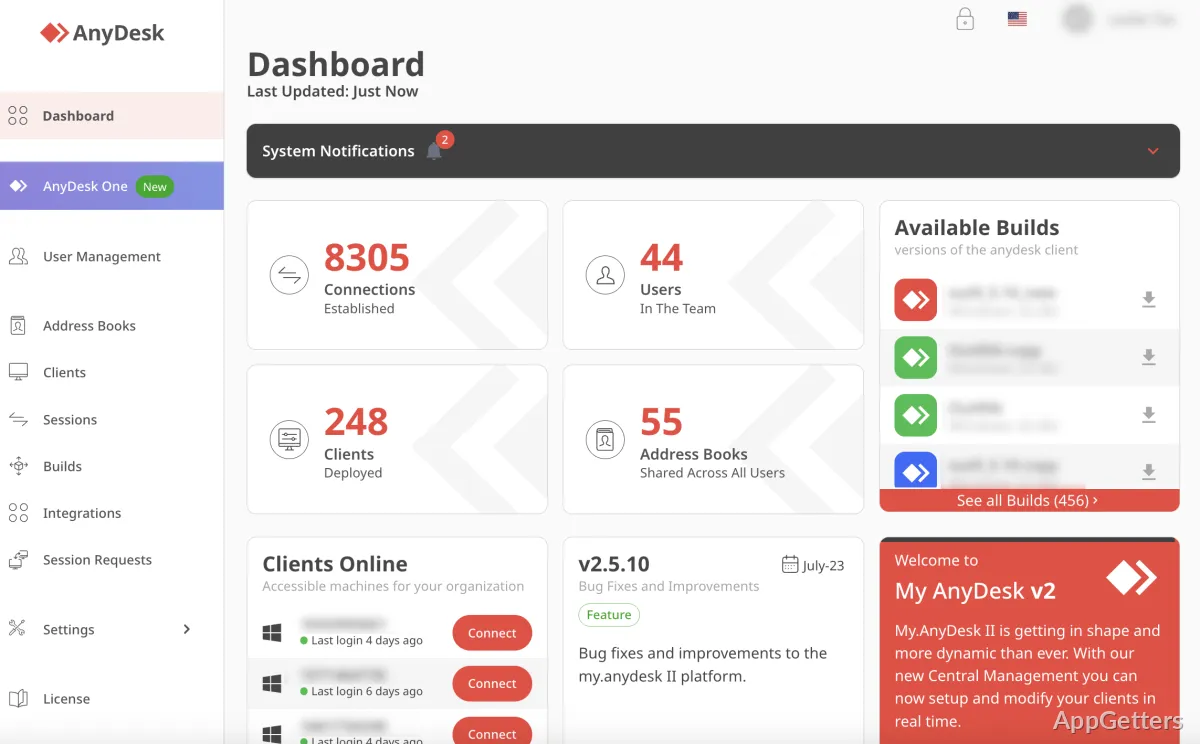
AnyDesk presents its free offering for personal use, while professional activity may require a paid license. Available plans can differ in managed devices, users, concurrent sessions, administration, and support. Review the current plan comparison before using the client for paid technical support, company access, customer service, or a wider deployment. Avoid assuming that every business feature is included in the personal edition.
Remote desktop software is frequently requested by scammers pretending to represent banks, retailers, delivery services, or technical support teams. Do not share an unattended password, verification code, payment screen, or account login with an unsolicited caller. End the session when the request does not match support you initiated, then review unattended access and saved-device settings locally.
Organizations comparing licensing and administration may also review TeamViewer, while readers considering a different remote desktop model can examine RustDesk. Test alternatives on a non-sensitive device first because unattended access, permission controls, deployment methods, and commercial terms vary between products.
AnyDesk for Windows becomes easier to operate when each endpoint has a defined role, a known owner, and a limited permission profile. Decide whether the machine needs attended help, persistent unattended access, file transfer, or administrative support before connecting. Then use the displayed status, Windows account context, network condition, and license purpose to resolve faults without treating every rejected request or blank screen as a reason to reinstall.