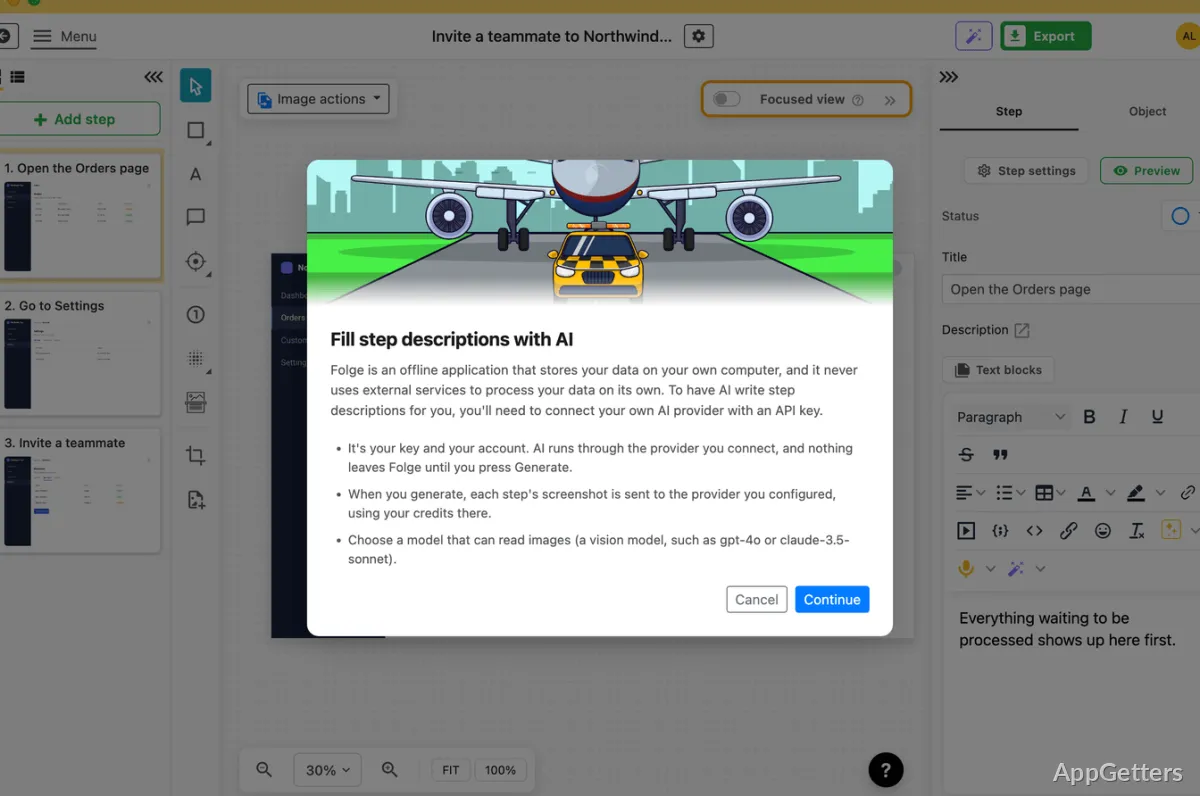
Writing a how-to guide and tired of taking and pasting screenshots by hand? Folge turns a task you perform on screen into a step-by-step visual guide. It captures screenshots as steps, then provides tools to edit, annotate, and export the instructions.
How does Folge turn a task into steps?
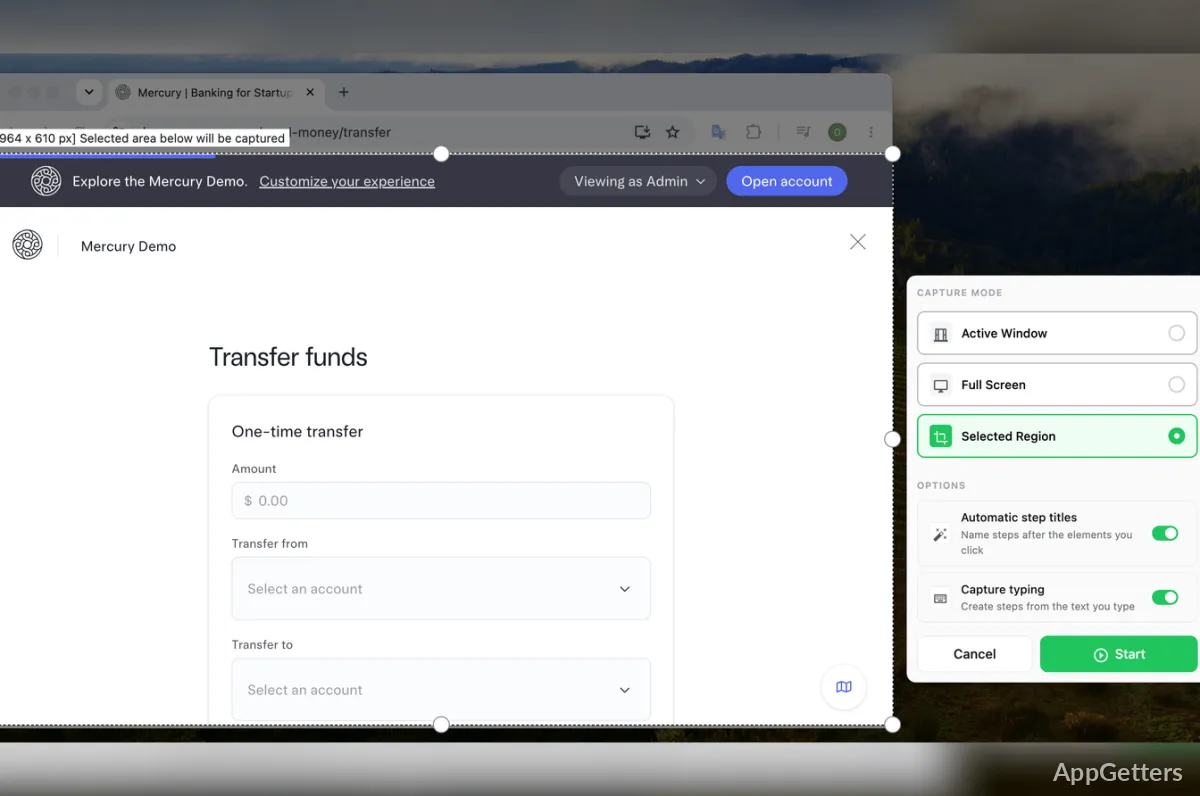
Choose a window, a screen region, or the full display, then perform the task as usual. Folge captures a screenshot at each mouse click and marks the click location, creating an ordered sequence to build on. Captures can also be triggered with hotkeys or key combinations.
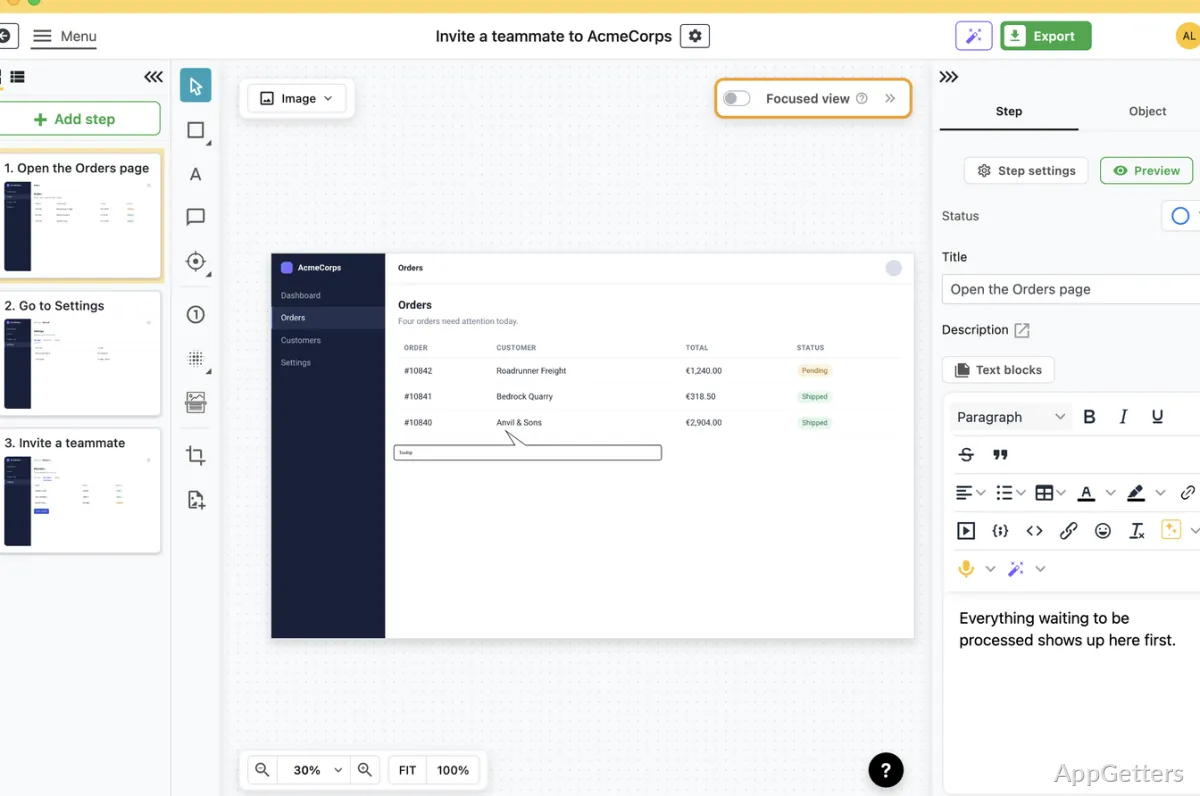
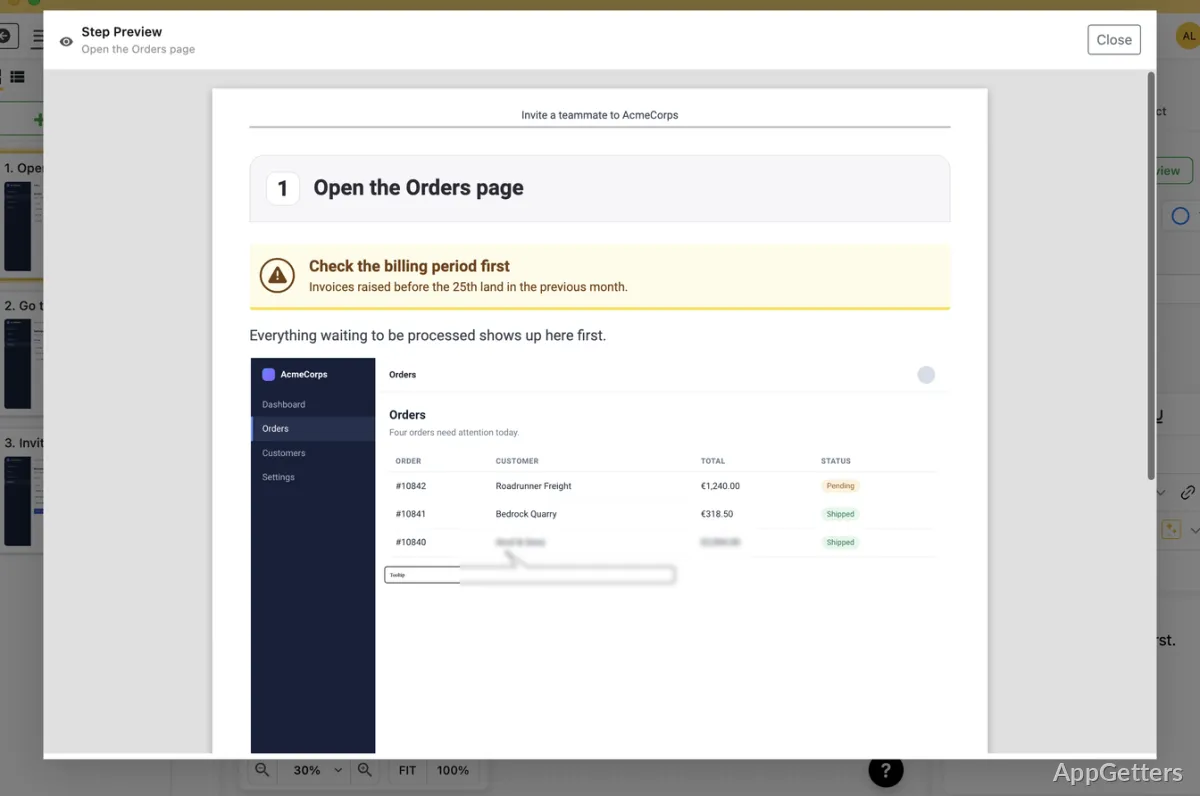
The resulting steps appear in an editor where you can add titles and descriptions, change their order, remove steps, or insert new ones. Nested steps provide extra detail under a main instruction, and callouts can add a warning, tip, or note between steps.
How can you clarify or protect a screenshot?
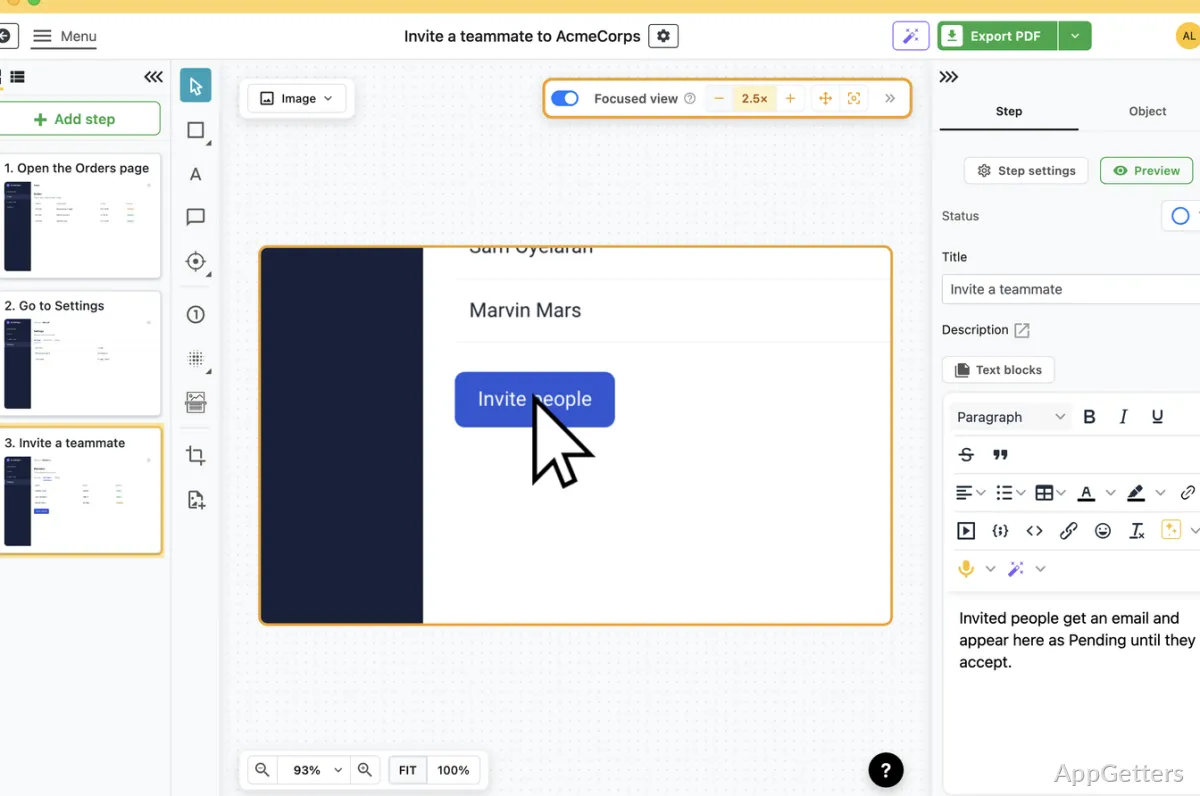
Folge includes image annotations for pointing readers to the relevant part of each screen. Add arrows, shapes, text, or numbered markers; magnify an area; or crop a screenshot to focus attention. Blur tools can obscure private details such as names or account information.
Descriptions can be drafted with the AI helper, which uses a screenshot to suggest text. Steps from an existing guide can also be reused, avoiding the need to capture the same instruction again.
Which formats can a finished guide use?
Finished guides can be saved as Word, PDF or PowerPoint files, as HTML or Markdown, as SCORM packages, or as JSON. HTML output can be embedded in knowledge bases, and SCORM output is suited to learning-management systems. PDF layouts can include a cover page, logo, header, and footer; fonts, colors, and other export styling can be customized.
The same set of steps can be prepared for different output formats from the editor. Folge also supports custom CSS for HTML styling.
Where are Folge guides stored?
Folge runs as a desktop app and keeps capture, editing, and export work on the computer. For shared editing, an Open Guide file can be placed in a shared folder or network drive; collaborators make changes to that file. Supported shared storage examples include Dropbox, Google Drive, and OneDrive.
Pros
- Captures a screenshot for each mouse click
- Adds blur, arrows, shapes, and magnification to step images
- Exports guides to PDF, Word, PowerPoint, HTML, and SCORM
- Keeps captures, edits, and exports on the computer
System requirements: Windows 7, Windows 8, Windows 8.1, Windows 10, Windows 11 · 64-bit only
Does Folge record a video of the workflow?
Folge captures screenshots as steps when you work; it builds a step-by-step guide from those images.
Can a guide be edited after capture?
Yes. You can change step text and order, add or remove steps, and annotate or crop screenshots.
Can Folge hide sensitive details in screenshots?
Yes. Blur tools can obscure information on individual step images.