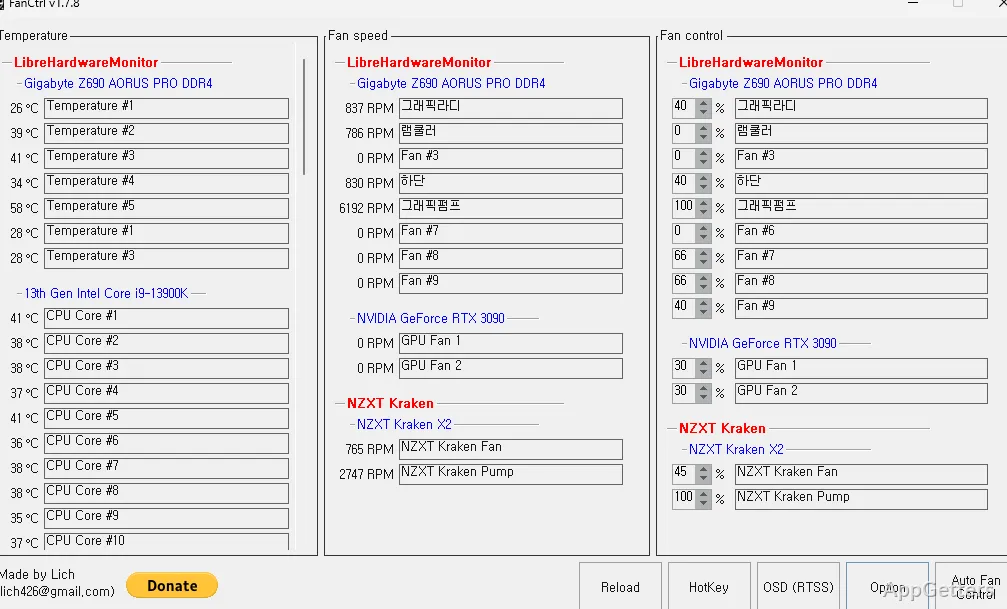
When a PC fan keeps changing speed as temperatures fluctuate, a custom curve can make its response easier to tune. FanCtrl displays temperatures and fan speeds, then lets you configure automatic fan control around a selected temperature sensor and fan.
Automatic fan curves
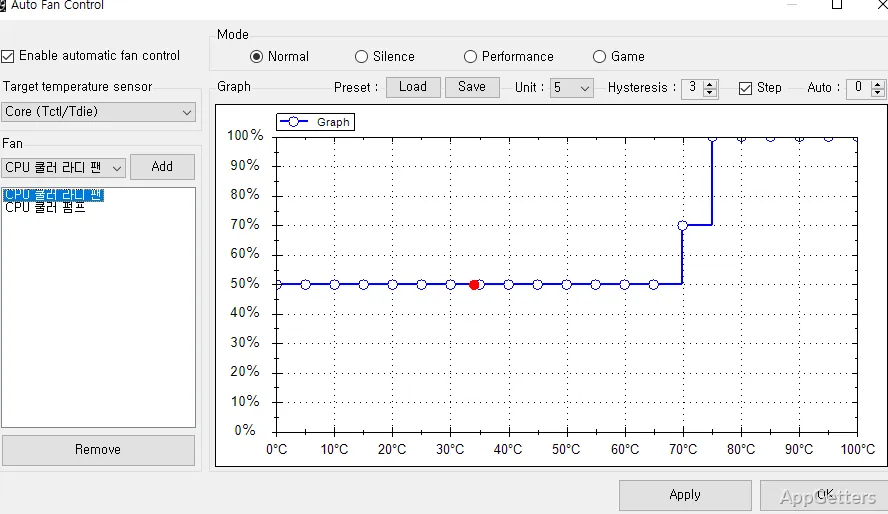
For automatic control, switch it on, pick which temperature reading the fan should follow, add that fan, then shape the graph. Curves can use a step or linear response. Hysteresis delays a fan-speed change while temperatures are falling, which can reduce repeated adjustments around a threshold.
FanCtrl saves the configured graph when you apply the settings, and presets let you save or reload a curve setup. The Auto option keeps control at the BIOS default up to a chosen temperature; it is available only with certain sensor and control integrations.
Sensors, fans, and integrations
The main screen brings together temperature readings, fan speeds, and fan controls. Item names can be changed, and the control percentage can be adjusted directly for a temporary PWM change; that manual adjustment is not saved.
- LibreHardwareMonitor can provide sensor and fan-control data, with device selection for control.
- HWiNFO can supply temperature and fan RPM readings.
- Additional integrations cover NVIDIA graphics cards, NZXT Kraken devices, EVGA CLC coolers, NZXT RGB & Fan Controllers, and liquidctl.
Display and startup options
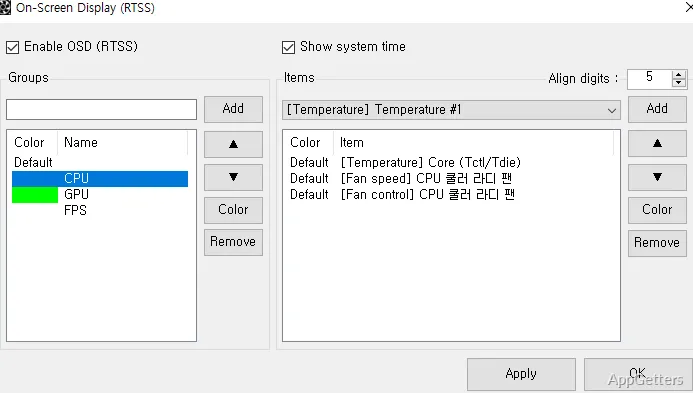
The optional on-screen display uses groups and items to arrange data, and only works while RivaTuner Statistics Server is running. Other settings include Fahrenheit temperature display, minimized startup, Windows startup launch with a configurable delay, and tray-icon animation during automatic control.
Pros
- Builds fan curves with step or linear response
- Saves and loads curve settings as presets
- Can read sensor data through HWiNFO
- Supports several NZXT, EVGA, and liquidctl integrations
System requirements: .NET Framework 4.7.2 · Visual C++ 2019 x64 redistributable · RivaTuner Statistics Server installed and running for the OSD feature
How do I set up automatic fan control in FanCtrl?
Enable automatic control, select a temperature sensor, add the fan, and adjust its graph. Apply the settings to save the configuration.
Can FanCtrl show temperatures and fan speeds from HWiNFO?
Yes. FanCtrl can communicate with HWiNFO to read sensor temperatures and fan RPM.
What does the Auto curve option do?
It leaves fan control at the BIOS default until the selected temperature is reached. Auto is available only with certain integrations, including LibreHardwareMonitor, OpenHardwareMonitor, Gigabyte, and NvAPIWrapper.