Teachers, trainers, and software teams creating walkthroughs or learning materials can record a screen session and shape it into a tutorial in ActivePresenter. It combines capture and video editing with tools for building interactive courses.
What can you capture and edit?
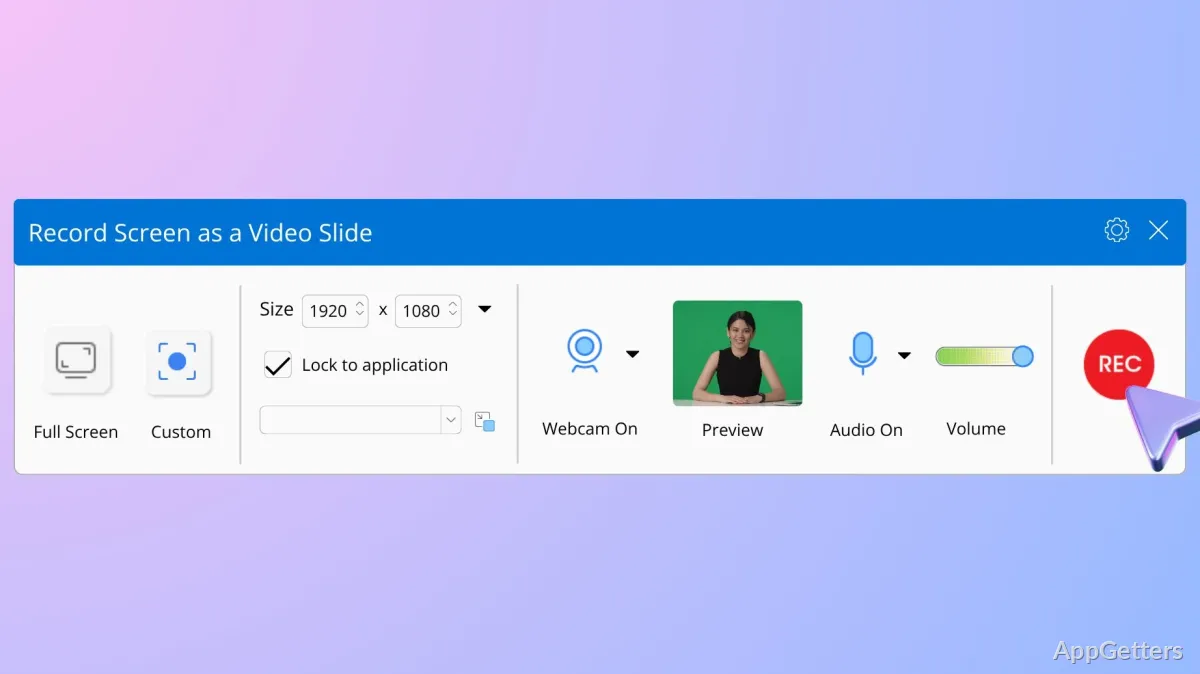
Choose a screen area or record the full display, with webcam, microphone, and system audio available alongside the capture. For software demonstrations, the resulting footage can be trimmed and arranged without moving it to a separate editor.
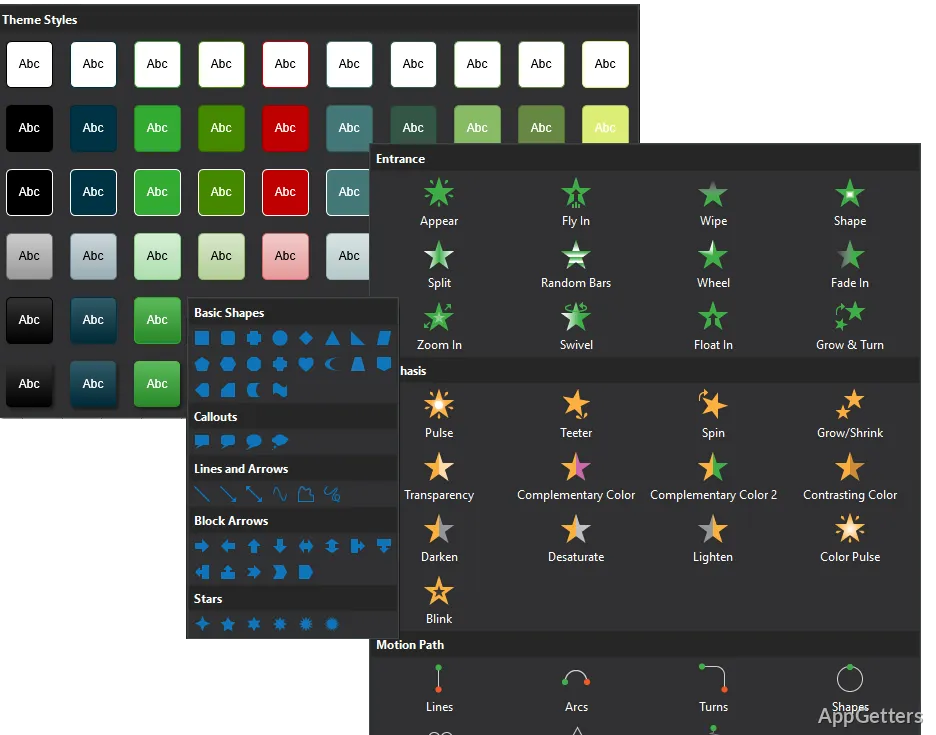
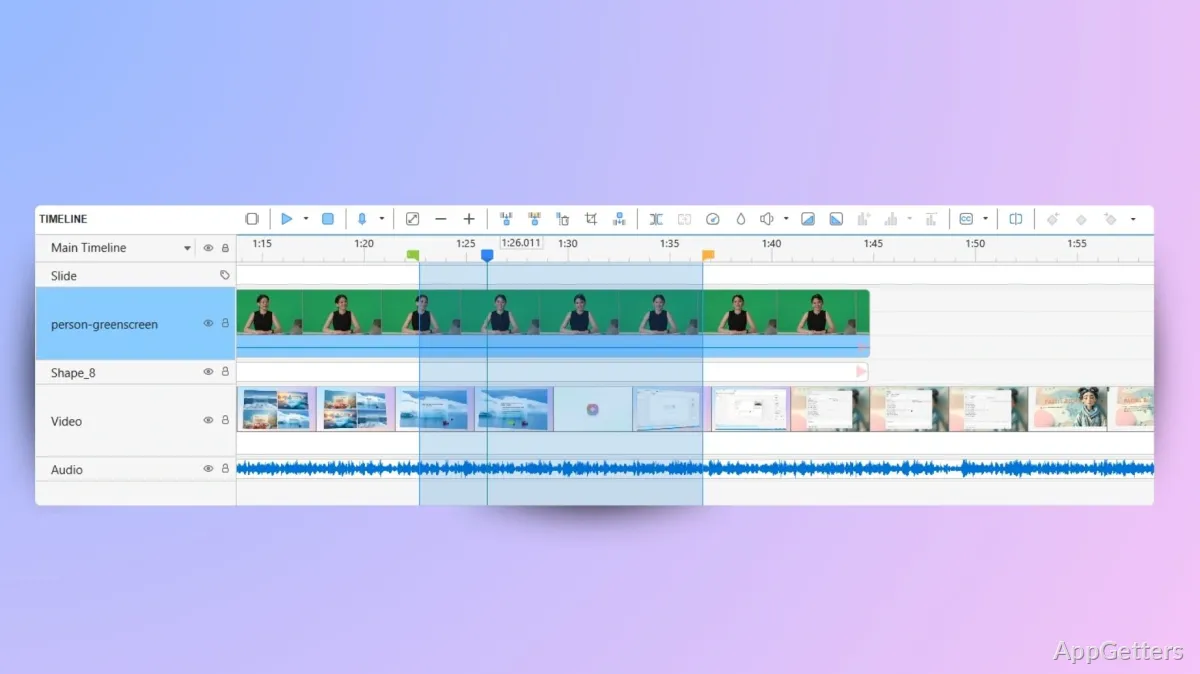
ActivePresenter includes cut, split, join, playback-speed and volume controls, plus freeze frames. Its multi-track audio and video editing lets you place narration and other media on separate tracks. Shapes, images, and audio annotations can call attention to steps; themes and colors keep the visual style consistent.
- Use transitions and animation effects to pace a demonstration.
- Export finished videos in MP4 or WebM, with H.264, H.265, or VPX codecs.
How does it turn recordings into training?
A recording can become part of a video-based course or software walkthrough. ActivePresenter also supports slide-based lessons, quizzes, and interactive learning projects. Import PowerPoint presentations to continue developing existing slide content, then add questions, feedback, or interactive elements.
- Create assessments with 13 question types and use slide pools to randomize questions.
- Use event-and-action interactions to build learner choices and branching activities.
- Export learning projects as HTML5, SCORM, or xAPI packages for course delivery.
Which output fits the finished project?
For a shareable tutorial or demonstration, export a video file in MP4 or WebM. For a course that needs learner interactions or assessment results, publish an HTML5 project or package it as SCORM or xAPI for an LMS. The right output depends on whether viewers will watch a video or interact with course content.
Pros
- Records screen, webcam, microphone, and speakers together
- Edits video and audio across multiple tracks
- Exports video to MP4 or WebM and courses to SCORM or xAPI
- Builds quizzes with question pools and randomized slides
System requirements: Windows 10, Windows 11 · 64-bit only
Can ActivePresenter record a webcam while capturing the screen?
Yes. It can record the screen, webcam, microphone, and speakers at the same time.
Can I make an interactive quiz?
Yes. ActivePresenter supports 13 question types, feedback, and randomized questions using slide pools.
What formats can I export?
Videos can be exported as MP4 or WebM. Learning projects can be published as HTML5, SCORM, or xAPI.