One click can reclaim cached RAM and show how much memory is available afterward. Wise Memory Optimizer displays memory use and provides manual and automatic controls for running a cleanup.
Reading the memory display
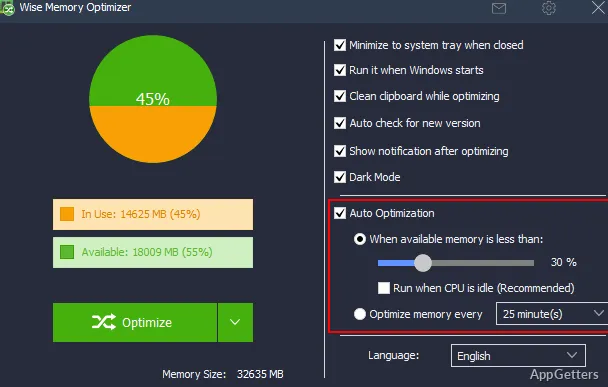
The main screen shows used, available, and total memory, with a pie chart for a quick visual view.
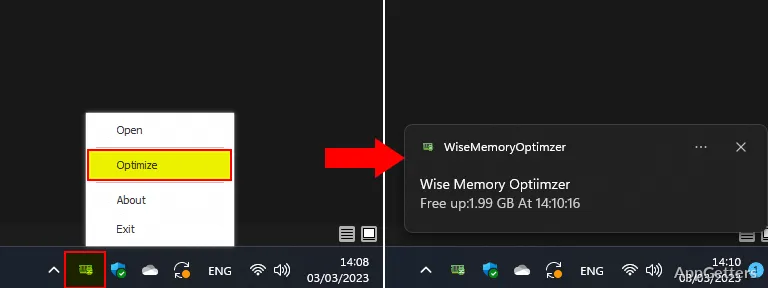
The Optimize Now control starts a manual cleanup from the same screen. Afterward, the available-memory figure shows the result.
What does Optimize Now do?
Wise Memory Optimizer frees memory associated with unnecessary applications and cached data. It also clears standby memory and performs RAM defragmentation. These actions aim to increase the amount of available RAM; the amount recovered depends on the memory currently in use and available to clean.
- Use Optimize Now for a manual cleanup.
- Use the memory display to see used, available, and total RAM.
Automatic cleanup and portable use
Automatic optimization can be set to start when available memory falls below a threshold chosen by the user. The program can also be configured to release a specified amount of memory. Its automatic cleanup can run when the CPU is idle, allowing the threshold setting to govern when optimization begins.
A portable edition is available for running the program from a folder or USB drive.
Pros
- Shows used, available, and total memory with a pie chart
- Clears standby memory and defragments RAM
- Can optimize automatically below a chosen available-memory threshold
- Portable version can run from a folder or USB drive
System requirements: Windows 7, Windows 8, Windows 8.1, Windows 10, Windows 11 · 32-bit and 64-bit
What does Wise Memory Optimizer clean?
It frees memory associated with unnecessary applications and cached data, clears standby memory, and defragments RAM.
Can memory optimization run automatically?
Yes. Set a threshold for available memory and a target amount to release; optimization can run when memory drops below the threshold.
Does Wise Memory Optimizer have a portable version?
Yes. The portable edition can run from a folder or USB drive.