EXE
Home » Software » Windows » Remote Desktop » UltraViewer for Windows
UltraViewer for Windows

UltraViewer for Windows

  • By DucFabulous
  • Free
  • Version: 6.6.127
  • 3.49 MB
  • Security Report:

Working with someone to solve a Windows issue remotely can sometimes turn out to be a bigger hassle than one would have thought. A lot of times, people just talk to their family members over the phone. They tell them to press some buttons. Those family members often don’t even know where the said buttons are. Sometimes they aren’t able to fully explain the error messages to the person helping them. The same very thing happens in work and educational setups. One gets stuck with a technical problem. One is in desperate need of the help of a technician. However, the technician doesn’t necessarily have to access the computer physically. This, in fact, is the situation that makes a remote-controlled desktop software like UltraViewer quite a good and reasonable idea.

They primarily focus on supplying a very simple remote access system for Windows users. These users only require light and instant help. Instead of a heavy and complex management system used by big enterprises, their method seems targeted more at the normal support sessions of everyday users. It is not aimed at the extremely complicated ones for IT administrators.

A Simple Approach to Remote Assistance

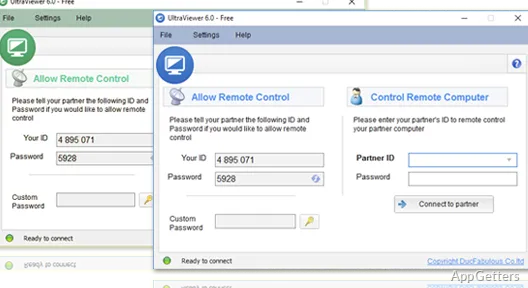
Setting up the software for the first time connection is as simple as possible. There are hardly any steps to be done by the user. Once you install it, the program will give you an ID and a password. You just need to send them to another person. This feature still retains the beginner-friendly nature of UltraViewer. It even keeps those users who are completely new to remote desktop software in mind. Whether one helps a family member, a friend, or a client, there should hardly be any time lost in planning a meeting.

The program is also very friendly and lightweight as far as usage and aesthetics are concerned. Users won’t feel very overwhelmed while they go on with the tasks during a support session. In comparison with the large suites for remote management, it is far more inviting and very light on the system resources. This allows the software to react even on older and slower Windows machines.

Practical Performance During Everyday Use

In regular office tasks and simple troubleshooting, you can fully expect UltraViewer to be a good enough support software. This is based on the typical features required. Small things like changing a setting, installing software from a remote location, or checking that a web browser is running without issues are easy and fast on a steady internet connection. Keyboard and mouse response is good enough for moving around, opening, and editing documents.

You can always use the chat feature in the software when a voice conversation becomes difficult to understand. It can also help when there is simply no way to have a voice conversation. It is pretty nice that the software, in its very own window, allows communication through typing. This helps those who are not very good with their hands.

On the other hand, the use of UltraViewer for a wide range of remote work may pose certain restrictions in terms of performance. These are naturally brought about by the existing quality of one’s network. During heavy load situations, the overall smoothness of the session may be compromised. Users can observe lag and some quality loss in images due to compression. However, even with this, for an average home or a small office, the software still manages to strike an attractive and viable balance between ease of use and functionality.

Where UltraViewer Fits Best on Windows

Quick help matters more than a highly technical and complicated management infrastructure when UltraViewer capabilities shine. Those small firms without dedicated IT departments may get a lot out of such a program. Even unskilled staff members can operate it with little or no training. In the same way, teachers, tutors, and remote technical support freelancers can all benefit from how quickly their sessions can be up and running.

Those who only occasionally access the second Windows machine from far away can also effectively use the software. For instance, opening and checking up on the files on the home computer when you are out of town can be useful. Resolving simple technical issues for your parents while they are at home is another scenario that can take place in reality.

Meanwhile, enterprises looking for tools for centralized device management, high-quality security auditing, or large-scale deployment may see the software as very limiting when compared with the enterprise-oriented options. The main point of focus for UltraViewer continues to be the assistance and very basic person-to-person control. It is not focused on overall administrative control.

A Reasonable Choice for Casual and Small-Scale Support

Users who also appreciate the least technical details will indeed use UltraViewer. This is especially true for those who would very much like to have a very quick total remote access most of the time. Its small size, simple way of going online, and its interface that can be handled very well by a beginner make it a go-to option. It is for those who only require very occasional remote support and who are not here often.

The program will find its place, above all, with those families, students, technicians working independently, and small offices. Rapid troubleshooting is the most important thing there. There is hardly any need for massive management features. It may be that it will never be the one to change or fully substitute professional enterprise remote desktop platforms in big organizations. But it will still be the everyday helper and the reliable center for the tasks at hand for most Windows users. It is this simple yet functional reliability that makes the software a grounded, sensible choice day in and day out.

Software Details of UltraViewer 6.6.127

License
Free
Version
6.6.127
File Size
3.49 MB
Downloads
0
Language
English
Category
Op. System
Windows
Developer
Last Updated
January 23, 2026

Version History

6 versions
6.6.127
Latest
3.49 MB
January 23, 2026
6.6.124
3.47 MB
July 20, 2025
6.6.113
3.47 MB
December 23, 2024
6.6.110
3.48 MB
November 27, 2024
6.6.80
3.46 MB
April 28, 2024
6.6.61
3.46 MB
February 7, 2024

Leave a Comment

Your email address will not be published. Required fields are marked *

Software Icon
Security Report

Loading scan data...

Scroll to Top