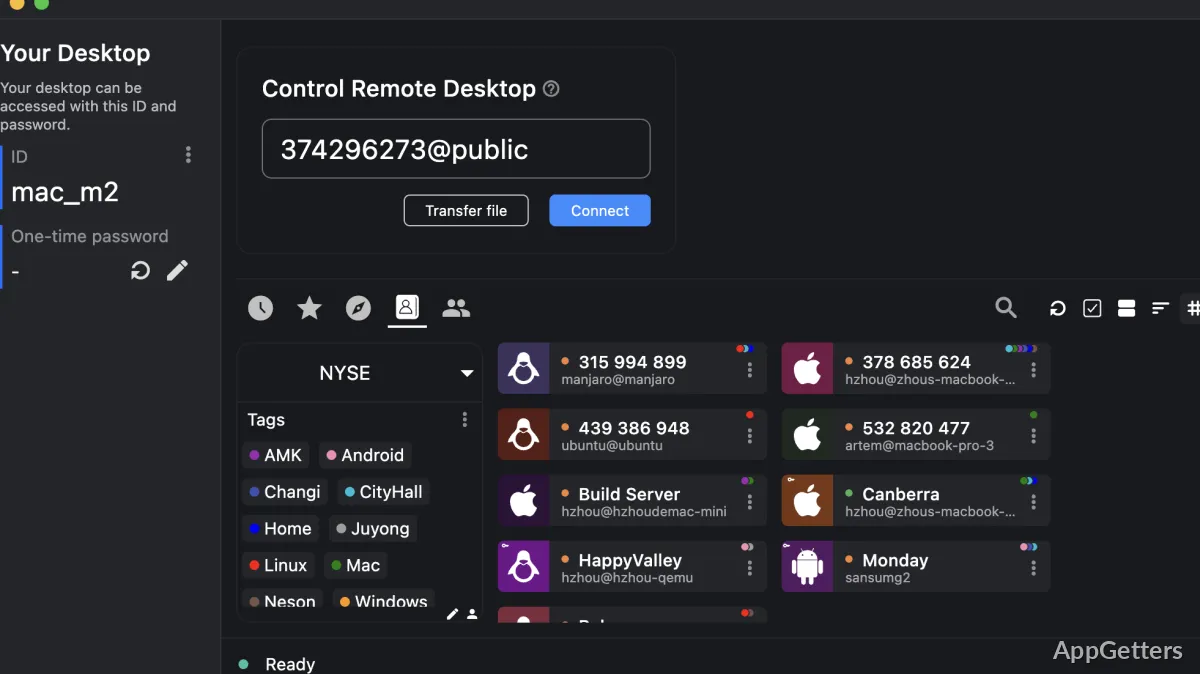
RustDesk for Windows When Remote Access Must Stay Under Your Control
A remote support session can fail before it even starts when the helper cannot reach the other PC, the user sends the wrong ID, or a relay server blocks the path. RustDesk for Windows fits users who want remote desktop access without building the whole workflow around a closed vendor account.
RustDesk is an open-source remote desktop tool for screen control, remote support, file transfer, and unattended access workflows. Its main difference is the option to use RustDesk with self-hosted ID and relay infrastructure, so teams can keep more control over how remote devices find and connect to each other.
The Windows app can work for a quick support session, but it also suits technicians who manage repeated access to office PCs, lab systems, home machines, or small business devices. Before installing, check the version and package type shown on the download card, then compare it with the release page or the app’s own version screen.
Download Choices That Matter Before the First Session
RustDesk download choices are not only about getting an EXE onto the PC. Some users want a quick temporary run, while others need a normal installed client that can start with Windows and handle unattended access. Choose the package that matches the way the computer will be used.
For a one-time support call, the simplest route is to run the current Windows package, share the temporary connection details only with the trusted helper, and close the app when the work ends. For repeated access, install the program carefully and review the security, password, and startup settings before leaving the PC unattended.
RustDesk for Windows should be downloaded from the official developer source or the supplied download card. RustDesk itself warns users to avoid unofficial domains, which matters because remote desktop tools can be misused by scammers. Avoid modified installers, cracked editions, serial key pages, and unknown mirror downloads.
If you compare remote desktop tools, AnyDesk and TeamViewer are common alternatives. RustDesk is different because self-hosting remains a central part of its identity, especially for users who do not want every connection decision tied to a third-party service.
Temporary use versus installed use
A temporary run is useful when the remote PC belongs to a customer or family member who only needs quick help. Installed use makes more sense when the same PC must stay reachable after reboot, when unattended access is needed, or when a technician expects to reconnect later.
Version checking without risky assumptions
Avoid depending on old version numbers copied from other pages. RustDesk changes over time, and Windows packages can differ by release channel or architecture. Use the version shown beside your download, then confirm it inside the app after installation if version accuracy matters.
Set Up RustDesk Before Sharing Access
RustDesk for Windows becomes safer and easier to use when you set the session rules before someone connects. The user at the remote PC should know who is connecting, why the connection is needed, and what access level will be allowed during the session.
The basic connection flow uses the remote PC’s ID and a password or approval prompt. The helper enters the ID, starts the connection, and waits for the remote side to approve or authenticate. If the PC must be reachable later, configure unattended access carefully instead of reusing temporary session details casually.
Windows may show a firewall or security prompt the first time the app starts. Check that the installer came from the official developer source or supplied download card before continuing. Choose the network profile that matches the PC’s actual location and trust level.
Unattended access needs stricter care
Unattended access should not be treated like a convenience toggle. Use a strong password, restrict who receives the address book or connection details, and remove access when the support relationship ends. A remote desktop app has broad control, so weak unattended settings can create real risk.
File transfer and clipboard checks
RustDesk includes remote support features that may involve clipboard sharing and file movement, depending on the session settings and build. Test these features with harmless files first. If transfers fail, check permissions, the remote user’s approval, and security software messages before assuming the download is broken.
Self-Hosted RustDesk and Server Settings
The self-hosted option is the reason many users choose this remote desktop tool. RustDesk can use ID and relay server components so devices can find each other and relay traffic when a direct path does not work. This helps teams keep remote access infrastructure closer to systems they manage.
A self-hosted setup is not the same thing as installing the Windows client. The server side uses RustDesk ID and relay services, often deployed with Docker or Linux services. The Windows client then needs the right ID server, relay setting when required, and public key so it can trust the self-hosted environment.
RustDesk documentation describes core server ports for ID, relay, and NAT traversal. In practice, connection success depends on firewall rules, public DNS or IP setup, NAT behavior, and whether both client machines use matching server settings. One wrong value can make every device appear offline or stuck while connecting.
ID server and relay server confusion
The ID server helps clients discover each other. The relay server carries traffic when a direct connection cannot be made. If the ID server value points to a private address that outside devices cannot reach, remote clients may look configured but still fail from another network.
Public key mismatch
Self-hosted RustDesk clients need the correct server key for encrypted connections. If the key changes after a server rebuild, old Windows clients may keep trying to use a stale value. Export a known-good configuration or update the clients after server migration.
When a simpler remote tool is enough
Self-hosting is useful, but it adds server maintenance. A user who only needs LAN control or a lightweight remote access pattern may also compare TightVNC. Larger support teams that manage many saved entries may also look at Remote Desktop Manager for organizing different connection types.
Connection Problems Users Usually Notice First
RustDesk for Windows can look broken when the real issue sits in the network path. A remote desktop session has several moving parts: the local app, the remote app, Windows firewall, NAT, the ID server, the relay server, and the approval or password setting.
Stuck on connecting
If the app stays on a connecting message, check whether both PCs show a ready state, whether the remote ID is current, and whether the remote side is online. With self-hosted setups, confirm that both clients use the same server details and key.
Failed relay connection
A relay error often points to firewall, port forwarding, DNS, or relay server configuration. Avoid opening random ports without understanding the server layout. Confirm the relay service is running, check logs if you manage the server, and verify that the client can reach the public host name.
Remote screen opens but control feels delayed
Delay can come from relay traffic, weak upload speed, high display resolution, or a crowded network. Reduce quality settings, test a smaller display mode, close heavy uploads, and compare direct and relayed behavior. Office work usually needs less bandwidth than full-motion video or graphics work.
Password or approval does not work
When authentication fails, separate temporary access from unattended access. A changing one-time password is not the same as a permanent password. Ask the remote user to read the current details from the app screen, not from an old message or screenshot.
App starts but Windows interrupts the session
Security software, controlled folder settings, firewall rules, or company policy can interrupt remote control. On managed business PCs, ask the administrator before changing protection settings. RustDesk is legitimate software, but remote control tools are also sensitive from a security policy point of view.
Before You Leave RustDesk Installed
RustDesk for Windows should be treated as access software, not just another desktop utility. After the support task ends, decide whether the app should remain installed, start with Windows, keep unattended access enabled, or be removed from the machine.
For family support, keep access simple and transparent. Tell the remote user when you connect, avoid storing passwords in unsafe notes, and disconnect after the job is complete. For business support, document who has access, which machines use self-hosted settings, and who can change the server configuration.
If the download card shows a new package later, update with normal care. Close active sessions, make sure you can regain access if the remote PC restarts, and avoid replacing a working self-hosted configuration without saving the old server values. A careful update can prevent lockouts.
RustDesk fits three different remote access patterns: temporary help, repeated installed access, and self-hosted remote desktop control. Match the setup to the session type, protect unattended passwords, keep self-hosted server details recorded, and test the first connection before relying on the PC for urgent remote support.