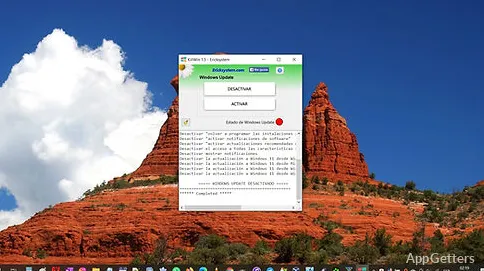
Windows Update status monitoring shows the state of the update feature, while controls in KillWin let you deactivate or reactivate automatic updates. KillWin, from Ericksystem, offers several ways to manage that setting through Windows services, registry rules, and scheduled tasks.
Check Windows Update status
KillWin includes a status monitor for Windows Update. This lets you see the update feature's state within the utility while managing whether automatic updates are active.
Choose how to disable automatic updates
The utility provides several Windows components for controlling updates. It can stop the Windows Update service through Services, create registry rules intended to disable Windows Update, or disable it through Task Scheduler.
- Use the service control to stop Windows Update.
- Apply registry rules for update settings similar to those managed through Group Policy.
- Disable Windows Update tasks through Task Scheduler.
Reactivate Windows Update
KillWin can also reactivate automatic updates. The same utility that provides the disable controls includes an option for turning updates back on.
Pros
- Monitors Windows Update status
- Can stop the Windows Update service
- Offers registry-rule and Task Scheduler controls
- Supports reactivating automatic updates
Cons
- While updates are off, Windows also receives no security patches
System requirements: Windows 7, Windows 8, Windows 8.1, Windows 10, Windows 11 · 32-bit and 64-bit
What does KillWin do?
It monitors Windows Update status and provides controls to disable or reactivate automatic updates.
Which Windows components can KillWin use to disable updates?
It can stop the Windows Update service, create registry rules, and disable update tasks through Task Scheduler.
Can updates be turned back on?
Yes. KillWin includes an option to reactivate automatic updates.