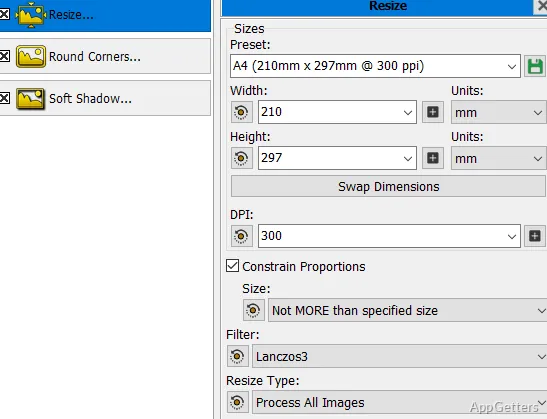
If you have lots of images to manage on Windows, it can pretty fast become quite a chore. For instance, simple actions like resizing the pictures, changing their formats, putting watermarks on them, or fiddling with the photos’ attributes can be very easy on their own. But the problem is that when you end up doing those things to each and every image, it turns out to be such a boring task that nobody enjoys. Actually, what normally happens is that users, after a while, find out that the standard image editors are primarily made for editing one image at a time rather than a large number of the same kind of batch operations. Therefore, ImBatch is aimed at resolving that very issue of your working process.
Instead of being a creative image editor, it is an automation and batch image processing tool. In essence, the program is feature-wise more like a power tool to ramp up your productivity rather than the usual photo editor. What it really does is it helps you put together the image-related chores that you do over and over again into automated sequences. These greatly reduce the amount of manual tweaking you need to do across dozens and hundreds of files.
ImBatch is truly a powerhouse for users who want to accomplish more with less effort via automation.
Among many other useful features, one that makes a great difference is ImBatch’s excellent way of dealing with the work that you have to do over and over again. Typically, people who frequently handle large quantities of images need to perform the same adjustments quite often. Such adjustments might be for images that will be posted on a website, documents, or just images that are saved on a user´s device. If one decides to do it all manually, it is not only going to take more time than you had at first planned. It is also very likely to become tedious.
Regularly, in Windows environment scenarios, when you use apps like ImBatch. A great deal of assistance comes from the ability of the program.
To generate a whole set of work or jobs. These later get executed without the user having to monitor the process at any point.
Processing Performance is Key for Windows Users
ImBatch running on Windows hardware nowadays very rarely hangs or crashes. Even when the user is simultaneously managing hundreds or even thousands of image files. The core design ideas of the software support a queuing system so that users can always prepare their task or job list in advance. They can then just promptly let the machine be the one to do the work down to the last detail.
Having said that, it is still great to remember that a considerable part of the value or the very purpose of such software lies in the fact that it allows you or your team to walk a production path over and over again. The involved results remain completely identical. As an example of this, there would be the case of a user needing to regulate the dimensions. And formats of a set of product images. This would happen before the images get distributed to the online web store or something along those lines. Students who scan documents and photographers who export preview versions may find similar improvements. This can make their workflow more efficient.
If you don’t know how to debug your automation
ImBatch, of course, is only as good as what the user actually wants to get done. When the user knows exactly what needs to be done repeatedly, and sets up the processing routines, the time savings can be huge. This is measured against manual methods of editing. This is the hub of the software’s utility and value in the regular usage context.
Repetitive batches done automatically will yield consistent results. Manual work is unlikely to be able to do this perfectly, especially in very large groups of images. Two things will inevitably happen over the course of the work. They set the user up for slightly different settings and occasional mismatches. When maintaining professional-looking presentations, websites, or digital archives, batch automation is great.
One of the downers of ImBatch is that it is not going to be your one-stop shop for photo editing that is of middle to advanced level. This includes the kind of retouching that uses layers, layer masks, or the techniques typical of artistic rendering. These rely on manipulations to a great extent, and so on and so forth. In short, the program can be used side by side and as a complement to creatively oriented photo editors. It is rather than being the one that replaces them altogether.
Besides that, the automation feature set, powerful as it is, might just be more than what a casual user needs for very rare bulk image processing. At the same time, it may become the very thing that puts one off from using it regularly altogether. It will take some moderate learning effort to master it.
Great for High-Volume Daily Image Editing
If you use image processing a lot and regularly, other workflow tools may fit your needs better. They rely on interoperability of Windows software. This goes with ImBatch as well. Scenes and situations where there is a need to produce a lot with few human involvement steps are where this program is most effective. It is tailor-made, in fact, for the user who wants efficiency, uniform performance, and reliable automation. It focuses more on high-grade consistency rather than visual creativity or artistically advanced editing.
They will find the program especially suitable and will get a lot out of its functionality. This applies to office workers who manage document scans, online sellers preparing catalog images, students organizing project materials, and photographers making resized exports. In such cases, the software becomes a helpful tool. It reduces tedious manual work and speeds up the process markedly. It does this without requiring users to have expensive and high-end hardware at their disposal.
Even though you may not consider that it will ever replace full-fledged creative editing platforms, it still serves as a utility for handling large image operations. The reliability of the tool should not be neglected. It must be stressed that it really shines in making it possible and easy to accomplish those routine tasks. When done without it, and using only manual methods, these tasks will take a lot of time. They will also be more than just boring.