EXE
Home » Desktop Customization » Fences for Windows
Fences for Windows

Fences for Windows

Whenever users simply drop files on the desktop for quick access or capture many screenshots, it might make the desktop quite messy. Besides, with shortcuts that multiply, things get worse. So the desktop is not only a messy working environment, but also stops being a clean launch point for the operating system. Some users try to handle them manually. They pull the icons into the corners or create new folders. However, sometimes it is very frustrating to properly lay them out again after changing the resolution or workflow. A very handy thing in those kinds of situations is desktop organization software like Fences. Even without deeply altering the usual ways of working, it can bring a lot of order to messy desktops. In fact, it is rarely a complete overhaul but rather an organizational layer put over the Windows desktop.

Desk organization is absent, with continuous self-cleaning

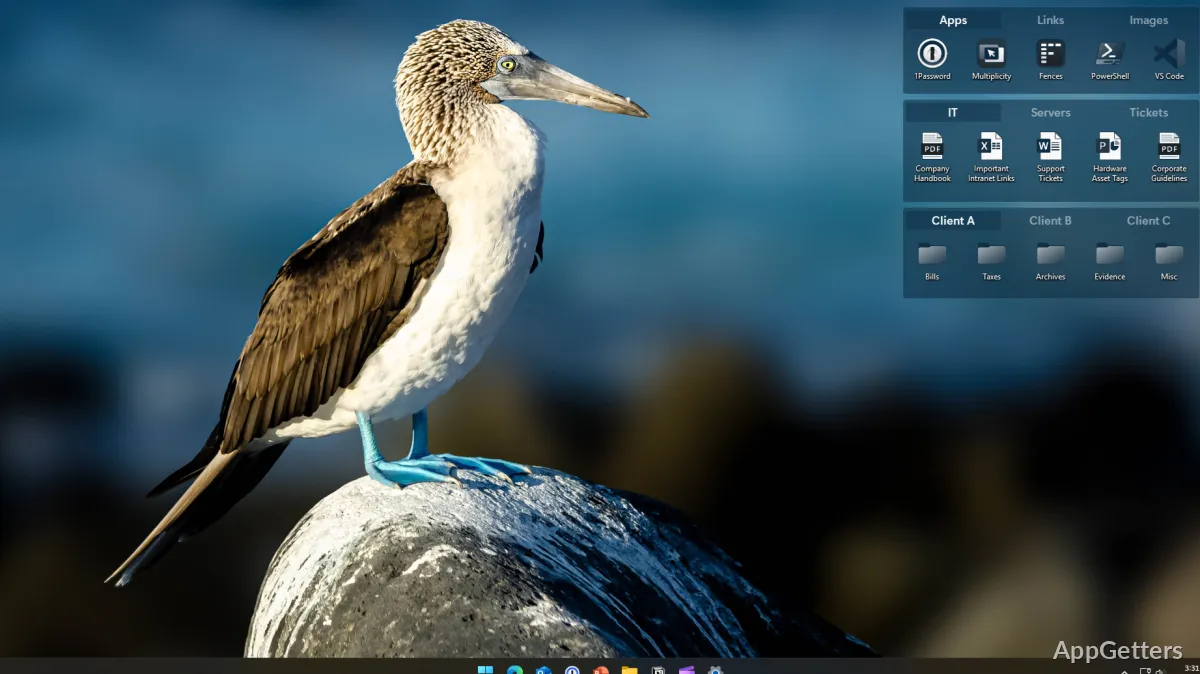
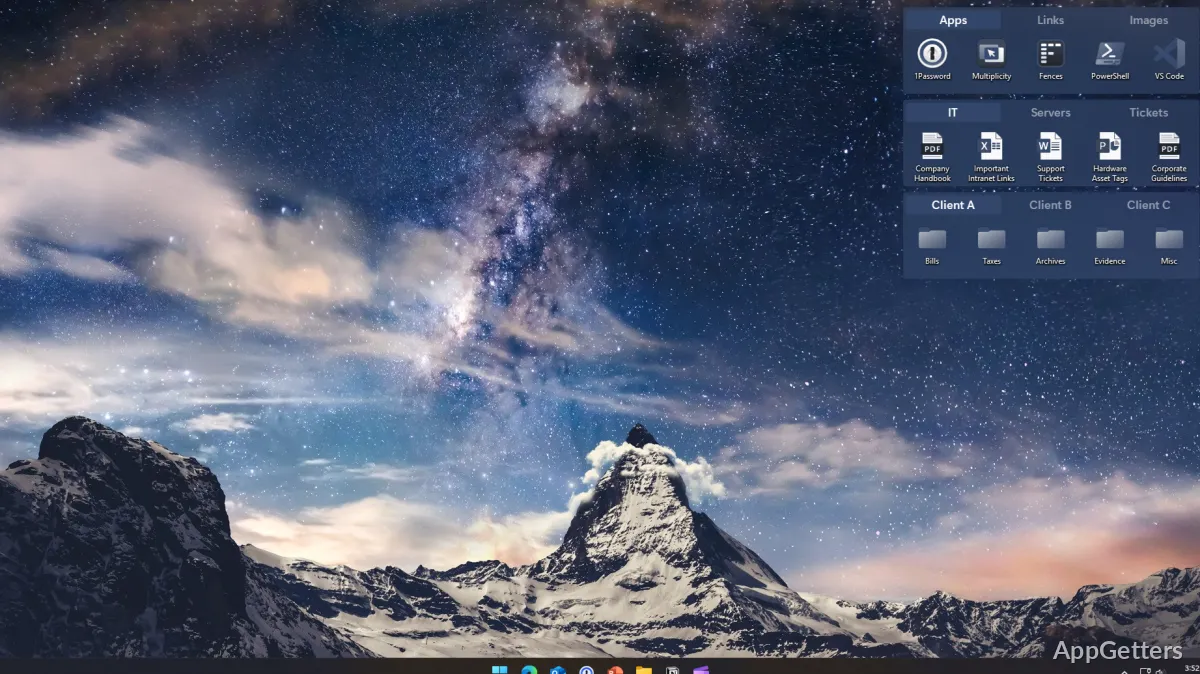
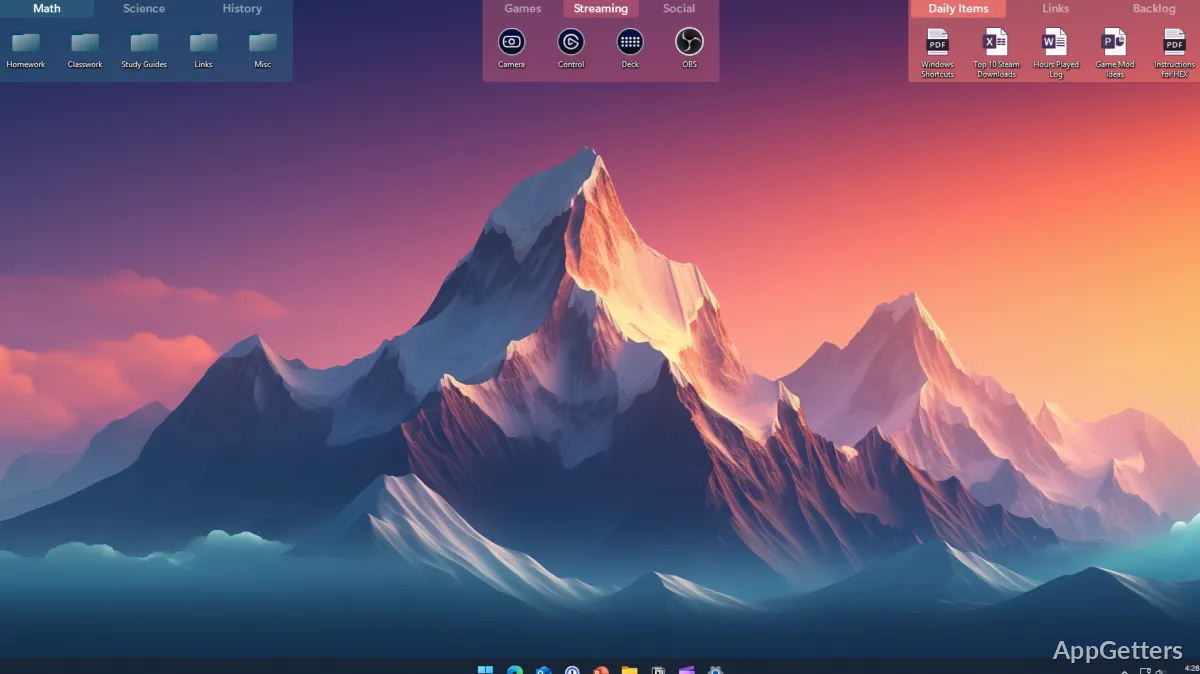
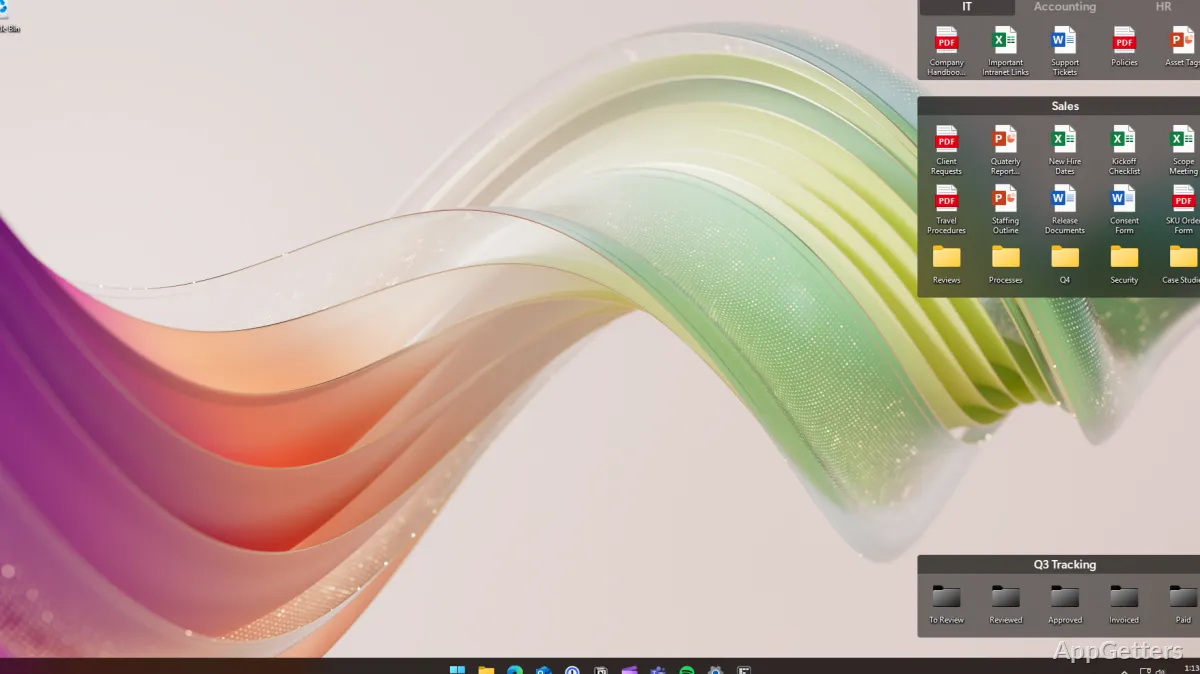
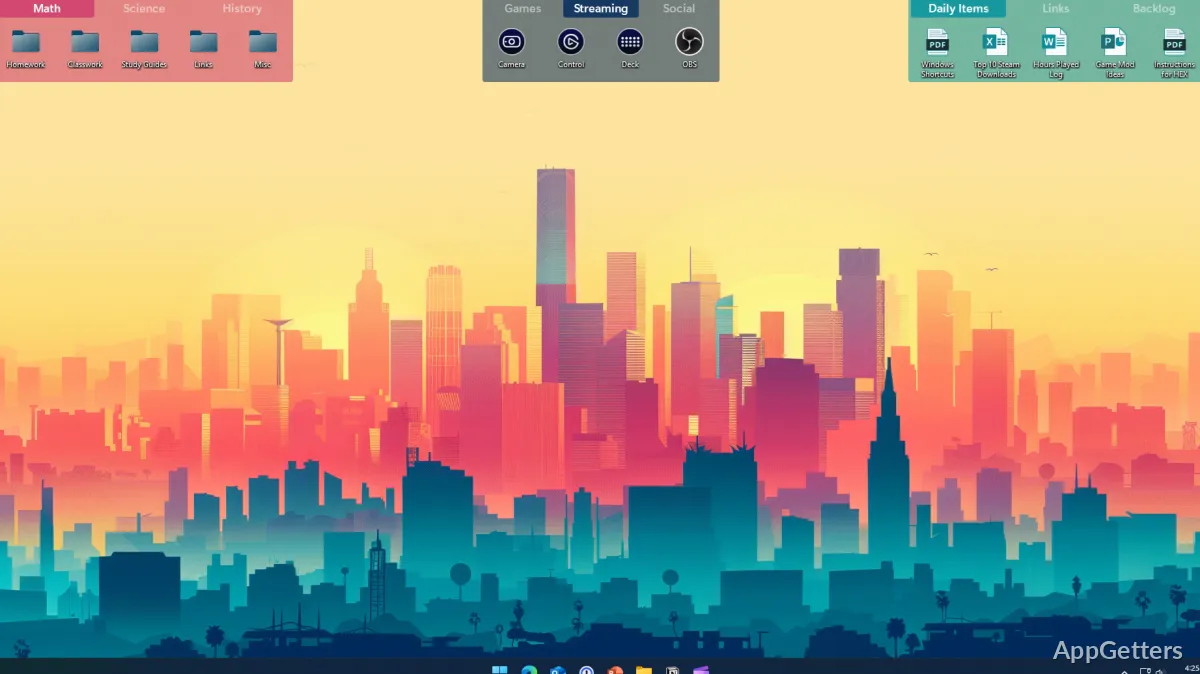
Fences basically allows you to mark a background color and label the area on the desktop so that it acts like a container. Instead of having files scattered everywhere, users just have to put their related files into these drop zones. This also means that desktop users who save files on it without making lots of sorting will find it very helpful at times of bringing some organization.

In that sense, the usage of the new fences seems like a passive experience after a while. The icons almost automatically fall into their proper places without requiring any sort of intervention. Of course, it is not as easy as you might think. People who regularly install or download files have to find a new location to store their new shortcuts. Fences are a visual helper. But if you do have a habit of cluttering your desktop, it is not going to help much because of the habit. It will only be more orderly and less messy.

Workflows you will be more in control of on a daily basis

Many users find Fences to be a great productivity enhancer because of the overall effect of the different zones on the overall look of the desktop and, as a consequence, on the user’s working environment. Students, office workers, and casual users often use desktops as short-term repositories. The consequence of this is that the output becomes very messy. Users take more time to navigate. Fences allows you to keep all your related items in separate zones. As a result, you will find it easier to scan your desktop.

It is the principle of double-clicking the desktop that makes the fences disappear or appear. So, in an instant, the workspace looks neat. This comes in handy at the time of presentations and running sessions without distractions. It is true, though, that the gains are mainly in terms of a facelift and organization. Fences by itself does nothing to facilitate or speed up access to files, other than reducing the chance of getting lost.

Performance, Stability, and Real-Life Behavior

In a typical day, Fences quietly sits in the background without taking up system resources noticeably on any modern Windows computer. Since it integrates directly into the desktop environment, it does not seem like a separate application. After setting it up, you can almost count on it to keep working after reboots and during normal usage.

Users working with very complicated scenarios may see some limitations. For example, on multi-monitor setups or when changing display scaling, icon positions may not be saved correctly and may require minor adjustments. Although minor, these problems can serve as a signal that the program is still a companion of Windows and not a replacement for the Windows desktop system. Most of the time, however, it is a good companion for standard home and office setups.

When the desktop arrangement is more important than simplicity

If you are one of those people who use a desktop actively instead of just keeping it as a place for wallpaper, then Fences may be a good option for you. It is also helpful for those whose file usage is mainly based on short-term memory, or those who multitask and switch between tasks. Some users might still find it useful, since they may also prefer visual grouping to using File Explorer or pinned taskbar shortcuts.

Conversely, if you prefer having a minimal desktop and keep the majority of your files stored in properly sorted folders, then Fences is simply a convenient software tool for you. Fences does not alter the Windows desktop but rather adapts it for users who visually depend on desktop management most heavily.

Software Details of Fences 6.4.6.1

License
Owner
Version
6.4.6.1
File Size
22.97 MB
Downloads
0
Language
English
Op. System
Windows
Last Updated
May 30, 2026

Version History

5 versions
6.4.6.1
Latest
22.97 MB
May 30, 2026
6.2.0.1
22.82 MB
December 10, 2025
6.0.2.6
22.66 MB
September 19, 2025
6.00
13.05 MB
June 2, 2025
5.8.9.3
21.76 MB
March 12, 2025

Leave a Comment

Your email address will not be published. Required fields are marked *

Software Icon
Security Report

Loading scan data...

Scroll to Top