Prefer listening to long documents or ebooks instead of reading them? The free Balabolka reads text aloud with the voices installed on your PC and can save the speech as an audio file. Open a document, paste text, or have the program read copied clipboard content, then adjust the voice controls to suit the passage.
How does Balabolka read a document?
Open supported text files such as DOC, PDF, RTF, HTML, or EPUB, or paste text directly into the editor. Balabolka can also read text copied to the clipboard, which suits quick passages that do not need to be saved as a separate document.
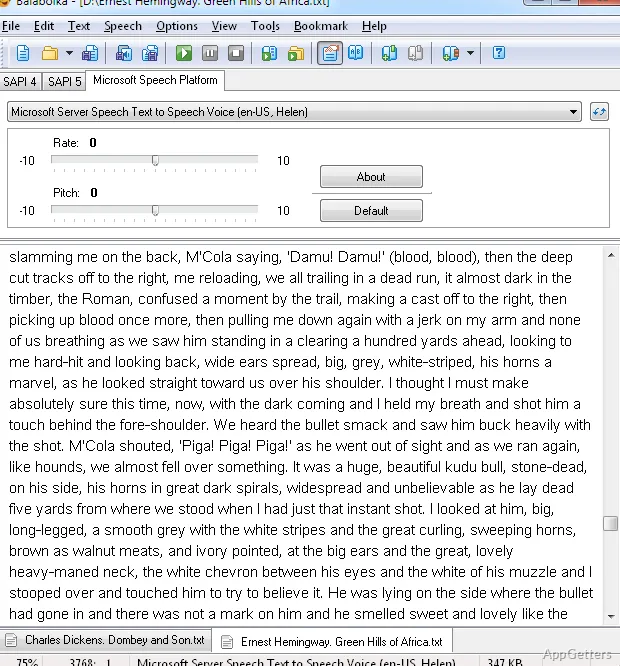
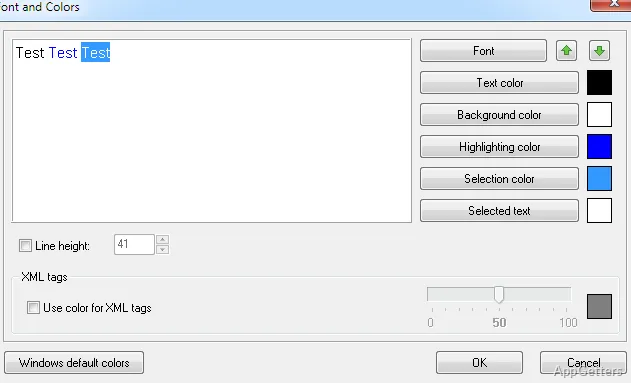
Choose an installed voice and start speech playback. Balabolka uses Microsoft Speech API voices available on the computer; the voice selection and playback controls let you change pitch, speaking rate, and volume. The current word can be highlighted during playback, making it easier to follow along or spot a phrase while listening.
Voice playback and audio files
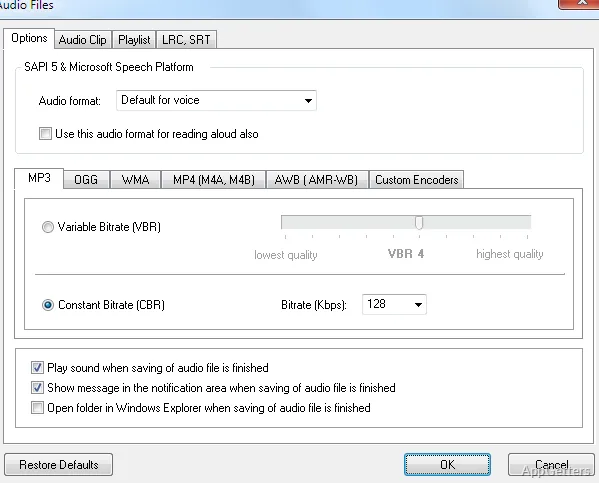
Speech can be played from the text window or saved as an audio file for listening later. Balabolka supports output formats including WAV, MP3, OGG, and WMA. The exported file uses the selected system voice and the voice settings chosen in the program.
Because speech comes from installed voices, the choice of voices depends on what is available on the computer.
Text preparation tools
Balabolka includes controls for changing text before playback or conversion. Its pronunciation dictionary can provide customized pronunciations for particular words, and text replacement options can alter specified text. These tools are useful for names, abbreviations, or recurring terms that a voice does not pronounce as intended.
For longer material, text can be divided into smaller parts before saving speech. The program also offers batch conversion and command-line operation, providing ways to process multiple text files or invoke conversion from scripts without operating each document manually.
Pros
- Reads documents and clipboard text aloud
- Uses installed SAPI voices with adjustable pitch, speed, and volume
- Exports speech to WAV, MP3, OGG, and WMA
- Highlights text as the corresponding words are spoken
Can Balabolka read text copied from another application?
Yes. It can read clipboard text as well as text opened or entered in the program.
Can I save spoken text as an audio file?
Yes. Balabolka can export speech to formats including WAV, MP3, OGG, and WMA.
How do I change the voice or speaking rate?
Select an installed speech voice and adjust its pitch, speed, or volume in Balabolka.