Running two or three monitors and tired of Windows putting every window in the wrong place? Actual Window Manager adds controls for arranging windows, handling multiple displays and switching between virtual desktops. Per-window rules can set how an application opens, while taskbars, snapping, and hotkeys provide other ways to manage a busy desktop.
Arrange windows across your monitors
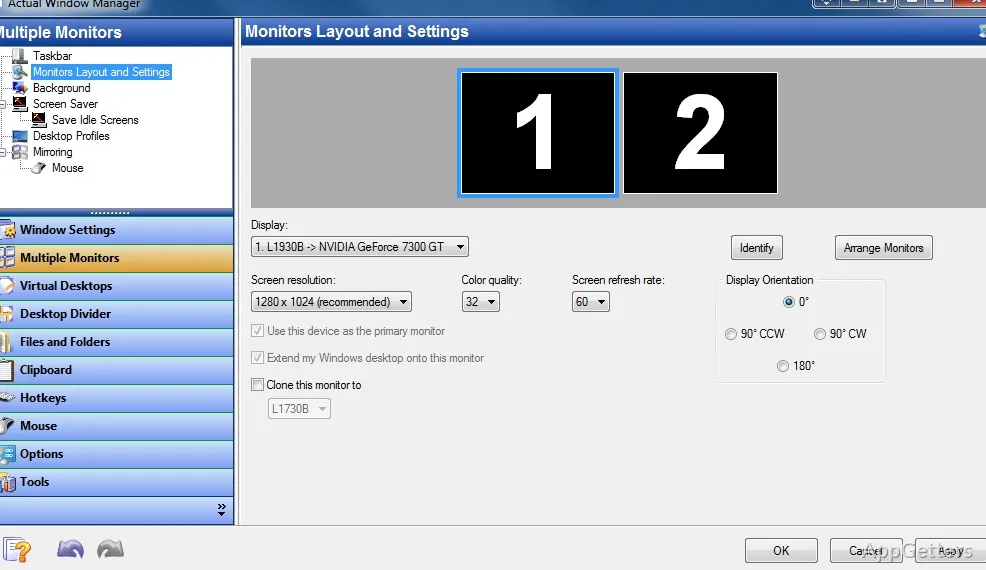
Actual Window Manager can add a taskbar to each display and manage desktop profiles for multi-monitor setups. Window snapping can align a dragged window with monitor edges, other windows, or a custom grid. The Desktop Divider feature defines tile layouts; dropping a window into a tile resizes it to fit that area.
Desktop Mirroring shows a chosen window, monitor, or desktop region in a separate window. That view can appear on another display, such as a projector, while work continues on the main screen.
Set up virtual desktops and window rules
Virtual Desktops provide separate desktop spaces, each with its own windows. Actual Window Manager offers Classic and Independent modes for multi-monitor desktop behavior.
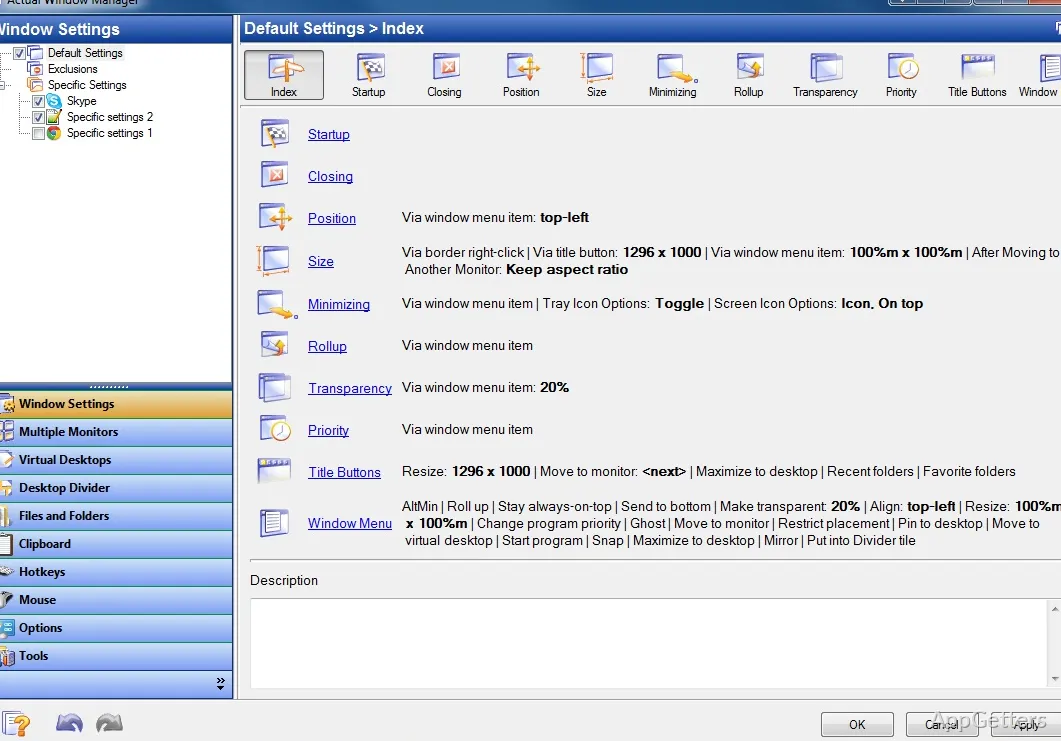
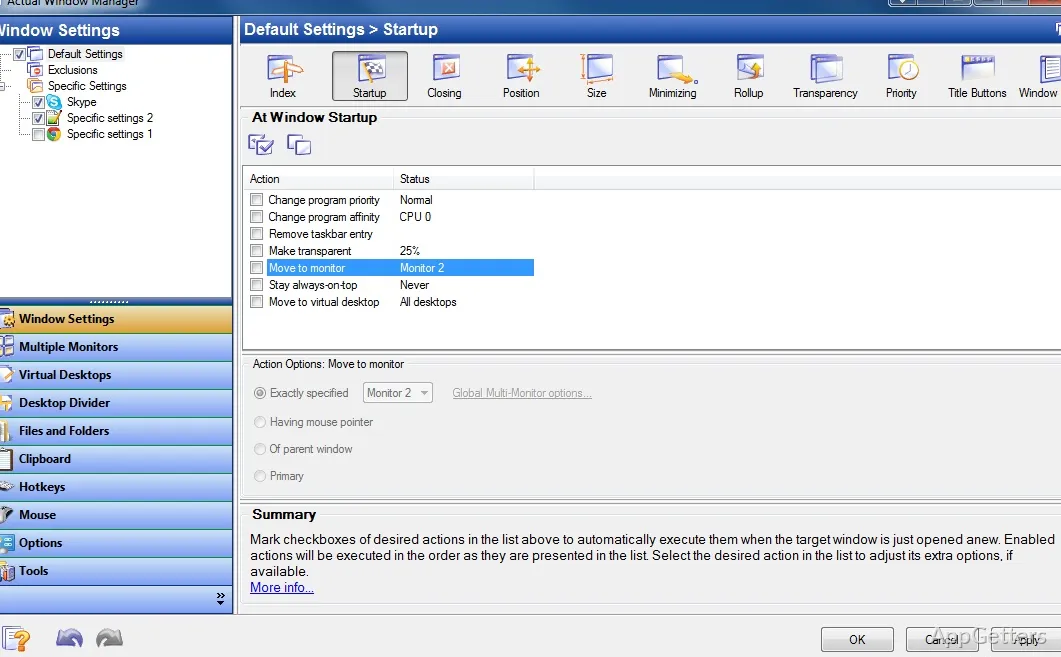
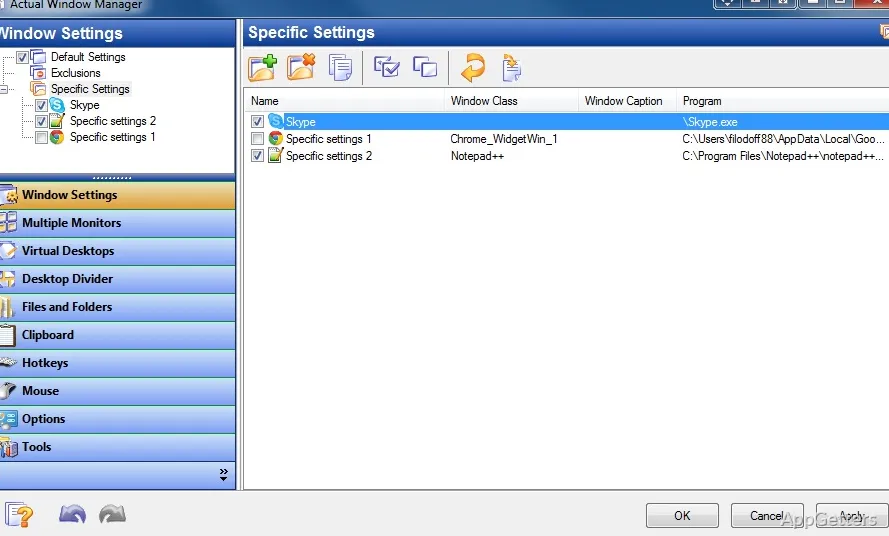
Configure individual window settings to control startup mode, opening position, priority, and whether a window ignores deactivation. These rules can keep frequently used applications in a consistent arrangement.
Add controls to title bars and hotkeys
Extra title-bar buttons put common actions on the window itself. Depending on the configured controls, a button can pin a window above others, move it to another monitor, minimize it to the system tray, or change its size.
Hotkeys can trigger many program functions, and custom key combinations can be assigned to supported window operations. Additional folder buttons provide shortcuts to recent and favorite folders in Windows Explorer.
Tune behavior for games and displays
The Ignore Deactivation option can keep a game from minimizing when another application receives focus. Lock Mouse confines the pointer to a selected window or monitor.
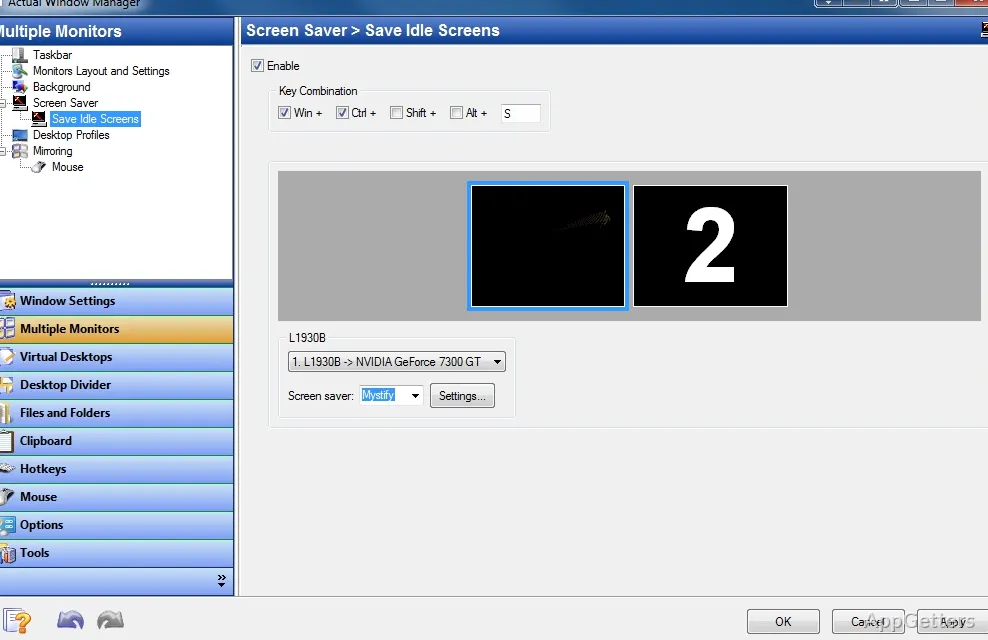
Display controls also cover multi-monitor wallpapers and screen savers. Backgrounds can use one image across the desktop or separate images per monitor; screen savers can likewise span the desktop or run individually on each display.
Pros
- Creates a separate taskbar for each monitor
- Sets window startup positions and behavior individually
- Offers virtual desktops and custom window tile layouts
- Adds hotkeys and title-bar controls for window actions
System requirements: Windows 7, Windows 8, Windows 8.1, Windows 10, Windows 11 · 32-bit and 64-bit
Can Actual Window Manager create a separate taskbar for each monitor?
Yes. It can provide a taskbar on each display as part of its multi-monitor desktop controls.
How do virtual desktops work in Actual Window Manager?
They provide separate desktop spaces with their own windows. The program includes Classic and Independent modes for multi-monitor support.
Can it keep a game active while switching applications?
The Ignore Deactivation setting can prevent a game from minimizing when another application takes focus.