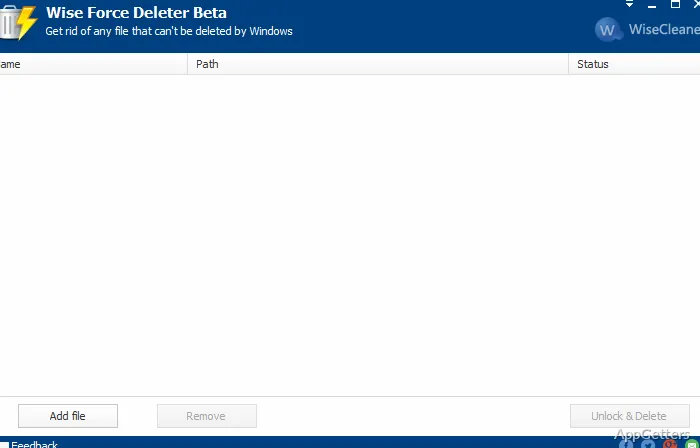
Almost every Windows user will find themselves dealing with files or folders that are not deletable. These are the cases when the system throws up errors such as ” files in use” or access denied, stopping even the simplest operations. Such situations mostly occur with the leftover files of programs, temporary data, or files locked by the invisible system processes. Wise Force Deleter attempts to solve the user’s problem that leads to this type of frustration. The tool developed by WiseCleaner allows unlocking and deleting files that even the Windows default tools fail to remove. It doesn’t replace the default delete function, but instead, serves as a secondary option for deleting when usual methods do not work, which makes it very handy in troubleshooting situations.
What it Does When the Files Get Locked
When used, the program determines which processes are causing the file deletion problem. It then tries to unlock or kill these handles and then deletes the file. Everything is done without much involvement from the user, as the program eliminates the need to find which application is causing the problem. For regular users, the whole process gets simplified as no one will have to use Task Manager or command-line utilities in order to do that. A few clicks and a file that was stuck can be removed. This comes in very handy when uninstalling the software that left leftover files around.
On the other hand, the tool’s measure of force that it uses to operate requires a user to be careful. One can delete critical system files or data of running applications, and that will lead to system problems. Even though the user interface is very simple, the tool sometimes does not warn the user in detail about the possible risks.
In the Real World and the Impact on the Workflow
In addition, Wise Force Deleter is available when you right-click files in the context menu. And thus, that makes it very convenient to grab it as and when you need it. Such a minor thing is a protagonist for the workflow. It removes the situation where a user keeps opening a separate application on each instance with a locked file.
Just by looking at the real-life scenarios, the program can be said to be very reliable and up to the task. These are the most common examples of temporary files, installer leftovers, and problematic folders that can all be eliminated easily. Furthermore, the time taken to carry out the operation is short, and the effect is immediate, which is one of the reasons why the program is a good option for routine cleaning.
That being said, it is also likely that it is something users will not want to do on a daily basis. You can see its merit only when you get a problem. In addition, those users who infrequently get stuck by locked files may even forget that they have it installed on their computers. But without a doubt, it can be a time and hassle saver.
Reliability and Limits in Practice
Wise Force Deleter works pretty well with the majority of file-locking scenarios. However, this does not mean that it is a catch-all solution. Certain files that are strongly integrated with system processes may still be un-deletable. They may require a system reboot for complete elimination.
The second drawback is the absence of detailed reporting. Expert users may be interested to see which processes were killed or in what way the file was unlocked. The tool leans towards being a friendly one for beginners and, thus, compromises in offering insight. This could be limiting in complex cases.
Also, forced deletion should not be seen as a fix for the problem at the root. If the file is locked by the system due to malware, conflicts of software, or errors in the system, then its deletion will not solve the actual issue.
Wise Force Deleter Uses in a Normal Routine Windows Operation
Wise Force Deleter is a tool for those users who rarely get stuck in a situation. Where a file prevents them from continuing their workflow. It can serve as a tool of last resort when files just don’t want to get deleted.
First and foremost, its simplicity will make it a big plus point for students, home users, and PC users in general. This way, they won’t have to go through the complexity of troubleshooting methods. They will be able to get their work done like a pro.
The tool basically will have a minimal and focused presence in a user’s system rather than a constant one. For these incidents, a direct and trustworthy tool can contribute greatly to the good state of workflow.