EXE
Home » Software » Windows » Photo Tools » PhotoScape for Windows
PhotoScape for Windows

PhotoScape for Windows

22 Downloads

PhotoScape for Windows When Quick Photo Fixes Matter More Than Complex Editing

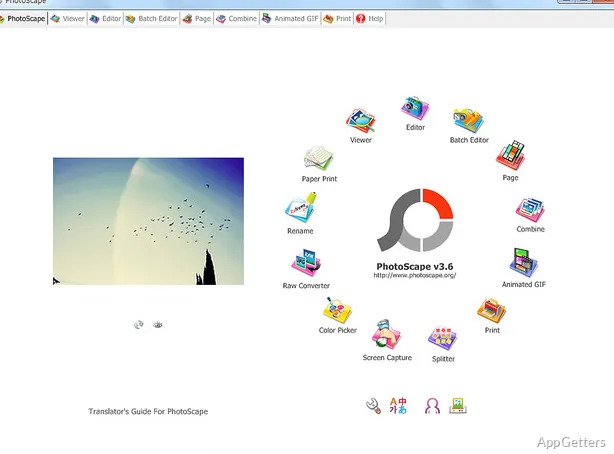
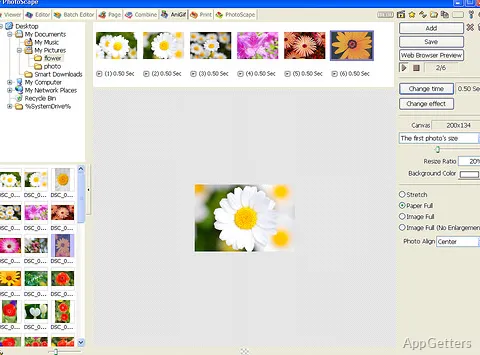
A folder full of camera photos can become difficult to handle when every image needs a different crop, resize, frame, or brightness correction. PhotoScape for Windows fits that everyday editing job because it works more like a photo toolbox than a heavy design suite. It gives casual users a viewer, editor, batch tools, combine options, animated GIF creation, printing tools, screen capture, color picker, and other practical utilities inside one desktop program.

The original PhotoScape release is still known for straightforward editing on older Windows systems, while PhotoScape X is the newer line for Windows 10 and later. That difference matters before downloading, because the name can confuse users who expect the same installer, interface, or update path. Check the version and Windows support shown on the download card before installing, especially if you are setting it up on a newer PC.

PhotoScape is useful for fast personal photo work, school images, small shop product pictures, profile photos, blog graphics, simple collages, and batch resizing. It does not try to replace a layer-based professional editor. Users who need deeper painting or compositing may also compare it with GIMP, but PhotoScape remains easier when the task is only to clean up and export photos quickly.

Before Installing PhotoScape for Windows

A careful first setup starts with the right edition. The classic PhotoScape line and the newer PhotoScape X line use similar branding, but they do not always share the same interface, feature set, or update path. Do not mix the two names when checking instructions, because a feature in PhotoScape X may not appear in the older PhotoScape interface.

When you download PhotoScape for Windows, compare the file name, version display, and file size on the download card before running the installer. Avoid modified installers, cracked editions, serial key pages, and unknown mirror downloads. If Windows may show a security warning during setup, check that the installer came from the official developer source or the supplied download card before continuing.

The installer should run from a normal Windows account, but a restricted office or school PC may block the setup. In that case, ask the administrator to install it or use an approved software source. Do not disable antivirus protection just to complete a photo editor installation. A failed setup usually points to policy, source trust, or permission issues rather than a missing editing feature.

Classic PhotoScape or PhotoScape X

Many download mistakes happen because users search for PhotoScape and land on information for PhotoScape X. Classic PhotoScape focuses on quick desktop editing tools such as viewer, editor, batch editor, combine, animated GIF, print, splitter, screen capture, color picker, raw conversion, and rename. PhotoScape X adds a newer interface and extra photo-related tools for supported modern systems.

Choose the older program only when you want the familiar classic layout or need compatibility with an older workflow. Choose the newer line when the download card clearly supports your Windows version and you want a more current interface. If a tutorial screenshot does not match your screen, you may be reading instructions for the other product line.

Install problems after downloading

If setup does not start, move the installer out of the browser download bar and run it from the Downloads folder. Right-clicking and choosing administrator mode can help on locked-down accounts, but it should not become the first fix for every error. Also check whether another installer window is already open behind your browser.

When the installer fails after a partial setup, restart Windows before trying again. Then delete only the failed installer file you downloaded, not your photo folders or saved projects. Download a fresh copy from the official developer source or supplied download card and compare the details again. This avoids repeating a corrupted or incomplete download.

Editing Flow That Makes PhotoScape Useful

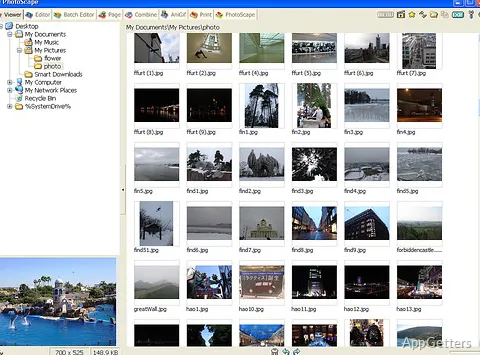
PhotoScape works well when you treat each tool as a separate station. Open photos in the viewer to browse folders, send one image to the editor for a crop or effect, then use batch tools when many files need the same size or naming pattern. This workflow keeps routine edits fast and avoids loading a full design workspace for every small correction.

The editor is useful for common jobs such as resizing, cropping, rotating, adjusting brightness, applying frames, adding text, correcting red-eye, and cleaning small marks. For precise retouching, zoom in before saving because small details can look fine at preview size but rough after export. Keep the original photo untouched until you know the edited copy looks right.

For users who mainly browse and organize large photo folders, FastStone Image Viewer may suit folder review and quick viewing better. PhotoScape is stronger when you need simple edits, page layouts, GIF creation, and print-related tools in the same lightweight workspace. The right choice depends on whether viewing or editing takes more of your time.

Batch resizing without damaging originals

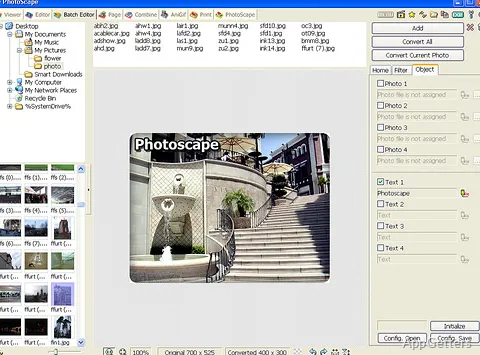
Batch editing saves time, but it can also create mistakes across hundreds of photos. Before resizing a whole folder, test the settings on three or four copies. Check the output size, image quality, file names, and destination folder. Once the sample looks right, run the full batch on duplicated files rather than your only originals.

This matters for product images, ID photos, blog uploads, and social media folders where one wrong size setting can ruin the whole set. Keep a source folder and a separate export folder. If the results look stretched, return to the resize settings and choose an option that preserves the original aspect ratio.

Collage, combine, and page layout confusion

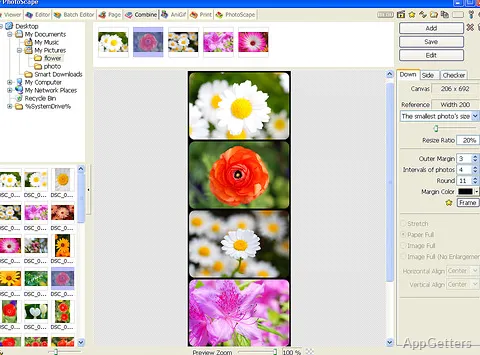
PhotoScape includes tools that sound similar, but they solve different layout jobs. Page-style layouts help when you want photos inside preset frames. Combine works better when you need images joined vertically or horizontally. The editor handles one picture at a time. Choosing the right workspace prevents the problem where a user cannot find the expected border, spacing, or export option.

If a layout exports at the wrong size, check the canvas or page size before changing every image. The problem often comes from the output layout, not from the original photos. For sharper results, start with photos larger than the final layout instead of enlarging small images after placing them.

PhotoScape for Windows Problems Users Usually Notice First

Most PhotoScape for Windows issues appear after the first few edits, not during the first launch. Users usually report mismatched screenshots, missing tools, blurry exports, failed GIF results, printing scale problems, raw files that do not open as expected, or batch output landing in the wrong folder. These problems are easier to fix when you separate product version, input file type, and export settings.

The interface does not match a tutorial

Check whether the tutorial uses PhotoScape, PhotoScape X, or another edition. The names are close enough to cause confusion, but the screens are not identical. If the tutorial mentions cut out, newer filters, or a store-style install path, it may belong to PhotoScape X rather than the classic program.

Do not reinstall immediately when a button seems missing. First compare the product name on the window title or about screen. Then search within the matching edition. This saves time and prevents replacing a working classic install with a different app line that may not match your older workflow.

Edited photos look blurry after export

Blurry output usually comes from resizing too small, enlarging a low-resolution image, or saving with aggressive compression. Start again from the original file, crop only what you need, and avoid increasing the image beyond its real pixel detail. When saving, review the quality setting and test the exported image at full size.

For web uploads, smaller files may be useful, but they should still keep enough detail for the final display size. Do not judge sharpness only from a thumbnail. Open the saved file separately and zoom to the size where viewers will actually see it.

Batch output goes to the wrong location

Batch tools can save files into a selected output folder, a subfolder, or another path depending on the settings chosen during export. Before running a large batch, read the destination path shown in the batch window. If the edited files seem missing, search by the new file name pattern instead of repeating the whole job immediately.

Use a simple export folder name such as Edited Photos or Resized Photos. This avoids mixing new files with originals. It also makes rollback easier when the batch settings were wrong. Never batch over the only copy of a folder unless you have a separate backup.

Animated GIFs become too large

Animated GIF files can grow quickly when you add many frames, large photos, or long timing sequences. Reduce the image dimensions first, remove unnecessary frames, and test a shorter animation before saving the final version. A GIF that looks small on screen may still become too large for email or website upload.

If you need video-style output, PhotoScape may not be the right tool. It creates simple animated GIFs from images, not a full video editing timeline. For video work, a dedicated editor such as CapCut is usually a better match.

Raw files do not open as expected

PhotoScape includes raw conversion support, but raw camera behavior can vary by camera model and file type. If a raw file does not open correctly, test a standard JPG from the same folder first. That confirms whether the problem is the photo file type or the program itself.

For serious raw workflows, a specialist raw editor gives more control over camera profiles, exposure recovery, and color correction. Users who mainly process camera raw folders may compare PhotoScape with RawTherapee. Keep PhotoScape for quick conversions and casual edits when it handles the file correctly.

Print size does not match the paper

Printing issues often come from scale settings rather than the photo itself. Check the paper size, orientation, margins, and layout before blaming the image. If the photo is cut off, reduce the print scale or choose a layout that fits the full image inside the printable area.

For ID photos, small labels, or collage prints, make a test print on plain paper first. Confirm the measured size with a ruler. After that, use photo paper or the final media. This small test prevents wasted ink, paper, and time.

Download Habits and Version Checks

Photo editors are common targets for repacked download pages because users search for free tools. Use the official developer source or the supplied download card. Avoid installers that ask for unrelated browser changes, extra toolbars, unknown driver utilities, or cleanup tools during photo editor setup.

After installing PhotoScape for Windows, open the program and check the version from inside the app when available. Compare that with the download card if you need to confirm the installed release. Avoid depending on version numbers copied from old pages, because they may not match the file currently offered.

If Windows security or another protection tool shows a warning for the installer or one of its components, pause and review the file source. Confirm the download path, scan the installer, and download again if the file came through a redirect or mirror you did not expect. A careful first setup matters more than rushing into the editor.

When PhotoScape Is the Right Photo Tool

PhotoScape is a useful choice when the job is practical: open a folder, fix photos, resize groups, add text, combine images, create a simple GIF, or prepare prints. It suits users who want visible buttons and direct results instead of panels, plugins, and complex project files.

PhotoScape for Windows is less suitable when you need advanced layer work, professional color management, AI repair, heavy raw editing, or detailed drawing tools. In those cases, use it as a quick companion rather than the main editor. It can still handle routine photo cleanup while another program handles complex creative work.

Before using PhotoScape for Windows on important folders, save a separate copy of the photos and test the resize, save, and export settings on a few images first. That habit can prevent many batch, GIF, print, and overwrite mistakes. Once the edition matches your Windows system, PhotoScape works best as a fast photo utility for everyday fixes, layouts, and small image exports.

Software Details of PhotoScape 3.7

License
Free
Version
3.7
File Size
20.05 MB
Downloads
22
Languages
English English, Arabic, Catalan, Chinese, French, German, Italian, Japanese, Norwegian, Portuguese, Russian, Spanish, Turkish
Category
Op. System
Windows
Developer
Last Updated
August 29, 2023
SHA256
dd37f4ea7133c48f5181b2d0b9ead52fb05cf64bd4180eb35cb1530e4aac3ce4

Leave a Comment

Your email address will not be published. Required fields are marked *

Software Icon
Security Report

Loading scan data...

Scroll to Top