ManyCam for Windows When the Camera Feed Must Be Ready First
A webcam may work in Windows but still look wrong when a meeting, class, stream, or browser session starts. ManyCam for Windows adds a virtual camera layer between the real camera and the app receiving the video. This lets you prepare scenes, overlays, backgrounds, screen views, and other sources before going live.
ManyCam is live video and virtual webcam software for video calls, remote learning, streaming, presentations, and camera-based content. It can send the output from its main live window to another app when ManyCam Virtual Webcam is selected as the camera source. That makes setup order more important than with a normal webcam.
The Windows version is useful when one camera view is not enough. A teacher may need a webcam plus a document view. A streamer may need screen capture with picture-in-picture. A support worker may need text labels or a prepared background. The main task is building a scene that the receiving app can read correctly.
Install ManyCam with the Camera Driver in Mind
Use the official developer source or the supplied download card when installing the desktop app. Continue only when the file came from the official developer source or another trusted source you intentionally chose. Avoid modified installers, cracked editions, serial key pages, and unknown mirror downloads because webcam software needs camera and microphone access.
ManyCam for Windows depends on its virtual video and audio devices being installed correctly. After setup, open ManyCam first. Choose the camera or media source inside the program, and then open the meeting or streaming app. If the other app was already open, restart it so it can detect the new virtual camera entry.
Check the version shown on the download card and compare it with the version screen inside the app. Do not rely on old version numbers copied from software directories. ManyCam has changed virtual camera, video source, and account-based features across releases. The installed app is the final reference for your own PC.
Windows Support and PC Resources
ManyCam support materials list modern Windows versions as supported, including Windows 11 and Windows 10. The app also needs a capable processor, memory, updated graphics drivers, and broadband internet for activation and online features. A simple webcam scene may run on modest hardware. Several HD sources, effects, and streams can raise the load quickly.
Free Download, Paid Features, and Account Access
ManyCam is available as a free download, but some tools may depend on the selected plan or account status. Source counts, output quality choices, watermark behavior, and advanced features can also vary by package. Check the label inside the app before planning a paid class, client stream, or branded session around a specific feature.
Camera Source Not Showing in Zoom, Teams, or the Browser
The most common setup problem starts outside ManyCam. The receiving app must use ManyCam Virtual Webcam as its video source, not the physical webcam directly. Open the video settings in Zoom, Microsoft Teams, Google Meet, the browser, or the streaming tool. Then select the virtual camera entry after ManyCam is already running.
If the virtual camera does not appear, restart the meeting app first. Browser-based tools may need a browser restart after ManyCam installation or update. Some browser updates can change camera detection. Testing in another supported browser can help separate a website issue from a ManyCam driver issue.
When the Virtual Camera Driver Fails
A virtual camera driver error can appear after Windows updates, old driver components, or an incomplete installation. A practical first check is to install pending Windows updates and restart the computer. If the driver still fails, reinstall ManyCam from the official source so the current virtual camera component can be placed again.
When Another App Keeps the Webcam Busy
A physical webcam may be unavailable if another video app already controls it. Close browsers, video call tools, camera utilities, screen recorders, and background conferencing apps. Then reopen ManyCam. If the real camera has a privacy shutter or hardware toggle, check that too before changing software settings.
Scenes, Sources, and Live Output Need Separate Checks
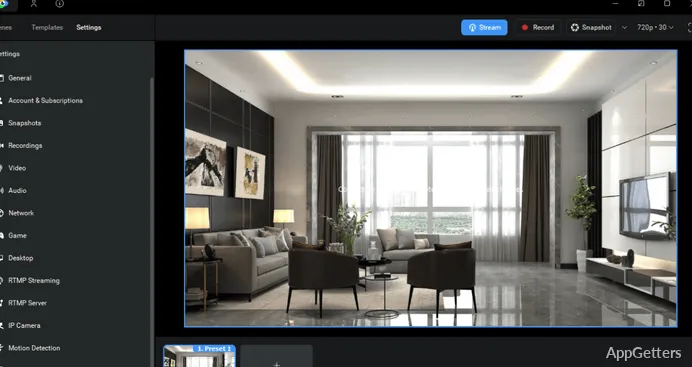
ManyCam for Windows can combine several source types, but the receiving app only sees the final live output. This means a source can look wrong inside the project before it reaches the meeting. Check the main live window first. Then check the camera preview inside the meeting or streaming app.
For recording or streaming workflows that need a broader production setup, Streamlabs Desktop may fit a different kind of live broadcast. ManyCam is more focused on virtual webcam output and scene preparation for calls, lessons, and camera-based sessions.
Screen Capture and Presentation Sources
When a desktop capture looks blank or delayed, reduce the number of moving sources before testing again. Start with one screen, one webcam, and one simple overlay. Add extra sources after the receiving app shows the correct ManyCam output. This helps locate whether the issue comes from capture, effects, or the external app.
Mobile Camera and Network Sources
ManyCam supports mobile-related video workflows in supported setups. Phone video still depends on the mobile app, account access, network condition, and selected source type. Keep the phone on a stable connection and confirm that the mobile source appears inside ManyCam. Avoid changing several camera angles during a live session until the feed stays stable.
Audio Setup Is Separate from the Video Feed
A correct video preview does not guarantee correct sound. The meeting app may need ManyCam Virtual Microphone as the input device. ManyCam itself may use your real microphone, system sound, or media audio as a source. Check both layers because the wrong microphone choice can leave the audience hearing nothing.
If microphone audio is missing, confirm that the microphone is enabled in Windows sound settings. Then check the ManyCam Audio Sources area and the meeting app’s microphone field. Do not assume the camera choice automatically carries the right microphone into every browser, call app, or streaming platform.
Echo and Feedback During Calls
Echo often comes from speakers feeding back into the microphone or from monitoring settings. Use headphones when practical, lower speaker volume, and check whether audio monitoring is active. If the receiving app has noise suppression or automatic audio processing, test those settings with a short private call.
Audio Delay After Adding Effects
Audio and video can drift when a scene uses heavy processing or capture devices with different delays. ManyCam includes audio sync adjustment in supported Windows builds. Change the sync offset gradually. Test with a short spoken phrase so you can see whether mouth movement and sound line up.
If you only need to inspect a rendered video or compare playback behavior outside the live call, VLC Media Player can help you test the exported file separately from the conferencing app.
Performance Drops During Backgrounds, Effects, and HD Output
Virtual backgrounds, picture-in-picture layouts, screen capture, media files, and high-resolution output can increase CPU and graphics load. Start with a lighter scene if the preview stutters. Then raise resolution, add effects, and introduce extra sources one at a time. This keeps performance testing tied to a visible change.
Updated graphics drivers matter for video work because ManyCam may rely on system video handling, webcam drivers, and graphics acceleration. If the app freezes or preview quality drops after a Windows or GPU update, restart the PC. Test the simplest camera scene first, then rebuild only if the basic feed works.
When the Output Looks Soft or Cropped
Soft video can come from the physical webcam, scene scaling, low lighting, or the resolution selected in ManyCam. Cropping can come from a source fitted into the wrong canvas shape. Check the webcam feed before effects, adjust the scene layout, and review the receiving app preview before the call begins.
When Background Replacement Looks Unstable
Background removal and blur depend heavily on lighting, camera quality, and movement. Use even lighting and keep the subject separated from the background. Reduce fast hand movement near the face. If the background still breaks apart, a simpler blur or static image may give a more stable result than a heavy effect.
Streaming, RTMP, and Multi-App Use
ManyCam can support live streaming workflows in selected builds and plans, including RTMP-related use. Before a public stream, test the service connection, video source, microphone, and scene switching in a private session. A working webcam preview inside ManyCam does not prove that the platform receives the intended stream.
Users who need a dedicated broadcaster with scene collections, plugins, and deeper streaming controls may also compare XSplit Broadcaster. Keep ManyCam as the better fit when the main job is presenting a controlled virtual webcam feed to meetings, lessons, or browser-based calls.
Opening ManyCam in More Than One App
Using ManyCam with several apps at the same time can create confusion. One app may receive the live output while another app controls audio. Start with one destination app and confirm video and sound. Add the next tool only if the workflow really needs it.
Recording Before a Live Session
A short test recording can reveal scene mistakes before anyone joins. Speak a few lines, switch scenes, show the screen source, and play a media clip if the session needs one. Review the test for audio level, sync, cropping, and background quality before using the same setup live.
Keep ManyCam Sessions Predictable
ManyCam for Windows works best when you treat the virtual camera as a prepared output, not just another webcam name in a dropdown. Open ManyCam first, verify the live window, and choose ManyCam Virtual Webcam in the receiving app. Select ManyCam Virtual Microphone only when that audio route matches the session.
For teaching, streaming, remote support, or video meetings, run a short rehearsal with the same camera, microphone, scene, and platform. Check account feature labels before using paid assets. Keep source files available for the session, and record a small sample when the setup includes media playback or screen capture.