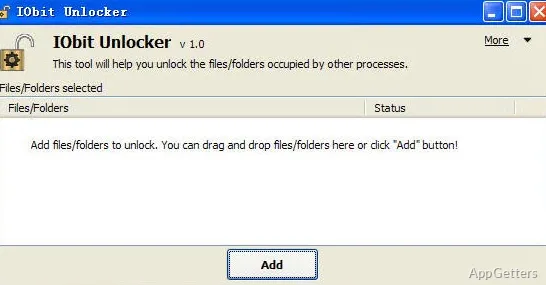
We all hate it when, even in 2020, files don’t want to be deleted, moved, or renamed. And the worst part is the Windows message about ‘file is in use or locked by another process’ is so vague that users are left clueless as to what to do. However, this is a kind of problem that always keeps making its way. Most of the time, you are cleaning the system, uninstalling a software package, or just trying to deal with system clutter. IObit Unlocker is a tool specifically made for this purpose. It provides a simple way to unlock files and get back control over them without the need to look for system tools or turn off the computer.
Handling Locked Files in Everyday Use
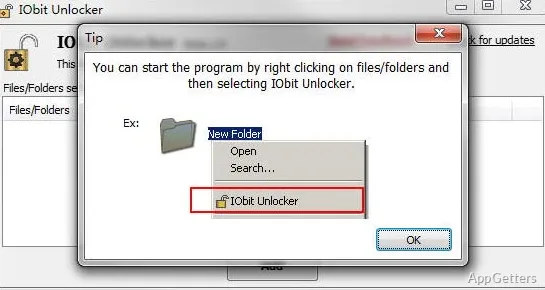
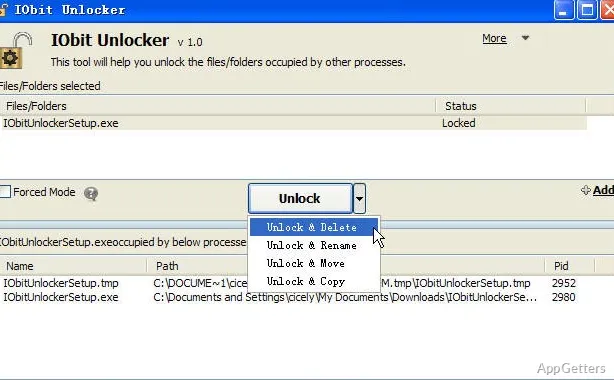
The best thing is that the program becomes part of the right-click menu, which is most likely where users will access it. After right-clicking the file or folder giving you a hard time and hitting the unlock option, you get a tiny window showing the processes that keep the lock. Then, you will be able to do the unlock, delete, rename, or move actions right from there.
Easily and quickly working in the background to provide the needed results. It does so with minimum user effort, which is one of the things that makes it most noteworthy. It is fast and requires a minimum of intervention in cases like deleting ancient installer files or cleaning temporary folders. Besides, avoiding pushing users into doing complicated diagnostics is one of the most beneficial traits of this tool.
Stability and Workflow Impact
From my experience, IObit Unlocker is a very reliable application when running on a daily basis. In particular, when the files are not of an important nature. It is capable of doing the job wonderfully, even if the user really does not want to explore technical aspects. And the best of it is that it is so lightweight that it almost never causes the computer to feel slow. It also does not make the system less responsive to user clicks. Those who deal with files quite often will find an implementation of this app to be a great helper. Be they school students trying to put their projects in order. Or regular home users wanting to make space in their drives. It helps in removing a nagging file locking problem that happens quite frequently.
Nevertheless, the way it works depends largely on what exactly is locking the file. For example, the tool cannot always work its magic in the case of a system-level process. It may require help from additional input. Sometimes, forcibly ending a process leading to a file lock can be necessary. This poses some risk in situations where a user does not exactly know what they are closing. Though basic info is at hand, IObit Unlocker is not very thorough. It does not help one make the best decision in such cases.
Functional Limitations and Issues
Even though the interface is very plain and is aimed more at an average user rather than a pro, it does not give the latter a chance. It does not allow going deep into discovering all the details about how the tool works.
Besides, one has to think about when it is actually safe to unlock files. If you provide access to files that are critical to the running apps or system services just because the program permits it, there could be unfavorable results. Therefore, this one should ideally be used for leftover, orphan, or evidently unneeded files. It is not a tool for overall system management.
Where It Fits in a Typical Windows Setup
You can think of IObit Unlocker as a gap filler among the multitude of everyday tools within the toolkit of a user. In fact, such a tool is not something people resort to on a daily basis. But when in need, it proves to be a great time saver. It is also a preventative measure against resorting to quite drastic measures, such as turning off the entire system or restarting in safe mode. Not to mention that it is minimalistic yet effective. It is integrated into the context menu, making it quite doable to keep it installed like that, with no clutter added to the system.
This is a great utility for those working mostly from home. The file management there is not done in a position of great control over the system. It is more of a concentration on efficiency. And if you happen to have a more advanced scenario in mind, then a quick initial attempt with this program will serve you well. Before proceeding to the laborious, detailed diagnostic tools. Therefore, in contrast to being a full-fledged problem-solving software, it quite simply acts as a handy and efficient workaround. It deals with one of the more irritating issues of Windows that is present practically always.