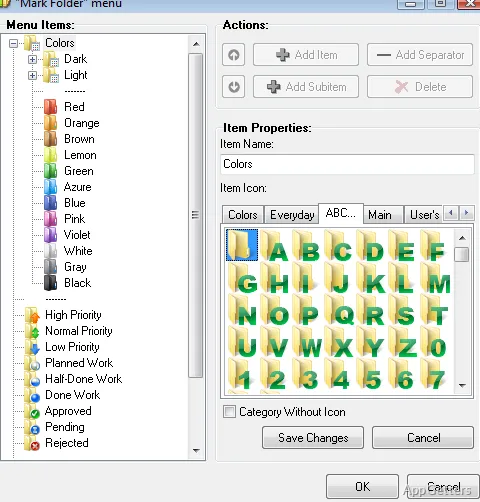
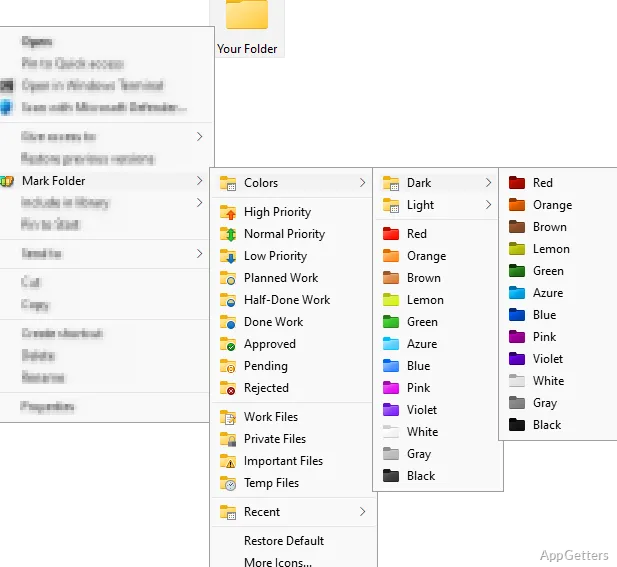
Organizing folders on a Windows computer is a simple task when you only have a few. However, over time, everything stacks up: your documents, downloads, projects, photos, work files. At that point, even with Windows Search and sorting options, you might find yourself wasting time trying to find a folder you use regularly among the long list of directories. This is exactly what Folder Marker is meant to be the solution for. Without actually changing file storage, it allows users to visually organize their folders by custom colors and icons. Even from a distance, one can identify what the folders are.
Visualizing Folder Organization
Instead of forcing users to read each folder name to know what each folder contains, Folder Marker works by supplying a means. Through this, folders can be visually identified. Different colors and icons can be used for different uses. For example, a work folder can be red, a personal folder blue, and an archive folder grey. Just by doing this, one can easily tell a folder apart by looking at a row of folders. This can save a lot of time scanning from one end of the list to the other.
Since the program is designed to work with whatever file management system you already have, it is enough to right-click a folder to change its colors and icons. In fact, the program is designed to please both amateurs and advanced users. Since the changes are visual only, the amount of time needed to get started is minimal.
Great for Students, Office Workers, and Home Users
In fact, it is software that is mostly bought by users who have many folders on their own computers. To talk about this practically, students will mark up their folders in order to remember their subjects. Office staff may be handling multiple projects, and home users will have large personal archives.
Colors can be used for project management such that one colored folder will be an ongoing project, while another colored folder corresponds to completed projects. Similarly, priorities might be marked using colors. And if there is more than one person at home or work who uses the same computer, it will become easier after users have made their own changes to their folders.
With Folder Marker, you do not have to worry about the speed of your computer or the space on your hard disk. Its main purpose is to make the user interface clutter-free and easier to move through. It does this without causing much strain to the user.
Hands-On User Experience and Drawbacks
This program has succeeded in the sense that it is not trying to replace Windows Explorer with something entirely new. Rather, it is done along with your regular way of organizing files. Upon marking the folders, your visual signals will continue to be displayed in the ordinary folder browsing mode, so that your organization is always there.
On the other hand, Folder Marker is not an answer to your file management problem at a deeper level. If you are one of those who have to deal with duplicate files or multi-level etiquettes, then you will still require additional tools. The same applies to large-scale document indexing. This is true even if you change only a few.
Another point is that sometimes the usefulness of visual customization depends on one’s own preferences. Some people find help simply through color-based organization, whereas others continue to depend mostly on folder names and search functions.
Most Suitable Applications of Folder Marker
It is probably best to think about Folder Marker as a means of making one’s workflow more effective instead of a traditional file management utility. Size-wise, it will allow users to recognize important folders instantly. And that is the way the program brings its greatest value. It does so by making small but frequent interruptions caused by searching for a folder among a crowded directory structure quickly disappear.
Whether it is students wanting to keep their academic materials properly organized, professionals working on projects, or home users with their large file collections, Folder Marker will certainly contribute to facilitating navigation through the files. It will help keep navigation structured and efficient. It normally does not change the way that Windows manages the files, nor does it try to do so. What it offers is a simple visual layer that only helps to make large folder collections understandable and, if one maintains them properly over time, easy to manage.
Anyone who desires a simple way to differentiate between folders will probably agree with this method. They do not need to feel they have to change their work process. It is the most practical and the easiest to get used to.