Still have a shelf of CDs and DVDs, or ISO files you need to open? DAEMON Tools Pro mounts disc images as virtual drives, creates images from physical discs, and works with ISO files and provides tools for burning and converting images.
How do you mount and find images?
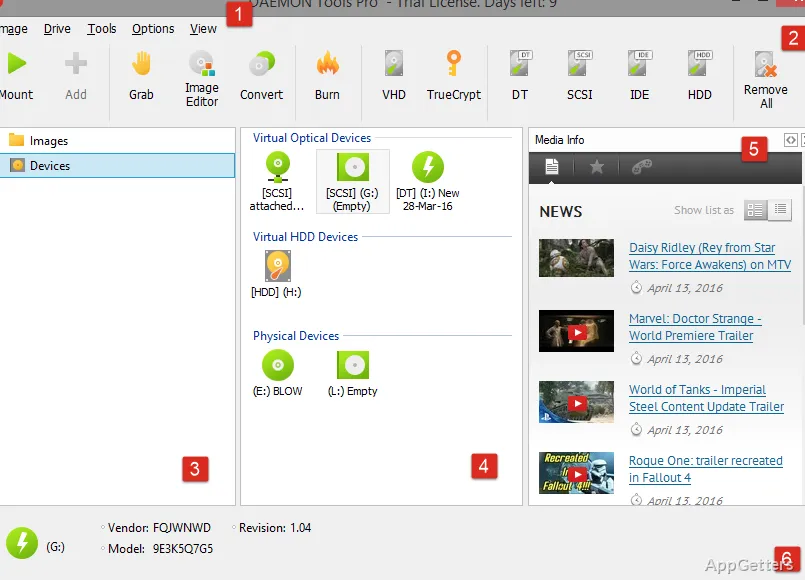
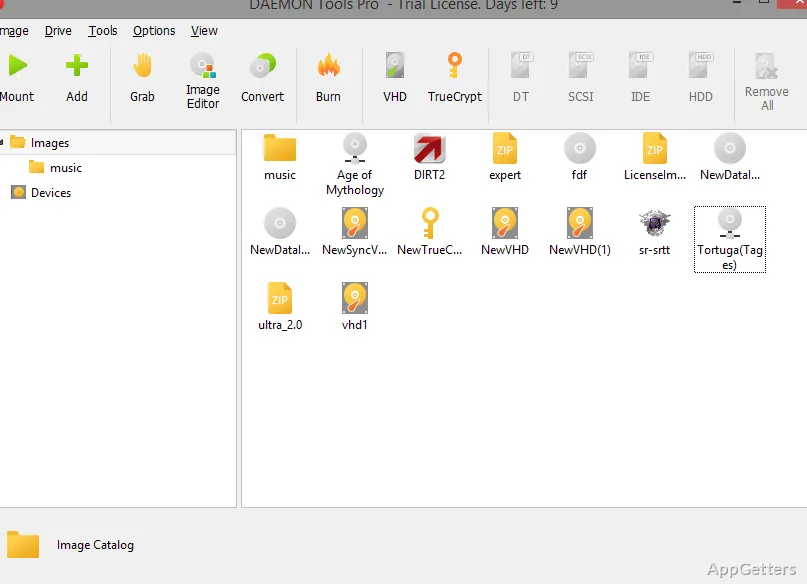
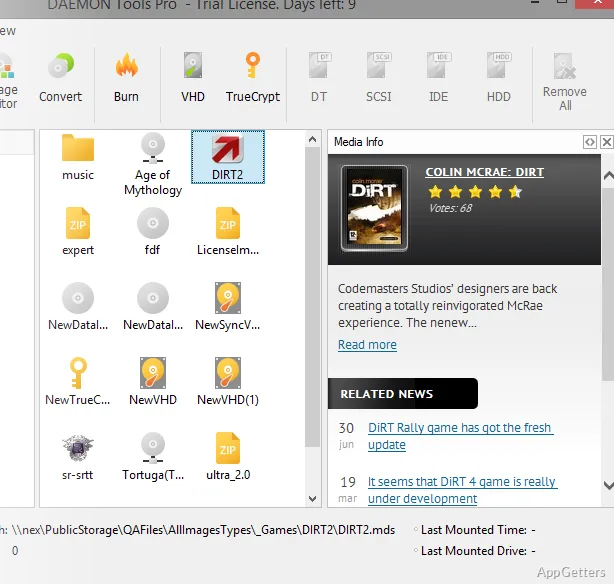
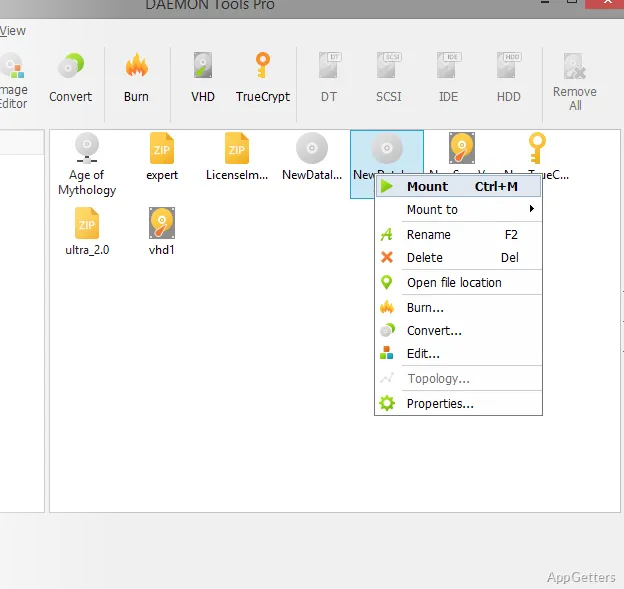
The Images tab brings together tasks for working with image files. Mount an image to make its contents available through a virtual drive, or unmount it when you are finished. The scan option searches the PC for image files, so you can locate items already stored on the computer.
- Add VHD and TrueCrypt files to the image workflow.
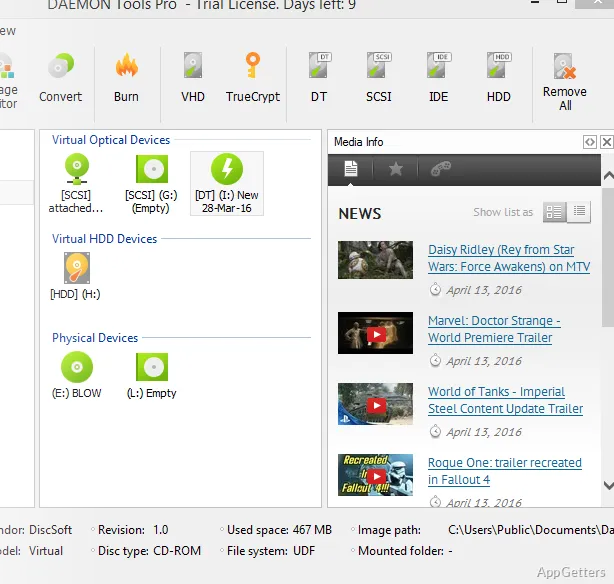
- Use virtual-device settings to add and configure drives.
- Attach a virtual device to a physical device when needed.
Can DAEMON Tools Pro create or change disc images?
Grab a Disc creates an image from a physical disc. The Image Editor provides a separate workspace for creating and editing images, while the conversion tool handles changing image files from one format to another. Burning tools write an image to disc; the program also includes options for copying and erasing discs.
What other device tasks are included?
DAEMON Tools Pro includes controls for working with USB devices, along with virtual-device information and configuration options. The Device Info dialog provides details about a selected device.
- Burn an image to a disc.
- Copy or erase discs.
- Use command-line integration and shell extensions.
Pros
- Mount and unmount images through virtual drives
- Create images from physical discs with Grab a Disc
- Scan the PC for stored images
- Add VHD and TrueCrypt files
System requirements: Windows 7, Windows 8, Windows 8.1, Windows 10, Windows 11 · 500 MHz CPU · 1024 MB RAM · 30 MB free disk space
Can DAEMON Tools Pro mount ISO files?
Yes. It can mount ISO files through virtual drives.
Can it create an image from a physical disc?
Yes. Use Grab a Disc to create an image from physical media.
Can it burn an image to a disc?
Yes. DAEMON Tools Pro includes an image-burning tool.