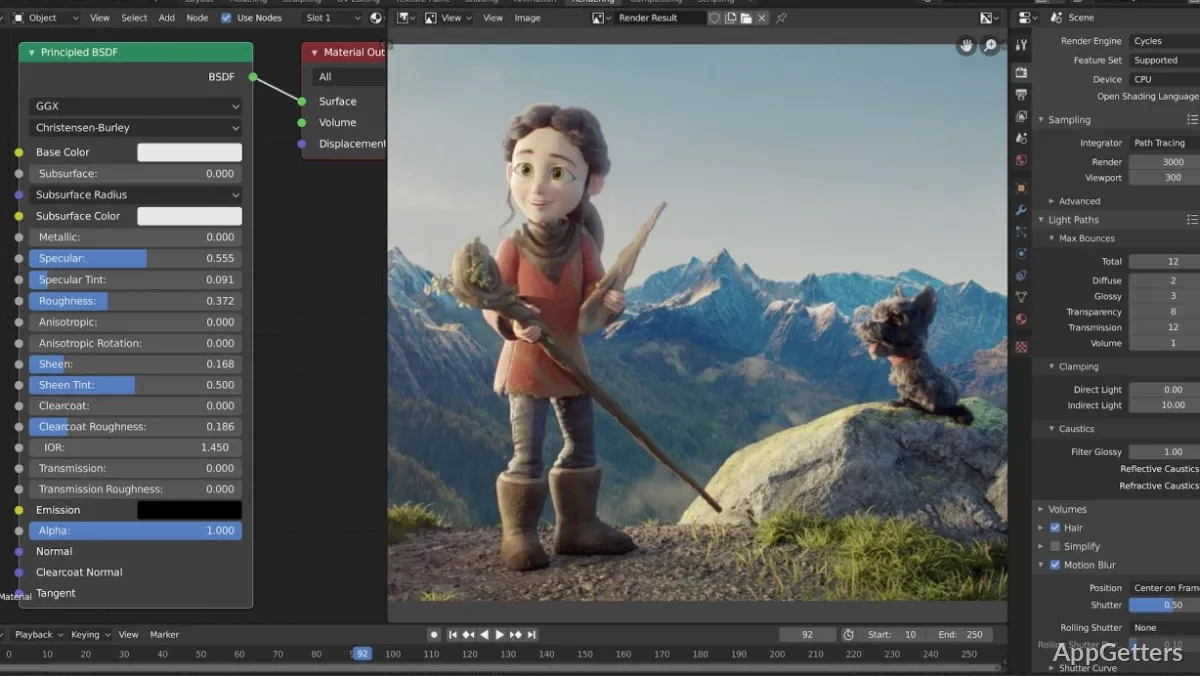
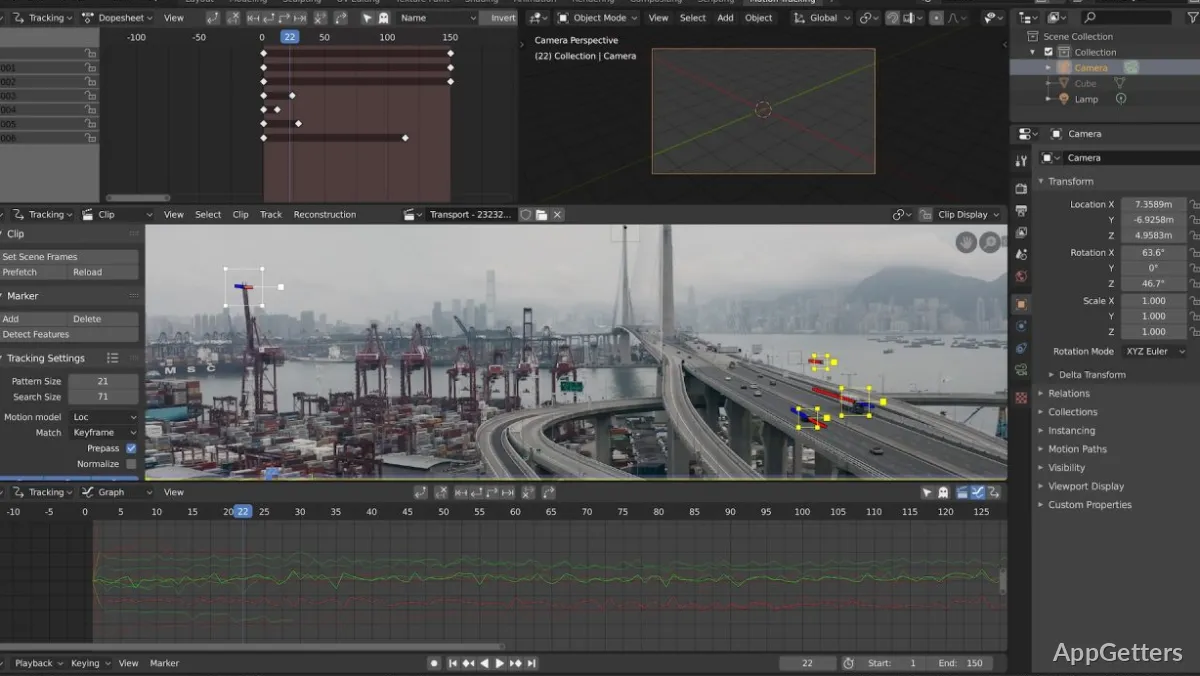
Many Windows users interested in 3D design, animation, or digital art often consider the biggest obstacle to be not how to look for software with advanced tools. Instead, they see the challenge as finding something powerful enough for serious work without being expensive, restrictive, or both. It is common for professional 3D software to be accompanied by high licensing costs and the feeling that its user interfaces were designed only for studios. Blender, on the other hand, has been a very good alternative, given that it is a professional tool. Independent creators, students, and hobbyists also find its workflow accessible.
Blender installs and runs smoothly on Windows machines, albeit its performance depends on the GPU and memory of the system at hand. In use, it resembles a streamlined tool rather than a complex one. At the same time, it is still a creative environment in which one can grow.
A Workspace Built Around Creative Flexibility
Blender is strong in that it allows a large part of the work to stay within the same application. Moving from one task to another is no longer an issue. Fancy modeling, the animation of the created work, rendering, compositing, and final touches can all be done without needing to export and import the files repeatedly. This is usually the case when working with different programs. For freelancers and those who do the hobby stuff, this can be a time saver.
The interface may look rough at first, particularly if the user is totally new to 3D. The promise, however, is that in no time, the layout and the location of the controls will start to seem perfectly logical. To top it off, you can customize the panels. You can also navigate quickly with the keyboard shortcuts and packed workspace presets. These will help you focus on only the task at hand, like sculpting, shading, or animation. Importantly, Blender has the knack of staying stable even during very long sessions. This is something one cannot always find with other software that crashes when rendering or dealing with very complicated scenes. Learning to use Blender has a steep learning curve. However, it is easier now than it was a few years ago due to better menus and clearer introductory learning materials.
Performance and Everyday Workflow on Windows
Indeed, Blender will run very well on a Windows PC with the latest hardware and a gaming/graphics card. The movement on the screen and viewport is very fluid when in interactive rendering, even if the level of the scene is a bit high. GPU render durations also get tremendously shortened if the present hardware supports this. Those who use an NVIDIA RTX card have obviously made their rendering jobs quite smooth through Blender’s Cycles engine.
In real-life workflow, Blender is versatile and handles most creative tasks. The majority of students use it for their academic animation projects. Home users who mainly engage in creative projects at their leisure often use it for producing YouTube openings, product layouts, or 3D print designs. Independent game developers are also a big user group. Asset creation, UV unwrapping, and rigging are a few of the tools they use in the integrated environment.
Having said that, very large professional scenes are capable of making intensive use of the system. Quite old Windows laptops may get considerably slow when dealing with very complex parts or advanced lighting simulation. This becomes more noticeable when you also install and use another program at the same time.
Where Blender Feels Strongest and Where It Doesn’t
One of the main selling points of Blender is not only that it is free, but also that it very seldom feels limited because of that fact. The rendering quality can be of the commercial work standard. The continuous development also means that major new features and fixes are released regularly, with a very low risk of interfering with current projects.
Another feature of Blender that users find very helpful is its community. Tutorials, forums, plugins, and guidance templates are all widely available. They give the user the possibility not only to find the solution to problems independently, but also to take a step further in the learning journey. By doing so, the general barrier for people learning 3D outside the traditional school system is definitely lowered.
On the other hand, Blender is not suitable for everyone. Besides, those who are totally dedicated to large studio pipelines based on other software (like Autodesk Maya) will most probably find some incompatibility problems. They may also notice workflow differences. Also, certain industry-standard integrations that are done in specialized commercial software remain smoother. Beginners who expect features/tools that let them get instant results might find Blender a bit intimidating. Learning and getting better with Blender needs patience and practice rather than the use of automated features that most of the other software offers.
A Practical Fit for Independent Creators and Learners
Blender is for creators who want to have the ability to change their creative ideas over time. It is not for those who want to have the available software do the whole creation/design of their work with just one mouse click. This is what we commonly call a ‘design tool’. It is truly an all-purpose 3D software tool for students, freelance artists, indie developers, and even teachers who work on Windows.
However, the real feature that makes the software come alive once users get used to it is how elegantly it can handle different types of projects. Smaller-scale works can still be executed quite efficiently, and the user interface can be kept very simple all along. Advanced users can quite easily enter the domains of animation, physics simulations, or cinematic renderings. They can do so without the need to change applications at all.
For individuals who brace themselves for the devotion to learning the fundamentals, Blender will provide something at the professional level. They can continue using it at home, away from the studio, and still find it very practical.