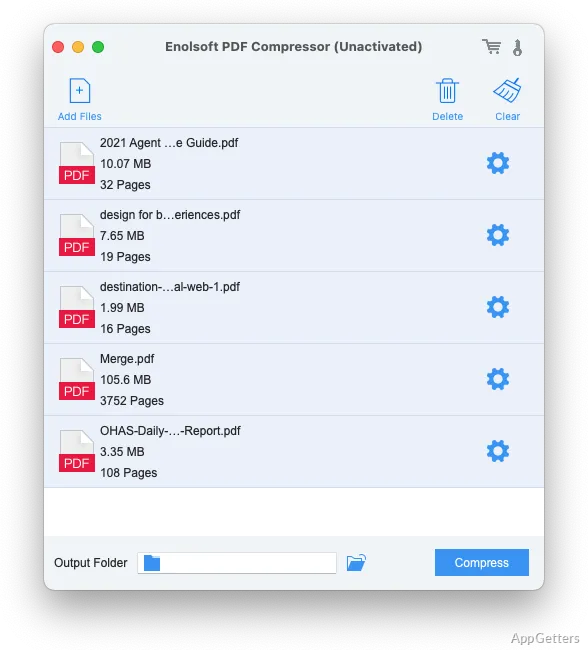
PDF too big to email or upload? Enolsoft PDF Compressor offers small, medium, large and custom size targets, and calculates the resulting file size in real time, so the selected mode can be judged against the original before compression finishes.
Adding PDFs and choosing a target
Add one or more PDFs by dragging them into the app or clicking the plus button. For a group of reports or scanned records, the batch workflow keeps the files together for one compression run.
Choose small, medium, or large compression, or enter a custom size target. Click Compress to process the selected files. The real-time size calculation gives an estimate of the output, which can help when a document needs to fit a specific upload limit.
What changes during compression?
PDFs with raster or vector images and embedded fonts can contain substantial data. Enolsoft PDF Compressor reduces file size by compressing images and removing unnecessary elements.
The software is designed to retain the original content, image quality, and page layout as much as possible. The amount of reduction depends on what is inside each PDF: image-heavy files offer different compression opportunities from documents made mostly of text.
When should a custom size be used?
A custom target suits a portal or email limit that requires an exact size; the presets are quicker when no exact limit applies.
- Use a smaller target when file size is the main concern.
- Choose a less aggressive target when preserving image detail matters more.
Pros
- Four compression modes, including a custom size target
- Batch addition and compression of PDF files
- Real-time estimate of the compressed file size
System requirements: Windows 7, Windows 8, Windows 10, Windows 11
Can Enolsoft PDF Compressor process several files at once?
Yes. Add multiple PDFs and compress them in a batch.
What compression choices does it offer?
Small, medium, and large modes, plus a custom size target.
Does it show the expected compressed size?
Yes. It calculates the output file size in real time.