Synchronizing files and documents across several Windows PCs is frequently harder than expected. Various important files may be stored on the desktop, in the downloads folder, on a USB drive, or in another cloud account. For many users, the problem is not storing files. It is preserving consistency and keeping track of which versions are the most recent. For example, students alternating between school and home computers, remote employees working with shared files, or families using different PCs in the same household all generally experience this problem quite clearly.
Dropbox solves this issue by making automatic synchronization the main focus of the workflow instead of simply storing files in one place. On Windows, it can be considered more of a background utility than an app that works independently. After installation, it silently connects with File Explorer. It synchronizes the folders that the user has selected without the user having to give constant attention to it.
A Familiar Workflow Inside Windows
One of the reasons why people still keep Dropbox among their apps is its high compatibility with the Windows environment. If you store files in Dropbox, then those files will be displayed to you as ordinary folders. This is one of the reasons for the minimally disruptive first-time user experience. So simply moving the files into the Dropbox folder is the same as moving the files in your local directories. Hence, the very important simplicity contributes to winning users’ trust and loyalty over time.
Under normal circumstances, the synchronization side of things works fine most of the time. If you save the changes on one PC running Windows, they will most likely be replicated to the other one within seconds. This happens if there is no problem with the internet. Having such a working option is very handy, especially when you work with someone else. It is also handy when you move from the office to home. Users who have unreliable internet connections will also appreciate that the service is capable of resuming very smoothly and not losing changes. They will also appreciate the fact that it does not crash unexpectedly.
That said, Dropbox is a resource-hungry app, especially when it comes to large file uploads or initial syncing. Older types of Windows laptops might sometimes become sluggish. This happens especially when the content of big folders is being indexed.
File Sharing Without Complicated Setup
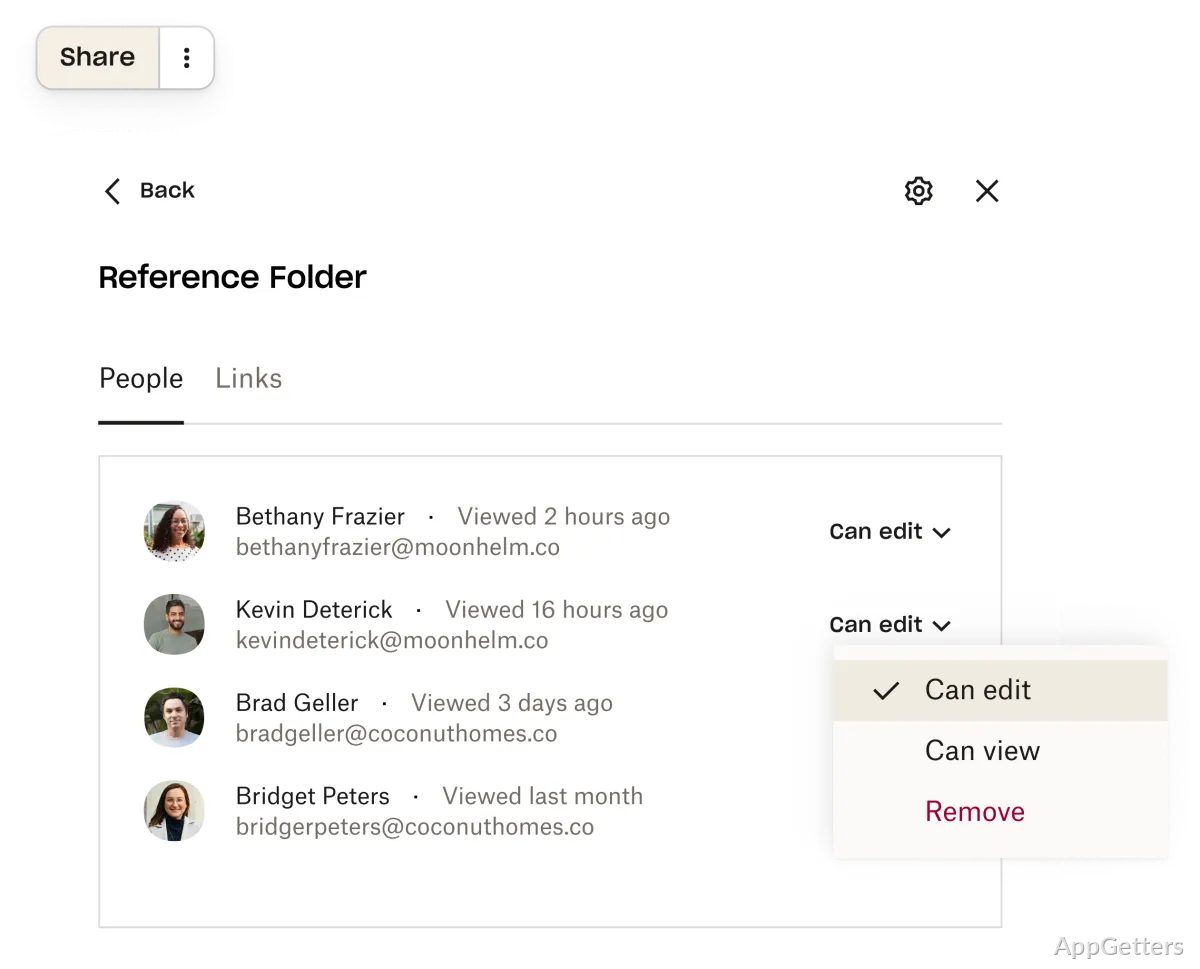
Dropbox is no longer acting just as a personal backup tool. Sharing files and folders has now been made very simple through the platform as well. For example, sharing a folder with multiple members without them having to fiddle with permissions or networking settings is one of the easiest ways of sharing files. Such simplicity gets the better of traditional shared drives.
Small businesses, educational institutions, freelancers, etc., may find this to be the perfect solution. Apart from avoiding confusion over which email attachment is most up to date and the problem of having multiple versions, it can also help with recovering files that are either deleted or overwritten unintentionally through version history.
Working with large media files or slow broadband connections will be impacted adversely. Free storage quotas may also quickly run out once you have collections of photos or folders of your projects. Because of this, the experience is highly dependent on storage and internet conditions.
Reliability Instead of Flashy Features
It is not the aim of Dropbox to fill people’s heads with too many complicated features and productivity tools. Rather, the principal trait that users like the most is its consistency. Lots of Windows users seem to refrain from switching to any other tool. This is mainly because, after the initial installation, it is hardly ever the case that one has to intervene on a regular basis.
User notifications tend to remain at quite a low level of intervention. Errors during syncing are not a regular occurrence, and the interface is quite minimalistic and not overloaded with many options.
Thanks to such a restrained design, beginners can comfortably get started with Dropbox. On the other hand, professionals can rely on it when at work. It is very suitable for people who want a syncing system that is solid. At the same time, they do not want to waste their time managing advanced cloud settings. Besides mobile and web versions, Dropbox can keep you going when switching from one device to another. This remains true even outside the Windows ecosystem.
However, if users are on the lookout for a deeply integrated office suite or a large free space offer, then they are most probably going to be attracted by some of the other platforms in certain cases.
Where Dropbox Fits Best on Windows
Dropbox is the most suitable choice for users who want steady synchronization as the top priority. They also want simple access to files across multiple devices. Students who take papers back and forth between campus and home, people who telecommute and share working documents, and family members who use shared folders will probably enjoy the simple approach of this program the most.
Dropbox mainly succeeds through its ability to minimize the everyday frictions of people’s lives rather than focusing on very aggressive feature development for productivity. Its operating mode is similar to a background handler for changing documents. It keeps the workflow very predictable. For Windows folks who really want reliability and are not interested in complexity, the simple advantage arising from such consistency is what makes this program stand out the most.