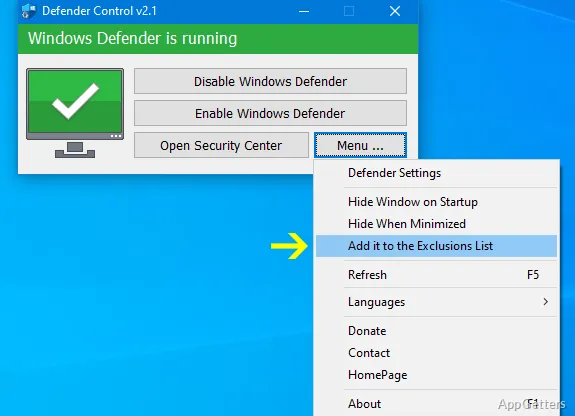
Microsoft Defender can be switched on or off from Defender Control's compact status window. Color indicators show whether Defender is running, turned off, or in a state where it cannot start or real-time protection is disabled.
Defender status and controls
The main window uses color to report Defender’s current state: green means it is running, red means it is off, and orange indicates that it cannot start or that real-time protection is off. Choose the corresponding control in the window to enable or disable Defender.
The menu also provides shortcuts to launch Microsoft Defender or open its settings. These controls keep the main tasks—checking the status and changing it—within the utility.
Exclusion list and protection settings
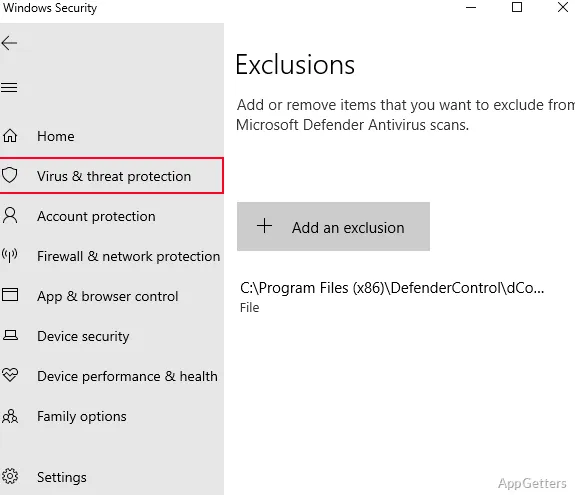
A menu option adds Defender Control to Microsoft Defender’s exclusion list. The utility creates a desktop shortcut when this option is used. This can prevent Defender from flagging the control program itself, though it also means Defender will not scan the excluded program.
- Use the menu’s exclusion option if Defender is detecting Defender Control.
- Tamper Protection can affect switching Defender off; the utility may need the TrustedInstaller service to make that change.
Restoring Defender
If Defender does not turn back on after using the enable control, restart Windows and allow a few minutes for protection to return. With Tamper Protection enabled, a status change may take several seconds while the required service is accessed.
Pros
- One-click controls for enabling or disabling Microsoft Defender
- Color-coded display distinguishes three Defender states
- Menu shortcuts open Defender and its settings
- Includes an option to add Defender Control to Defender’s exclusion list
Cons
- Tamper Protection may require the TrustedInstaller service for status changes
- Re-enabling Defender may require a restart and a short wait
System requirements: Windows 7, Windows 8, Windows 8.1, Windows 10, Windows 11 · 32-bit and 64-bit
What does Defender Control change?
It provides controls to switch Microsoft Defender on or off and displays Defender’s status.
What does the orange status mean?
Defender cannot start, or its real-time protection is turned off.
What should I do if Defender will not turn back on?
Use the enable control, restart Windows, and wait a few minutes for Defender to activate.