QQ Browser for Windows Belongs to Tencent’s Web Ecosystem
QQ Browser for Windows is not a neutral browser choice in the same way as a plain Chromium build. It comes from Tencent and sits close to Tencent search, account services, reading tools, download features, and Chinese web content. That matters before installation, because the browser may feel familiar to Tencent users but unfamiliar to someone expecting a simple global browser.
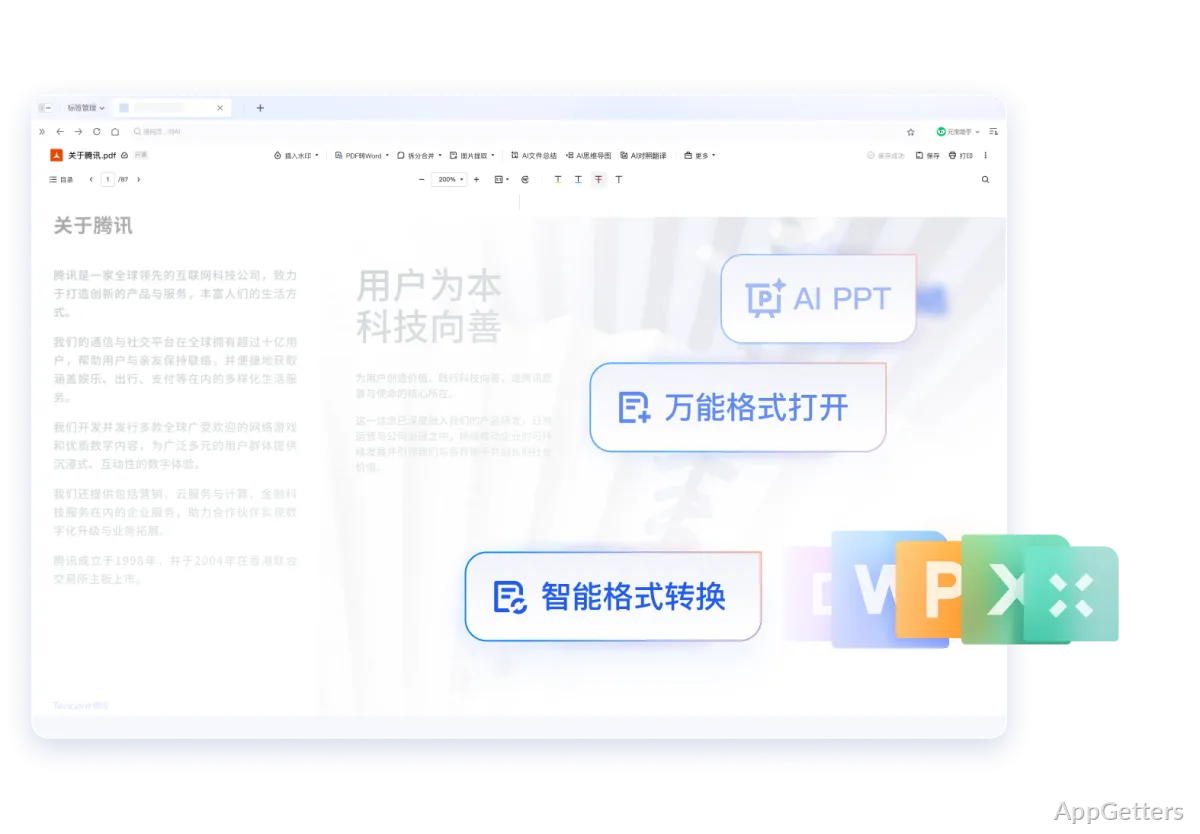
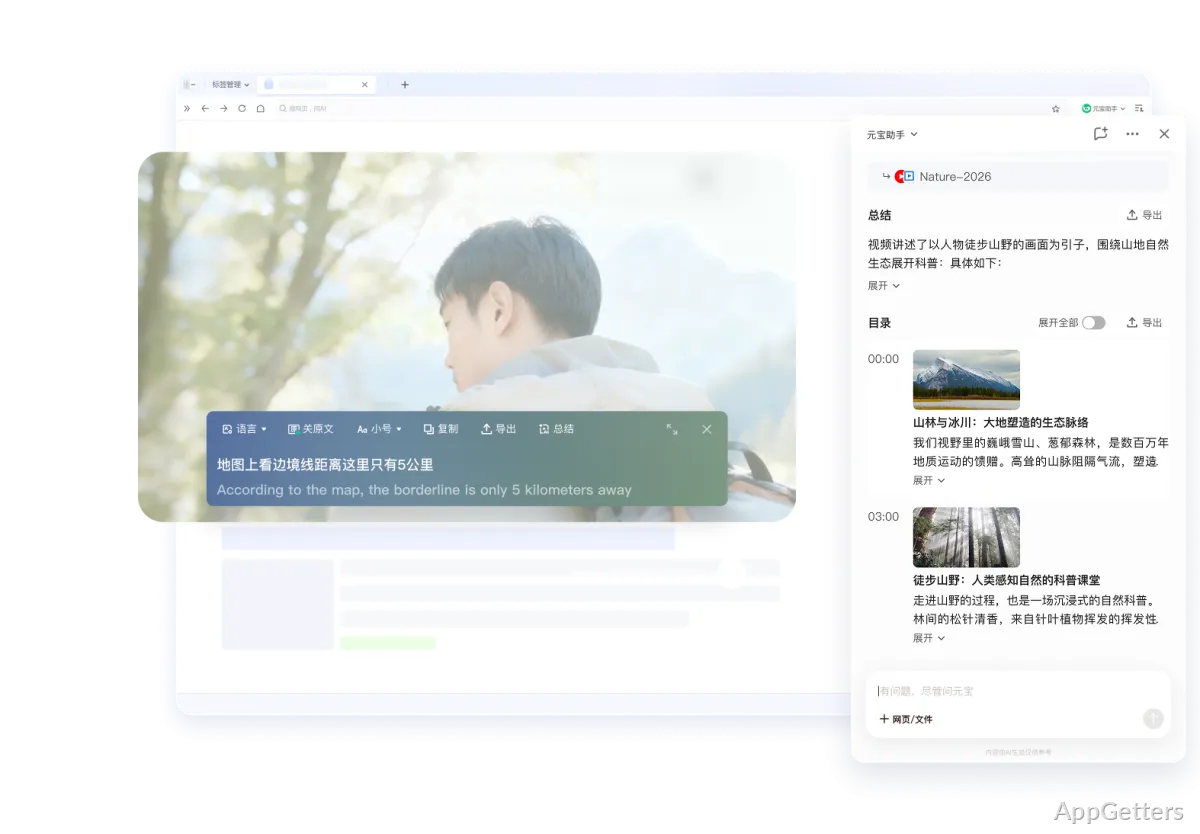
The browser is aimed at web browsing, search, downloads, reading, Tencent service access, and Chinese-language browsing habits. Users may install it because certain Tencent pages, QQ-related services, or Chinese websites feel easier inside that environment. Others may only want to test it for one website. Those two use cases need different setup choices.
Use the version shown on the official Tencent download page, Microsoft Store listing, or supplied download card when you need the exact build. Avoid using old software directory pages as the final reference for package details. Browser downloads can change often, and QQ Browser is maintained around a specific Tencent product ecosystem.
Check the Language, Homepage, and Account Prompts First
The first launch should be about orientation, not migration. Open QQ Browser, check the interface language, look at the start page, and review the account prompts before importing anything important. A browser can load pages correctly and still be uncomfortable if the menus, content feed, or sign-in screens do not match the user’s normal workflow.
Keep your default browser unchanged at first
Start with the sites that made you consider QQ Browser. Open Tencent pages, QQ services, Chinese websites, a search page, and one download page. That tells you more than a blank tab. If those pages work better there, the browser has a purpose. If not, changing the Windows default browser too early only creates extra work.
Users who want a familiar international browsing baseline can compare the same pages in Google Chrome. Chrome is a more useful reference when the priority is English settings, common extension habits, and broad website compatibility. QQ Browser makes more sense when Tencent services or Chinese web behavior are part of the reason for installing it.
Sign-in prompts should be read slowly
QQ Browser may connect more naturally with Tencent account services than a general browser profile. That can help if those services are part of your workflow. It can also create confusion if the browser asks for an account when you only wanted to test a few public pages. Check which account is being requested before signing in.
Download QQ Browser With a Careful First Setup
Use the official developer source or the supplied download card for QQ Browser for Windows. Continue only when the file came from the official developer source or another trusted source you intentionally chose. Avoid modified installers, cracked editions, serial key pages, and unknown mirror downloads, especially for a browser that may handle passwords, downloads, cookies, and account sessions.
Windows may show a security warning during setup. Check that the installer came from the official developer source before continuing. If Windows security or another protection tool shows a warning for the installer or one of its components, read the warning text and verify the file source. Do not turn off protection just to finish the installation.
After setup, use the browser’s own version screen when the exact version matters. If QQ Browser is being installed only for Tencent pages or a specific Chinese website, keep a note of the version details currently being used before changing defaults. That gives you a reference point if a later update changes the homepage, tools, or page behavior.
Downloads Should Be Tested Before Large Files
QQ Browser is often associated with download handling, so the download path deserves an early check. Download a small harmless file first. Then open the download list and confirm where the file went. A browser that saves files to an unexpected folder can create confusion later, especially with installers, archives, documents, or media files.
Learn the download panel first
If QQ Browser uses its own download panel, learn how to pause, resume, delete, and open downloaded files from that panel. Also check whether it asks for a save location or uses a default folder. This takes only a short test file, but it prevents a long search when a larger file finishes later.
Compressed files still need an extraction tool after download. If ZIP, 7Z, or archive files are part of your normal workflow, a separate tool such as 7-Zip can handle extraction after QQ Browser saves the file. The browser downloads the archive; the archive utility handles what is inside it.
Stalled downloads may not be a browser fault
A failed download can come from the file host, the network, Windows file checks, or a broken link. Try another small file from a different site before changing QQ Browser settings. If only one website fails, the problem may be the server or the download link rather than the browser itself.
Compatibility Depends on the Sites You Actually Use
QQ Browser may feel natural on Tencent and Chinese websites, but that does not guarantee every international site will behave the same way. Test banking, school portals, work dashboards, streaming pages, cloud storage, and shopping pages before relying on it as the main browser. Compatibility should be judged by the sites that matter to your PC.
Some services may prefer another browser
A page that loads slowly, shows a strange login prompt, or rejects the browser should be tested somewhere else before changing many settings. Use a second browser for comparison. If the same page works normally there, keep QQ Browser for the Tencent or Chinese sites where it helps and use the other browser for that problem site.
For users who want heavy browser customization without Tencent-specific services, Vivaldi is a different kind of option. It focuses on tabs, panels, shortcuts, themes, and layout control. QQ Browser is more relevant when Tencent tools, Chinese search habits, downloads, or reading features matter more than interface tuning.
Extensions should be added carefully
Do not assume every extension workflow will behave exactly like Chrome. Open the extension area, check what is already present, and add only the extensions you need. Add one at a time. If a login button disappears, a page stops loading, or downloads change behavior, disable the newest extension before reinstalling the browser.
Search, Reading, and Content Feeds Need Adjustment
QQ Browser is closely connected to search and content discovery, so the homepage and feed area may feel busy to some users. Check the startup page, search provider, new tab behavior, and reading tools during the first session. A browser that is useful for Chinese content can still be distracting if every new tab pulls attention away from the page you intended to open.
Homepage behavior changes the browsing habit
A homepage full of search boxes, news, tools, or recommendations can be helpful for some users and noisy for others. Change only the settings you understand. If the browser is installed for one or two Tencent services, it may be better to keep it separate instead of forcing it to replace your usual browser.
Users who want stronger privacy defaults in a mainstream browser may compare Brave Browser. That comparison makes sense when tracker blocking, private browsing, and fewer service ties matter more than Tencent search, reading tools, or QQ-related account access.
Notifications should stay limited
Content feeds, websites, and account services can all ask for notifications. Review those prompts as they appear. Allow only the sites where alerts are actually useful. If the browser becomes noisy after a few sessions, check site permissions and start page settings before deciding the whole installation was a mistake.
Privacy Settings Deserve a Separate Pass
QQ Browser belongs to a large Tencent product environment, so privacy settings should not be skipped. Check account sync, history, search behavior, downloads, autofill, site permissions, and notification settings before using it for sensitive browsing. The practical goal is simple: know what the browser stores, what connects to an account, and which pages should stay in another browser.
Use a separate role for Tencent browsing
Many users will get the clearest result by giving QQ Browser a narrow role. Use it for Tencent services, Chinese sites, or pages that behave better there. Keep banking, work systems, or private research in the browser you already use for those tasks. Separate roles make troubleshooting easier when one browser changes after an update.
If you use saved passwords, account sync, or autofill, review those settings before signing into many sites. A browser tied to a specific service ecosystem can be useful, but it should not collect more everyday account activity than you intended. Start small and expand only after the settings make sense.
When QQ Browser Fits a Windows PC
QQ Browser fits users who need Tencent-linked browsing, Chinese web compatibility, built-in download handling, reading tools, and a browser environment familiar to QQ or Tencent service users. It is not the easiest choice for someone who only wants a plain English-language browser with very few connected services. For a calmer browser aimed at ordinary browsing sessions, Opera Air is a more general comparison.
A useful first week with QQ Browser for Windows should stay narrow. Test the interface language, Tencent account prompts, the Chinese websites you need, the download folder, the homepage, notification settings, and one or two sensitive pages in another browser for comparison. If QQ Browser improves those Tencent or Chinese-site tasks without taking over every web session, it has a clear place on the PC.