NetSpeedMonitor for Windows When the Taskbar Needs Live Traffic Numbers
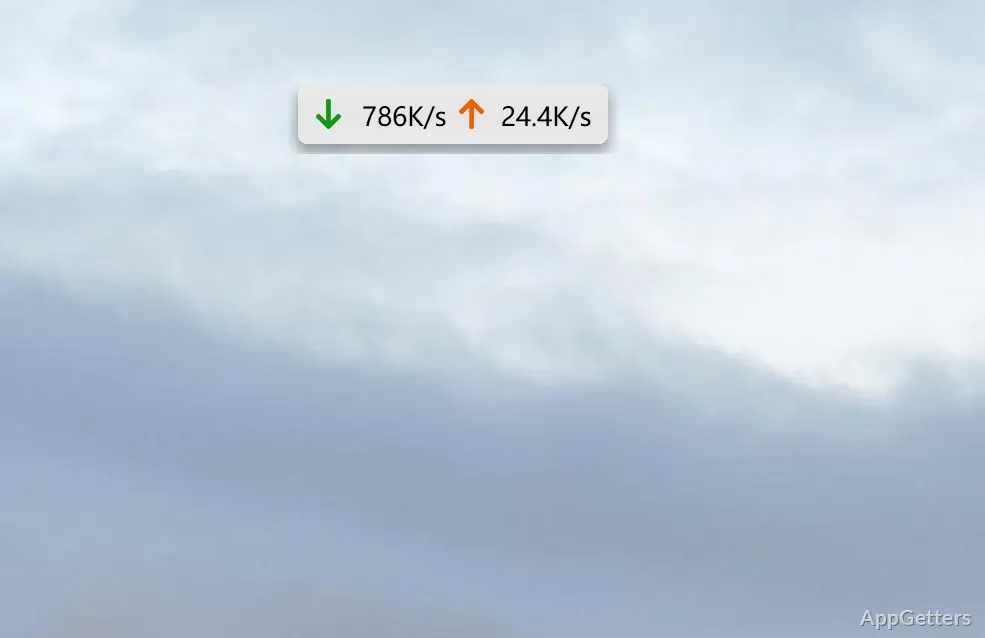
A download can crawl, a video call can freeze, and Windows may still show the network icon as connected. NetSpeedMonitor for Windows gives users a small upload and download speed display near the taskbar, so the connection can be checked without opening a full network monitor every time something feels slow.
NetSpeedMonitor is a lightweight Windows network traffic toolbar associated with Florian Gilles. It focuses on live upload speed, live download speed, and traffic totals for the selected network interface. The program is older than many current Windows taskbar utilities, so the setup experience matters more than it would with a newly maintained Microsoft Store app.
Use the version and file details shown on the supplied download card as the first reference before installing. If another download page shows different values, compare them carefully instead of trusting copied version numbers from old software mirrors. Continue only when the file came from the supplied download card or another trusted source you intentionally chose.
Install Behavior on Newer Windows Builds
The strongest setup problem with NetSpeedMonitor is not the speed display itself. It is the installer age. Many users try it on Windows 10 or Windows 11 and see a compatibility message before the toolbar ever appears. In that situation, the installer may need Windows compatibility settings before setup can continue.
NetSpeedMonitor for Windows was widely used on older Windows taskbar designs, while newer taskbars handle toolbars differently. On Windows 10, compatibility mode often makes setup possible. On Windows 11, results vary because Microsoft changed the taskbar behavior, so some systems may need a different network meter instead of repeated reinstall attempts.
If Windows shows a security warning during setup, check where the installer came from before continuing. Do not turn off protection just to install a taskbar meter. A network speed display is useful, but it is not worth installing a modified package, cracked edition, serial key bundle, or unknown mirror download.
When the installer says the operating system is unsupported
The unsupported operating system message usually appears before the program can place its toolbar component. Try the installer properties, choose a Windows compatibility mode that matches the older build the program was made for, then run setup again. Restart Windows after installation if the toolbar does not appear immediately.
Avoid repeating the same setup attempt without changing anything. If the compatibility setting still fails, check whether the download card provides a separate 32-bit or 64-bit package. A mismatched package can create a setup failure that looks like a Windows version problem.
When the toolbar is installed but invisible
After installation, NetSpeedMonitor may not show numbers until its toolbar gets enabled from the Windows taskbar menu. Right-click an empty area of the taskbar, look for the toolbar list, and select NetSpeedMonitor when it appears. If the taskbar is locked or heavily customized, unlock or simplify the taskbar view first.
On systems with third-party taskbar replacements, custom shells, or heavy desktop styling tools, the toolbar may behave differently. Test NetSpeedMonitor with the standard taskbar layout before assuming the program is broken. That step separates a toolbar problem from a desktop customization conflict.
Choosing the Network Adapter Matters More Than Most Users Expect
A live speed meter can show zero even while the internet works if it watches the wrong adapter. NetSpeedMonitor reads traffic from the selected network interface, so Ethernet, Wi-Fi, VPN, virtual adapters, mobile tethering, and disabled adapters can all affect the visible reading.
Open the configuration window and choose the active adapter that carries the connection you want to monitor. If you switch from Wi-Fi to Ethernet, or connect through a VPN, the old adapter choice may no longer match the real route. NetSpeedMonitor for Windows works better when that adapter setting gets checked after network changes.
VPN and virtual adapters can confuse the reading
VPN clients often create their own virtual network adapter. If NetSpeedMonitor watches the physical Wi-Fi card while the VPN handles traffic through another adapter, the display may look lower, higher, or inactive. Select the adapter that matches the path you are actually trying to measure.
VirtualBox, VMware, phone tethering tools, and some security programs can also add network interfaces. When the adapter list looks crowded, disconnect extra connections for a moment, identify the active interface, then return to the configuration window and pick the one that changes during real browsing or downloading.
Upload and download labels look reversed or unclear
Some users read the two numbers incorrectly because taskbar meters use short labels. Check the configuration labels for upload and download units before judging the connection. Upload speed rises when files, cloud backups, messages, or video calls send data out. Download speed rises when browsers, launchers, updates, and streams pull data in.
If the display feels cramped, change the font, unit style, or visible text from the settings panel if those options are present in the installed build. A clearer label can prevent bad troubleshooting, especially on laptops where the taskbar already has many icons.
Reading the Numbers Without Misdiagnosing the Internet
NetSpeedMonitor is not a full broadband speed test. It shows current traffic passing through the selected interface. That means the number may stay low when nothing is downloading, even if the internet plan is much faster. It also may spike when Windows Update, cloud sync, or a browser download starts in the background.
Use the taskbar number as a live activity signal, not as final proof of ISP performance. For example, a 100 Mbps connection will not show 100 Mbps unless an app is actually pulling data fast enough. A speed test, a large download, or a local network transfer creates a more meaningful reading.
High traffic when no browser is open
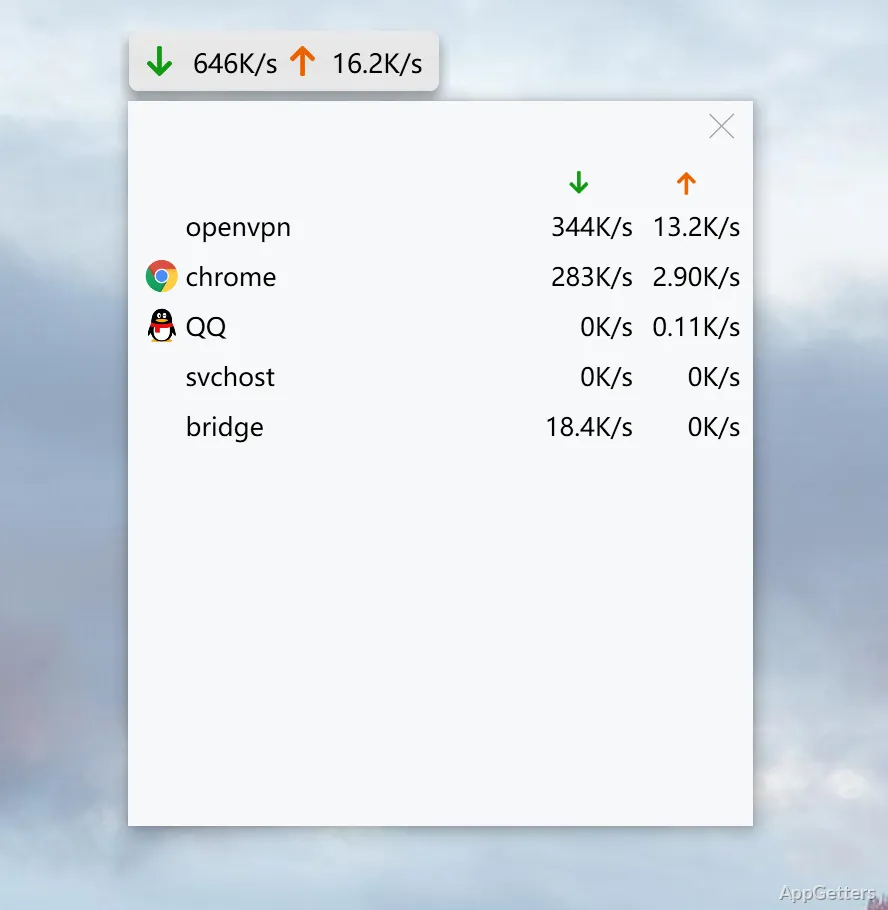
Unexpected traffic can come from Windows updates, game launchers, cloud storage, browser background tasks, or app stores. NetSpeedMonitor can show that activity exists, but it does not replace a process-level investigation. When you need to inspect running programs, Process Explorer can help you review active processes before blaming the connection itself.
Do not close random system tasks just because the speed meter moves. First pause known sync tools, game clients, or large downloads from their own menus. If the number drops after pausing one app, the meter has done its job: it pointed you toward the traffic source without changing system files.
Traffic totals do not match the ISP bill
Traffic totals inside a desktop meter may differ from an ISP dashboard because each side counts traffic differently. The ISP may count router-level traffic for every device, while NetSpeedMonitor watches one Windows computer and one selected adapter. Wi-Fi phones, smart TVs, consoles, and other computers will not appear in that local total.
Use the daily or monthly totals as a local estimate for that PC, not as a billing dispute record. If household usage matters, check the router or ISP account dashboard alongside the Windows meter. For office or multi-device monitoring, a broader tool such as PRTG Network Monitor fits the job better.
Display, Startup, and Language Tweaks
Small taskbar utilities depend heavily on display settings. If NetSpeedMonitor looks cut off, unreadable, or misaligned, check Windows scaling, taskbar height, and the program’s display options. A compact upload and download readout may need shorter units or a smaller font on laptops with narrow taskbars.
If the meter disappears after a restart, check whether the toolbar remains enabled and whether Windows restored the taskbar layout. Some systems need one restart after installation before the toolbar behaves normally. If it vanishes again, test with fewer taskbar customization tools running and confirm that the selected network adapter still exists.
Numbers update slowly or stay at zero
A zero reading can mean the wrong adapter, no current traffic, or a paused toolbar. Open a browser download or stream a short video, then watch whether the numbers move. If nothing changes, return to the adapter list and select a different active interface.
Some background activity is too brief to catch if the refresh interval is slow. Look for update or refresh options in the configuration panel. A faster refresh can make spikes easier to see, while a slower refresh can make the taskbar calmer during normal browsing.
Language and unit choices change how useful it feels
The same connection can look different when shown in KB/s, MB/s, Kbit/s, or Mbit/s. Internet plans often advertise bits, while file downloads often show bytes. Pick the unit that matches the question you ask most often. For download managers, bytes may feel natural. For checking an ISP plan, bits may be easier to compare.
If the interface language or decimal style looks unfamiliar, check the configuration panel before reinstalling. Older utilities sometimes keep regional choices inside their own settings rather than following every Windows display preference exactly.
When a Taskbar Meter Is Enough and When It Is Not
NetSpeedMonitor is useful when the main question is direct: is this PC sending or receiving data right now, and how fast is it moving? It suits users who want a small taskbar readout while browsing, downloading, watching streams, using cloud sync, or checking whether a slowdown is real.
NetSpeedMonitor is not a packet analyzer, router dashboard, Wi-Fi scanner, or full network management platform. It will not explain every dropped packet, every DNS delay, or every weak wireless signal. For those cases, use it as an early warning sign, then move to the router, Windows network settings, or a dedicated monitoring tool.
Keep expectations realistic when using NetSpeedMonitor for Windows on modern systems. Check the adapter selection after network changes, treat taskbar traffic as a live PC-level reading, and avoid chasing exact ISP numbers from a small toolbar. The program is most useful when it confirms activity quickly, not when users treat it as a full network audit system.