Midori Browser for Windows Starts With a Privacy-First Setup
A browser can feel fast on the first tab but still disappoint later if sync, extensions, privacy defaults, or site compatibility do not match the way you browse. Midori Browser for Windows is Astian’s free, open-source web browser for users who want a lighter privacy-focused browser with no account requirement, no built-in telemetry, and a simple desktop browsing flow.
Midori has a long name history, so users should be careful when comparing old screenshots, old Linux notes, and current Windows builds. The modern Astian Midori package is the one to check for Windows use. Older articles may describe earlier engines, older interface choices, or outdated platform support that does not match the current download card.
Use the official Astian Midori download page or the supplied download card when choosing the Windows package. Continue only when the file came from the official developer source or another trusted source you intentionally chose. Avoid modified installers, cracked editions, serial key pages, and unknown mirror downloads that repackage old browser builds.
Download Card, Version Check, and First Launch
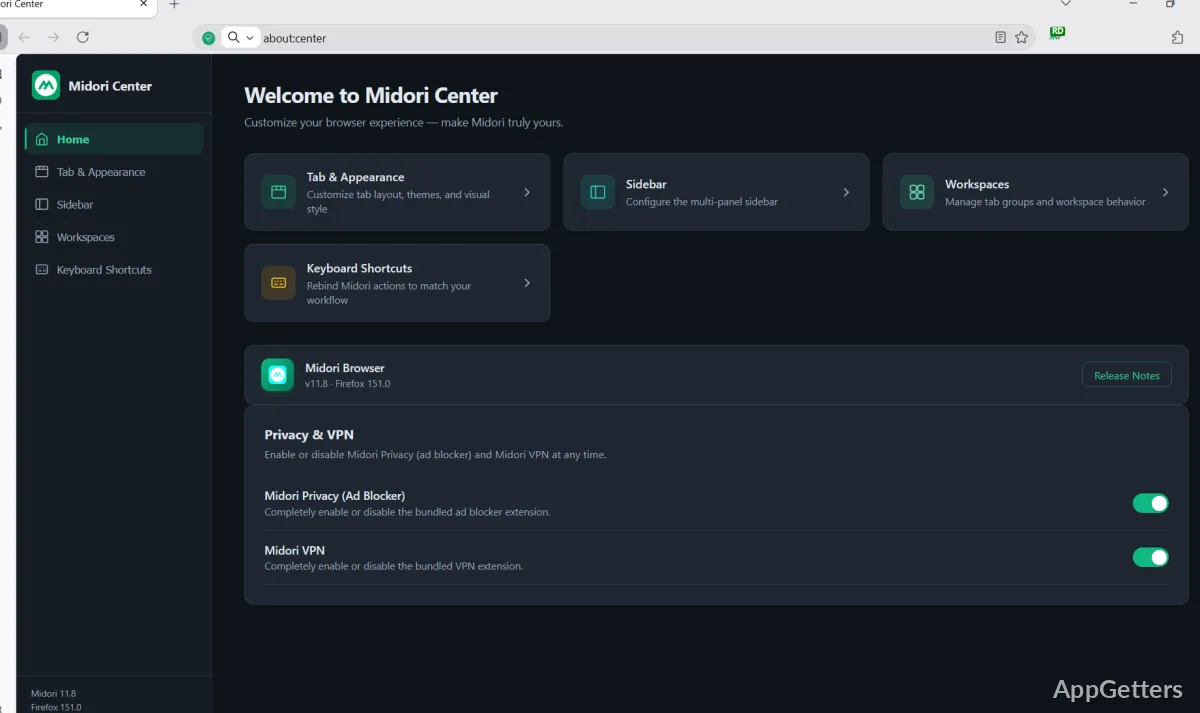
The official Midori download page can show current platform choices for Windows, Linux, Android, and other supported systems, while exact version and package details may change over time. Check the version shown on the download card and compare it with the browser’s About screen after installation.
Midori Browser for Windows should be tested with a few ordinary tasks before replacing your current browser. Open a plain website, a search page, one secure login page, and one media-heavy page. That quick mix checks page loading, HTTPS behavior, forms, video playback, and basic browser stability without changing your default browser first.
Windows may show a security warning during setup. Check that the installer came from the official developer source before continuing. If the file name, download path, or installer prompt looks different from the package you intentionally chose, return to the official source or supplied download card before running it again.
When Midori Will Not Open After Install
A browser that installs but does not open may be running into Windows policy, endpoint protection, a damaged download, or a profile startup problem. Try launching it from the Start menu, then restart Windows if nothing appears. If a managed PC blocks the app, administrator policy may be the real limit.
If another browser works but Midori does not, avoid changing network or router settings right away. Check whether Windows security or another protection tool shows a warning for the browser or one of its components. Then compare the download card with the installed app details before trying another package.
Privacy Claims Need Practical Settings Checks
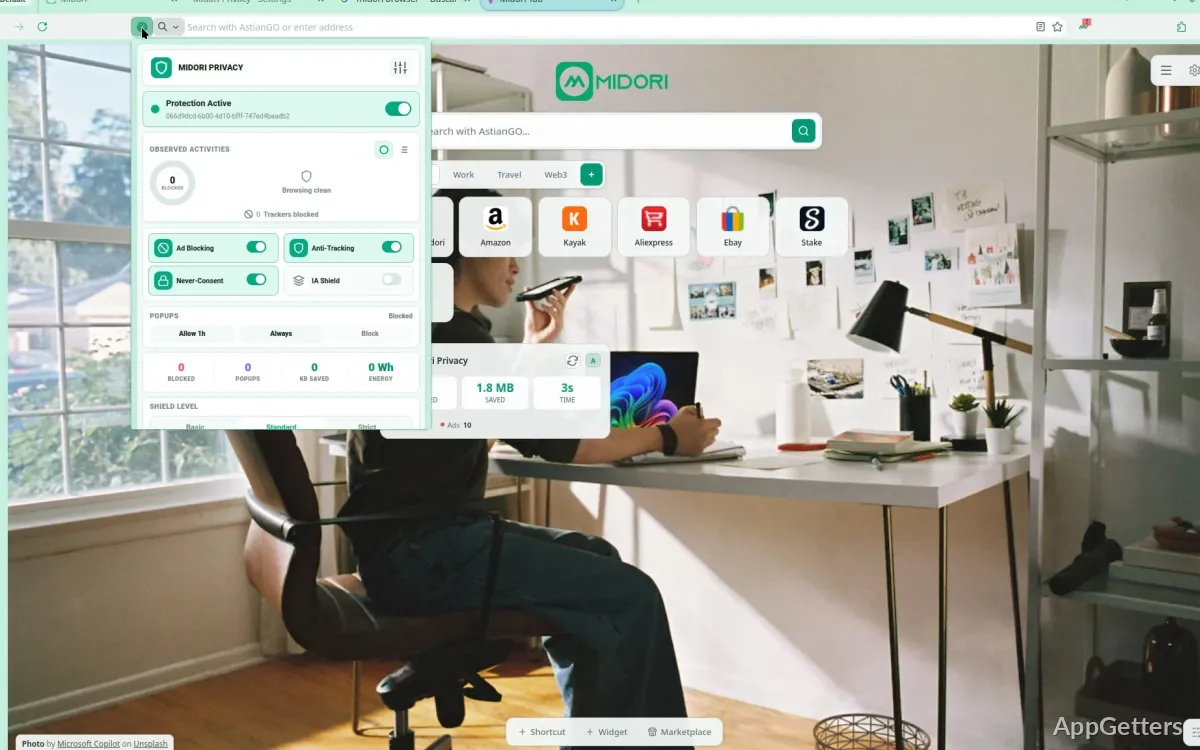
Astian presents Midori as a private browser with no telemetry and no account requirement. That is useful, but privacy still depends on how you browse, which extensions you install, which sites you log into, and how Windows itself is configured. A private browser cannot hide every account action or every website-side tracker by itself.
Check the default search engine, startup page, cookies, history behavior, saved passwords, site permissions, and download folder before using Midori for sensitive browsing. Those settings decide what happens after the browser opens. A browser can be privacy-focused and still store bookmarks, sessions, form data, or website permissions when you choose to keep them.
Midori Browser for Windows does not need an account for ordinary browsing, which can suit users who dislike mandatory sync logins. If you rely on passwords, bookmarks, or history across devices, check the current Midori features before assuming it will behave like a browser tied to a large cloud account.
When Websites Still Track You
Websites can recognize visitors through cookies, account logins, IP address, browser features, and behavior patterns. Clearing cookies may help in some cases, but signing back into the same account tells the website who you are again. Midori can reduce some unwanted browser-side behavior, but it cannot change how every website identifies users.
Users comparing privacy-focused browsers may also look at LibreWolf when they want stricter Firefox-based defaults. Midori is a different choice: it aims for light, simple browsing under Astian’s privacy-focused direction rather than a heavily hardened browser profile.
Extension Expectations Should Stay Realistic
Many browser problems start when users expect every extension from their previous browser to work the same way. Midori’s current engine and extension path should be checked from the installed browser, not from old forum posts. Password managers, ad blockers, download helpers, and note clippers deserve one-at-a-time testing.
Install the most important extension first, then test the website that depends on it. If you import several extensions at once, broken sign-ins, missing buttons, or blocked scripts become harder to trace. A single ad blocker or privacy extension can change how banking pages, checkout forms, video sites, and dashboard apps behave.
If a site fails after an extension is added, open the same site in a private window or with the extension disabled when the browser offers that option. Then test the page in another browser. For a mainstream comparison, Mozilla Firefox can help separate a website problem from a Midori-specific setting.
Importing Bookmarks and Passwords
Bookmark import is usually easier than password migration. Check the browser’s import options and export from the old browser when supported. Do not delete the old browser profile until bookmarks, saved logins, and important work sites have been tested in Midori.
For passwords, a dedicated password manager can reduce browser-to-browser migration trouble. If you keep passwords inside a browser, confirm the imported entries work on the websites you actually use. A saved password that appears in a list is not useful until the login form accepts it.
Site Compatibility Is the Main Daily Test
A lighter browser still has to deal with heavy websites. Email, streaming pages, shopping checkouts, maps, school portals, office suites, and banking sites may use features that behave differently across browsers. A page that looks fine at first can still fail at login, payment, upload, camera permission, or video playback.
Test Midori Browser for Windows with the exact websites that matter before making it the default browser. Open your email, one bank or payment site, one document editor, one video site, and one work dashboard. If one of them fails, keep your old browser ready for that task while you check settings.
Certificate warnings need caution. If a secure site shows a certificate problem, check the PC date and time, then try the same site in another current browser. Do not continue through certificate warnings just to finish a login, especially on banking, email, admin, or payment pages.
Video or Audio Will Not Play
Video trouble can come from the website, DRM requirements, codec support, graphics acceleration, extensions, or a blocked permission. Test a public video first, then try the same page in another browser. If only protected streaming sites fail, the limitation may be tied to site requirements rather than a broken installation.
Users who want a Chromium-style alternative with broad mainstream-site behavior can compare Google Chrome or Microsoft Edge. Those browsers are heavier for some users, but they are useful fallback choices for sites that expect the most common browser paths.
Default Browser Changes Should Be Slow
Making Midori the default browser changes which app opens links from email, chat, documents, PDF tools, and Windows search. Do not make that change after one successful test page. Use it manually for a few sessions first, then switch defaults only after your daily sites behave well.
If links still open in another browser, check Windows Default Apps rather than reinstalling Midori. Windows can keep different defaults for web links, file types, and protocol handlers. A mail app or chat app may also have its own browser preference, so the system setting is not always the only place to check.
Pinned taskbar shortcuts can also confuse testing. A shortcut may launch the old browser even after Midori becomes the default for links. Remove or rename old shortcuts only after you know which browser you want to keep as the daily launcher.
Updates, Old Midori Notes, and Browser Identity
Midori’s history can create confusion because older versions were discussed in Linux circles for years, while current Astian builds follow a newer direction. When troubleshooting, check the current Midori page, the installed About screen, and the platform you are actually using. Old WebKit-era advice may not apply to a current Windows package.
If an update changes behavior, keep a copy of the installer or version details currently being used. Do not remove your previous browser until Midori handles the accounts, bookmarks, extensions, and media sites you rely on. A browser change can affect work logins more than users expect.
Users who like smaller browser projects may also compare K-Meleon, especially for older-school Windows interface control. Midori is better treated as a current privacy-focused browser from Astian, while K-Meleon appeals more to users who want macros, native menus, and a very traditional Windows browser feel.
Before Keeping Midori as Your Main Browser
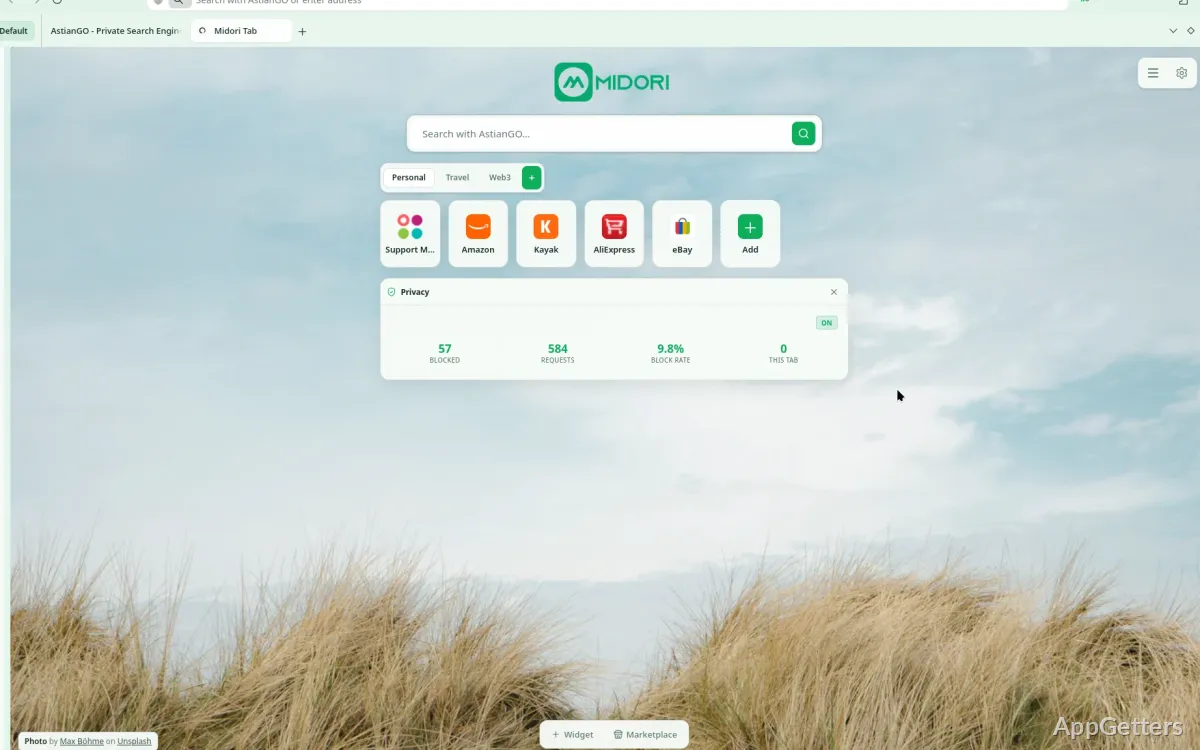
Run one practical test session before committing: import a few bookmarks, open your email, sign into one important account, play one video, download one file, and check whether your preferred extension works. That gives a more honest result than judging the browser from a blank new-tab page.
If your work depends on specific browser extensions, admin portals, payment pages, or video services, keep another browser installed as a fallback. Midori can be a useful everyday browser for users who value a light private setup, but no single browser handles every website perfectly.
Midori Browser for Windows works best when the privacy settings, extension choices, bookmarks, default-browser behavior, and required websites are tested together. Install from the official developer source or supplied download card, compare the installed version with the download card, and keep your previous browser available until Midori proves it can handle the accounts and pages you use most.