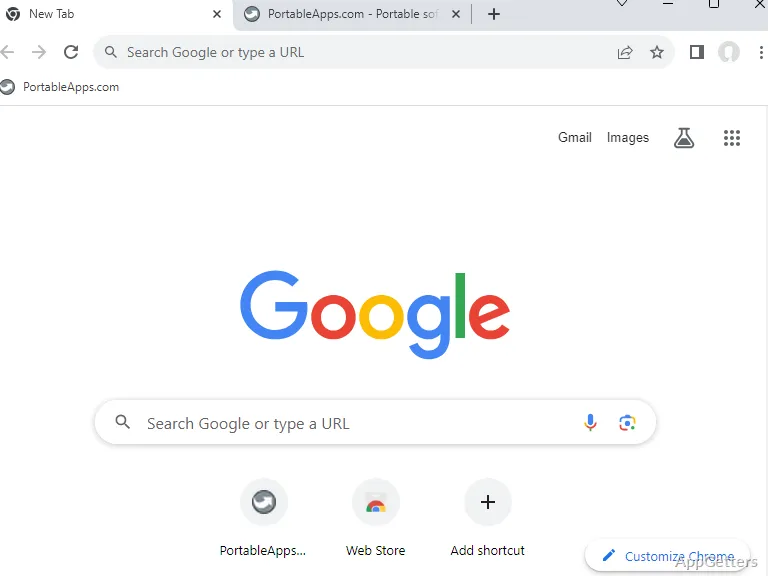
Google Chrome Portable is usually chosen when someone wants Chrome in a separate folder, a USB drive, or a PortableApps.com setup without making it the main browser on the PC. Google Chrome Portable for Windows keeps the familiar Chrome browsing style, but the portable package changes how profiles, updates, downloads, extensions, and default-browser handoffs should be handled.
The portable edition is distributed through PortableApps.com and packages Google Chrome for portable use with its own launcher. Chrome itself comes from Google, while the portable format is arranged so the browser profile can stay with the portable folder. That difference matters. The window may look like ordinary Chrome, but the surrounding package is not the same as installing Chrome directly from Google.
Google Chrome Portable for Windows Starts With the Folder
The folder location affects more than neatness. A USB flash drive makes Chrome easier to carry, but a slow drive can make startup, cache writes, and tab restore feel heavy. A local SSD is faster, while a cloud-synced folder can create conflicts if Chrome remains open while files are syncing. Pick the location before adding accounts and extensions.
Use a normal folder where the user has permission to write files. Avoid placing the portable browser inside a protected Windows system folder just to keep it out of sight. Continue only when the package came from the official PortableApps.com page, Google’s Chrome source, or another source you intentionally chose. Avoid modified installers, fake portable bundles, cracked editions, and unknown mirror downloads.
Portable Chrome Is Not Private by Itself
A portable browser does not make web activity invisible. Websites can still see sign-ins, cookies during the session, browser fingerprinting signals, IP-related information, and anything typed into a page. The portable format mainly keeps the app and its profile together. It is useful for separation and movement, not for hiding activity from websites, networks, or account providers.
This matters on school, office, hotel, and public computers. The browser may run from a removable drive, but the network can still apply rules and record traffic metadata. Close Chrome before unplugging the drive. Do not treat the portable folder as protection against phishing, unsafe downloads, weak passwords, or websites that ask for sensitive information.
Use It for Separation, Testing, or Travel
A portable Chrome folder makes sense when the user wants a separate browser for travel, testing, a temporary work setup, or a profile that should not mix with the installed browser. It can carry bookmarks, extensions, settings, and saved sessions inside the portable location. That can be helpful, but it can also become messy if it simply duplicates every account from the main Chrome profile.
Users who want a normal installed browser should compare Google Chrome. The installed edition fits better when Chrome should become the default browser, receive normal system integration, and open links from Windows apps. The portable package is more useful when the browser needs to remain self-contained or move between machines.
Installed Chrome and Portable Chrome Can Coexist
Installed Chrome and the portable edition can sit on the same PC, but the roles should stay clear. One can handle everyday browsing, while the other handles testing, travel, or a specific account set. If both hold the same accounts, bookmarks, passwords, and extensions, the user may not know which browser has the latest data.
Open the portable browser through its launcher instead of starting random executables inside the package. That keeps the portable profile path and launcher behaviour consistent. Shortcuts created manually from inner folders can confuse the setup and may open the wrong profile. When a portable browser suddenly looks empty, the launch path is one of the first things to check.
Updates Need Attention in the Portable Package
Chrome updates move quickly, and browser security depends on staying current. With the portable edition, pay attention to the PortableApps.com update path as well as Chrome’s own information screen. Check the version shown on the download card and compare it with the version displayed inside the browser when needed.
Google Chrome Portable for Windows should not sit unchanged on a USB drive for months if it handles real browsing. Certificates, site compatibility, extension behaviour, and security fixes can all depend on updates. If the portable copy is used only for a controlled test, keep a copy of the installer or version details currently being used so results remain repeatable.
When the Update Does Not Finish
An update can fail because the portable folder is read-only, the USB drive is full, Chrome is still running, or the files are being synced by another program. Close every portable Chrome window first. Then check free space and folder permissions. If the folder sits inside cloud storage, let syncing finish before starting the update again.
Do not repair an update by deleting random folders inside the portable package. Use the PortableApps.com update route or reinstall the portable package over the existing location only when that is the supported method. Before major changes, export important bookmarks through Chrome’s menu and confirm access to important passwords through the user’s normal password workflow.
Extensions Can Turn a Portable Browser Into Baggage
Chrome extensions can travel with the portable profile, which is useful until the profile becomes overloaded. Password managers, ad blockers, shopping helpers, download tools, grammar tools, VPN extensions, and developer add-ons can all affect website behaviour. Add only what is needed first. A smaller extension set makes the portable browser faster to open and easier to repair.
If the user wants a portable browser that uses Mozilla’s browser engine instead, Mozilla Firefox Portable is the closer comparison. Chrome Portable keeps the Chromium-based Chrome experience, so extension compatibility and website behaviour usually feel familiar to Chrome users. That familiarity is useful, but it also means bad Chrome habits can travel with the folder.
One Extension Can Break the Same Website Everywhere
A checkout button that disappears, a login page that loops, or a dashboard that loads halfway may come from an extension rather than the website. Test the page in a fresh portable profile or disable the most recent extension first. A portable profile can carry the same broken add-on from one PC to another, which makes the issue look like a bigger platform problem.
Developer extensions need extra discipline. Tools that change cookies, headers, scripts, user agents, storage, or local redirects can make a website behave unlike a normal visitor’s browser. Keep a separate portable profile for testing work. Do not use a heavily modified development profile for banking, email, shopping, or personal accounts.
USB and Cloud Storage Can Slow Chrome Down
Chrome writes cache, profile data, extension data, session files, and downloads inside or around the portable location according to the package behaviour and settings. On a slow USB drive, that can make the browser feel sluggish. The problem may not be Chrome itself. The storage device may be too slow for a heavy browsing profile.
If the portable browser feels delayed, test it from a faster local folder before changing many Chrome settings. Large restored sessions also drag. Close old tabs, remove unused extensions, and avoid carrying months of stale browsing data in a portable copy meant for travel or testing. A portable browser should not become a suitcase full of forgotten tabs.
Cloud Sync Folders Need a Light Touch
Running Chrome Portable directly from a synced cloud folder can be convenient, but browser profiles change constantly while the app is open. Sync software may try to upload profile files while Chrome is still writing them. That can create duplicated files, delayed sync, or profile trouble.
Close Chrome fully before letting the cloud folder sync. Do not open the same portable profile on two PCs at the same time. If cloud storage is only needed for transfer, keep a closed copy synced and run the browser from one machine at a time. This avoids many profile conflicts that look like random browser damage.
Default Browser Handoffs Can Be Awkward
Google Chrome Portable can open web pages, but the portable format is not mainly about taking over Windows defaults. If email links, PDF links, chat links, or app login windows should always open in Chrome, the installed edition may be a better fit. Portable use works better when the user opens the browser intentionally.
Users who want built-in privacy controls in a normal installed browser may compare Brave Browser. Users who want a full portable app menu and update manager can look at PortableApps.com Platform. Chrome Portable fits better when Chrome needs to move, stay separate, or serve a narrow testing role.
Links May Still Open in Another Browser
After setting up the portable browser, double-clicked HTML files or links from other apps may still open in the current default browser. That does not mean the portable package failed. Windows is handing links to the browser already assigned as default. Open Chrome Portable first, then paste the link or use the browser’s own open controls when needed.
If every link truly needs to open in Chrome, the installed version is usually easier to manage. Avoid registry edits or random default-browser utilities just to force a portable package into that role. The portable browser stays easier to understand when Windows defaults are left alone unless there is a specific reason to change them.
Sign-In, Sync, and Passwords Need Care
Signing into a Google account can bring bookmarks, passwords, history, extensions, and settings into the browser, depending on the user’s sync choices. That may defeat the reason for using a separate portable profile. Check sync settings before turning everything on. A travel browser that imports every home-browser detail may no longer feel separate.
On a shared PC, sign-in needs a little discipline. Use the intended Google account, check what sync categories are active, and sign out when the portable copy is no longer needed there. Do not depend only on the removable drive leaving the computer. Browser sessions and account choices should be closed deliberately.
Downloads and File Paths
Download locations can be confusing in a portable browser. Files may go to a portable folder, the normal Windows Downloads folder, or a path set earlier by the user. Check the download setting before saving important files. This matters on public or borrowed PCs, where leaving downloaded documents in the wrong folder can create privacy and cleanup problems.
If the portable browser is on a small USB drive, large downloads can fill it quickly. Use a clear download location and move files intentionally after the download finishes. Do not assume every downloaded file stays beside the portable browser. Check the actual folder before closing the session or removing the drive.
Keep the Portable Copy Purposeful
Google Chrome Portable for Windows works better when the profile has a clear role: travel browser, testing browser, temporary work browser, or a separate account space. Keep the folder in a writable location, update it through the portable package path, add extensions slowly, and test downloads, sign-ins, sync choices, and link handoffs before relying on it.
A portable Chrome setup should feel predictable, not mysterious. Use one known folder, one launcher, a small extension list, checked sync settings, and a download location the user can find later. Close it before removing a USB drive or syncing the folder. That keeps Chrome Portable useful without pretending it behaves exactly like the installed browser.