EXE
Home » Software » Windows » Web Browsers » Cent Browser for Windows
Cent Browser for Windows

Cent Browser for Windows

  • By Cent Browser
  • Free
  • Version: 5.2.1168.83
  • 108.79 MB
  • Security Report:
11 Downloads

Cent Browser for Windows Is for Tab-Heavy Browsing

Cent Browser for Windows is not the kind of browser someone installs just to open a search page and forget about settings. It is a Chromium-based browser for people who want more control around tabs, mouse actions, private browsing, and portable use. The extra tools are the reason to try it.

Cent Browser puts several controls closer to the surface: mouse gestures, Super Drag, a scrollable tab bar, private tabs, memory-related settings, privacy options, and portable use. That gives the browser a clear identity. It fits users who keep many pages open and like shortcuts built into the browser itself.

That extra control can also make the first run feel busy. A light user may open it and wonder what the fuss is about. A power user may notice the difference in the first hour, especially when dragging links, switching tabs, or keeping a portable profile away from the main Windows browser.

Choose the Browser Role Before Importing Anything

Do not rush into importing every bookmark, password, and extension. Cent Browser can be a main browser, a backup browser, or a portable testing browser. Pick one role first. When one profile becomes a mix of work accounts, test extensions, old bookmarks, and random setting changes, troubleshooting becomes harder than it needs to be.

Main browser or second browser

A main browser needs stable habits. You will care about bookmarks, sign-ins, extension behavior, and update checks. A second browser can be looser. It can handle testing, temporary accounts, unusual sites, or a different privacy setup. Cent Browser works better when you know which of those jobs it is doing.

If you already use Google Chrome, do not assume Cent Browser should copy it completely. Bring over only what you need. A lighter profile gives you a better feel for the tab bar, Super Drag, and gestures before old extension clutter changes the result.

Portable use needs a stable folder

Cent Browser’s portable side is a big reason people look for it. A portable browser folder can help with testing, travel, or keeping a separate profile. Still, portable does not mean careless. Bookmarks, extensions, cache, and settings may live inside or near that folder.

Do not move the portable folder while the browser is open. Do not keep it buried in a temporary download folder either. Put it somewhere predictable, close the browser before moving it, and export important bookmarks through the browser’s supported option when they matter.

The Scrollable Tab Bar Is the First Real Test

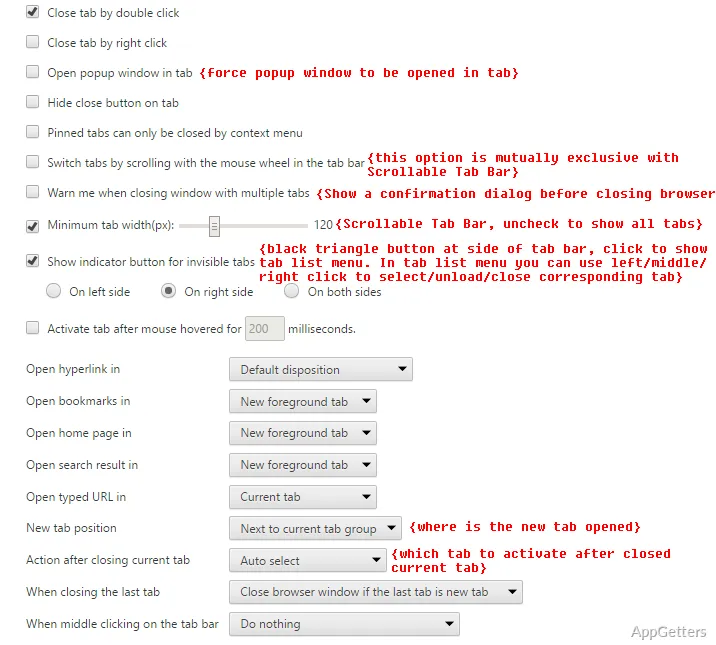
The scrollable tab bar is one of the clearest Cent Browser features. Normal Chromium-style tabs can shrink until every title looks useless. Cent Browser gives tab-heavy users another way to handle long browsing sessions, especially when research pages, dashboards, documents, webmail, and search results stay open together.

This feature matters only if your browsing style creates tab pressure. Someone who keeps five tabs open may not care. Someone who keeps thirty tabs open will understand the point quickly. The tab row stays more readable because the browser is not trying to crush every open page into the same visible strip.

If tabs still feel messy, look at extensions before blaming the browser. Tab managers, coupon add-ons, screenshot tools, password managers, and session savers can add buttons, background work, or confusing behavior. Test Cent Browser with fewer extensions before changing every tab option.

Super Drag Feels Fast Until It Gets in the Way

Super Drag is one of those features that sounds small until it becomes muscle memory. Drag selected text to search. Drag a link to open it. The action can save clicks when browsing normally, especially on research pages or search-heavy sessions.

The same feature can annoy users who work inside forms, notes, dashboards, editors, or web apps. If you often drag text just to select it, Cent Browser may react as if you wanted a search or a new page. That is not a broken install. It is a shortcut that needs adjustment.

Cent Browser is different from a plainer Chromium browser because it adds these browser-level actions through built-in settings. Users who enjoy drag shortcuts may like it quickly. Users who edit text all day may need to reduce the habit, change the related setting, or keep Cent Browser for browsing rather than writing work.

Mouse Gestures Need the Right Testing Page

Do not test gestures inside complex web apps first

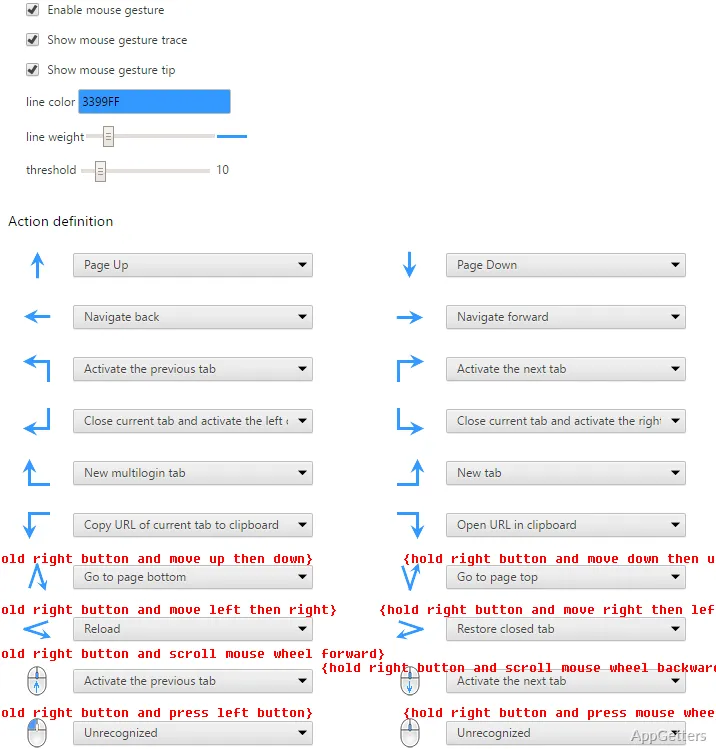
Mouse gestures can feel broken when the first test happens inside a map, spreadsheet, design editor, video player, remote desktop page, or browser-based tool. Those sites often capture mouse actions for themselves. Test back, forward, reload, and close-tab gestures on a plain page first.

If gestures work on a simple search page but fail inside one web app, the site is probably intercepting the mouse action. Reinstalling Cent Browser will not usually change that. Adjust the gesture settings, or accept that some web apps do not leave enough room for browser gestures.

Small movement mistakes matter

Cent Browser gestures are browser commands, not gaming mouse macros. A small movement difference can trigger the wrong action or nothing at all. Change one gesture setting at a time, then test again. Random changes make it harder to remember what improved the behavior.

Private Tabs Are Useful, but Not Magic

Private tabs are another Cent Browser feature that changes the normal Chromium habit. Instead of opening a separate private window, a user can keep a private page closer to the current browsing session. That can help with a temporary login, one-off search, or quick account check.

Private tabs should not be treated as invisibility. They are mainly for local session separation. Websites, accounts, networks, and downloads still need normal caution. Use private tabs when you want a page separated from regular local history, not as a promise that no one can identify the browsing activity.

This is a good example of where Cent Browser rewards users who understand the feature. Used carefully, private tabs reduce window clutter. Used casually, they can give a false sense of privacy. Keep sensitive accounts in a browser setup you understand well.

Extensions Can Make Cent Browser Look Worse Than It Is

Because Cent Browser is based on Chromium, many users expect Chrome-style extension behavior. That expectation is fair, but it should not become a promise that every extension, sync feature, login panel, or store change will behave exactly the same way. Test problem extensions before blaming the browser itself.

A blank extension panel, failed sign-in, broken pop-up, or missing button often comes from the extension, not the browser download. Create a fresh profile or disable extensions in groups, then reopen the same page. Password managers, script blockers, shopping add-ons, download tools, and video extensions can all interfere with web pages.

Sync can also confuse users. Bookmarks, passwords, history, and extension settings may not move exactly the way they do in Chrome. Export important bookmarks through the browser’s supported option before changing profiles. For work accounts, test one sign-in at a time instead of rebuilding the whole browser in one sitting.

Memory and Graphics Settings Need Slow Changes

Cent Browser includes memory-related options, so users with many tabs naturally pay attention to performance settings. Those options can help some sessions, but they will not fix every slow page. A heavy website, old graphics driver, video tab, or bad extension can still make the browser feel sluggish.

Black pages, flickering video, odd text rendering, or crashes during media playback often point toward graphics handling. Hardware acceleration is worth checking when those symptoms appear. Change one setting, restart the browser, and test the same page again. Changing several settings at once hides the real cause.

A fresh profile is the easiest performance test. Open Cent Browser with no extensions and only a few tabs. If it runs well there but slows down after importing everything, the old profile brought the problem with it. That is more useful to know than guessing from a crowded setup.

Download Checks for Cent Browser for Windows

Before using a Cent Browser download, check what the download card actually offers. It may show a normal installer, a portable package, system details, language, or version information. Those details matter because installed and portable use create different habits on the PC.

Windows may show a security warning during setup, especially when a browser installer comes from outside the Microsoft Store. Pause and check where the file came from. Continue only when the file came from the official developer source or another trusted source you intentionally chose.

Avoid modified installers, cracked editions, serial key pages, and unknown mirror downloads. A browser handles passwords, cookies, accounts, and downloads, so the setup file deserves more care than a throwaway utility. Keep a copy of the installer or version details currently being used if you need to repeat the setup later.

Cent Browser or a Simpler Chromium Browser

Cent Browser is worth trying when you actually want its extras: scrollable tabs, Super Drag, mouse gestures, private tabs, portable use, and deeper browsing controls. If those features sound unnecessary, a simpler Chromium browser may be easier to maintain.

Brave is the more familiar pick when someone wants Chromium with fewer Cent-style controls and a different privacy-focused setup. Users comparing that path can check Brave Browser. The comparison is not about which name sounds better. It is about whether you want Cent’s hands-on controls or a more mainstream browser routine.

Cent Browser earns its place when those extra controls save clicks instead of creating confusion. Keep one stable profile, avoid extension clutter, export important bookmarks through the browser’s supported option, and test the portable build carefully if that is the reason you downloaded it.

Software Details of Cent Browser 5.2.1168.83

License
Free
Version
5.2.1168.83
File Size
108.79 MB
Downloads
11
Languages
English English, Spanish
Category
Op. System
Windows
Developer
Last Updated
August 29, 2025
SHA256
9f4f3acb791a401d45d290ab86cdc9ca5bc312472392cfedd6e65c1f15b527ad

Version History

5 versions
5.2.1168.76
108.78 MB
August 19, 2025
Download
5.2.1168.75
108.79 MB
August 13, 2025
Download
5.2.1168.74
108.77 MB
August 8, 2025
Download
5.1.1130.129
136.85 MB
June 28, 2024
Download
5.1.1130.128
136.86 MB
June 25, 2024
Download

Leave a Comment

Your email address will not be published. Required fields are marked *

Software Icon
Security Report

Loading scan data...

Scroll to Top