Brave often gets installed after Chrome feels heavy, ads become tiring, or a user wants stronger tracker blocking without learning a completely new browser. Brave Browser for Windows keeps the familiar Chromium layout, so tabs, extensions, profiles, bookmarks, and web apps feel close to what many people already use. The difference is that Brave adds Shields, private browsing options, Sync, and optional privacy features that need a careful first setup.
Brave Software publishes the browser in stable, Beta, and Nightly channels. The stable release suits normal browsing, account sign-ins, shopping, streaming, and banking. Beta and Nightly are better left for testing because they may receive changes before they settle. Current desktop releases need a supported Windows system, so very old Windows versions should not be treated as good targets for a new browser setup.
Brave Browser for Windows Setup Starts With the Channel Choice
The first decision is not an extension or a privacy setting. It is the browser channel. Most users should install the stable channel and leave Beta or Nightly for a second profile, a spare PC, or testing work. Using an experimental browser for passwords, payment pages, and office accounts can create problems that are hard to separate from normal website errors.
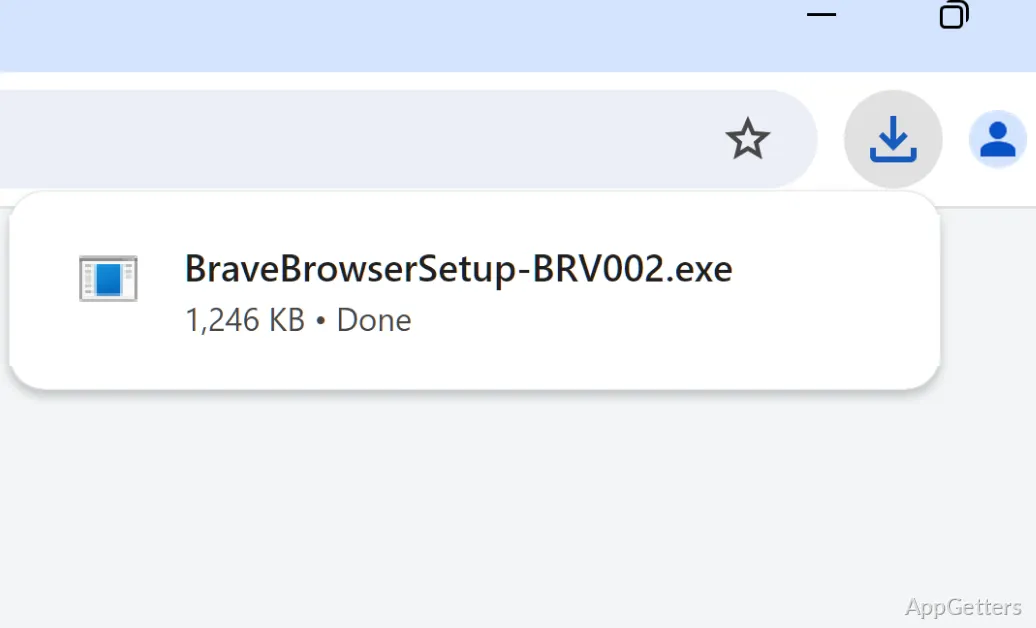
The standard Brave download page usually gives the correct Windows installer for the computer. Still, it is worth checking the download card and the installer name before running it, especially on managed PCs or older machines. A small installer may need to download more files during setup, while other packages may be prepared for repeated installation. Use the package type shown by the official source or supplied download card.
When Setup Does Not Start
If the installer opens and then stops, do not rush into changing Windows security settings. Restart Windows first, then run the installer again from a normal Downloads or Desktop location. Check whether another setup window is hidden behind the browser or file manager. Windows may also show a security warning during setup, so continue only when the installer came from the official developer source or another source you intentionally chose.
Restricted office networks can also interrupt the setup because the installer may need to contact Brave servers. In that case, try a different permitted network or use the package type provided for managed installation if it is available from the official release source. Avoid modified installers, cracked editions, serial key pages, and unknown mirror downloads. Browser setup is not the place to gamble with random files.
Import From Chrome Without Copying the Same Mess
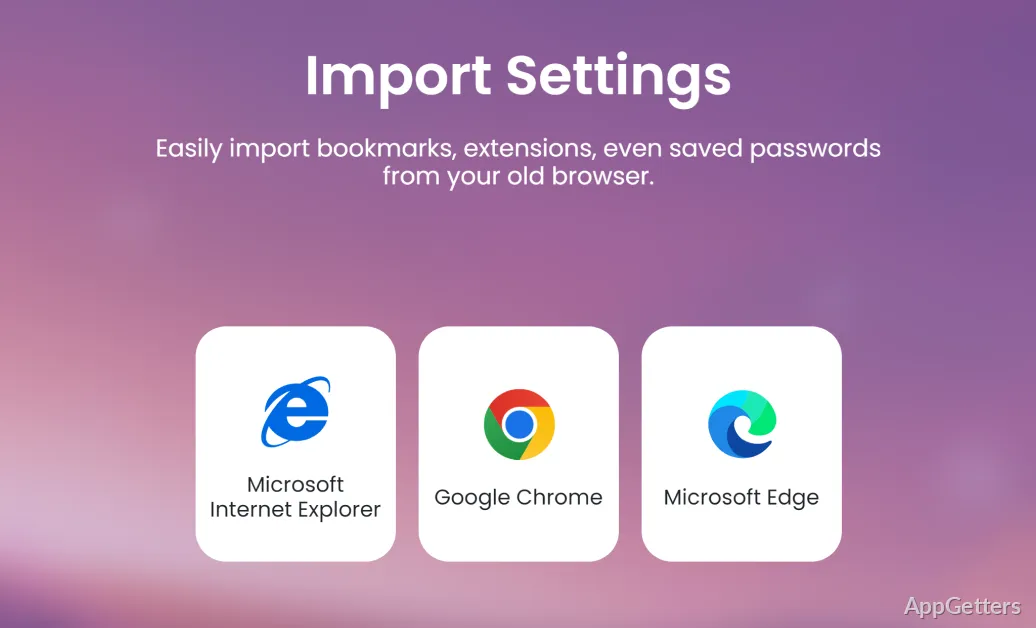
Brave can import bookmarks, history, saved passwords, and other supported browser data from another installed browser. Close the source browser before importing because open profile files can remain locked. After the import, check a few real bookmarks and sign in to one low-risk account. Some payment details, active sessions, and extension settings may still need separate setup inside Brave.
Users moving from Google Chrome will notice the same general Chromium feel, including familiar menus and Chrome Web Store extension support. That does not mean every old setting should come across unchanged. Install extensions in smaller groups. If a shopping site, login page, or video service breaks later, the last extension added is easier to identify.
Old browser problems often follow the extension list, not the browser name. Coupon add-ons, privacy extensions, video download helpers, and password tools can all change website behaviour. Start with the essentials, then add the rest only when there is a real need. Brave Shields already handle many tracking and ad-blocking tasks, so stacking several similar extensions can create extra breakage.
Profiles Matter More Than They Look
A separate profile is useful when the same PC handles work accounts, personal browsing, testing, and streaming. Each profile keeps its own bookmarks, cookies, extensions, and sign-ins. That separation helps when a company dashboard works in one profile but not another. It also prevents the wrong Gmail, YouTube, or social account from opening after clicking a link.
Give profiles names that are obvious at a glance. “Work,” “Personal,” and “Testing” are better than leaving every profile with a default label. If only one profile becomes slow, crashes, or shows broken pages, the repair work stays smaller. You can test that profile’s extensions and site data without disturbing the rest of the browser.
Shields Can Fix Annoyances and Break Websites
Brave Shields block ads, trackers, fingerprinting methods, unwanted cookies, and other page elements through global and per-site controls. This is the feature many people install Brave for, but it can also be the reason a trusted site stops behaving normally. Login buttons may not respond. Payment forms may loop. Comment boxes, embedded videos, and document editors may load halfway.
Do not turn every protection off across the browser because one website acts strangely. Open the Shields panel for that site and test one change at a time. Reload after each change. If the page starts working, keep the exception limited to that website. A global change solves the visible problem faster, but it also weakens the browsing setup everywhere else.
Blank Pages, Broken Logins, and Missing Buttons
A blank page in Brave does not always mean the website is down. Try a hard refresh first. Then test the page in a private window. If it works there, the issue may involve cookies, cached data, or an extension. Clear data only for the affected site before wiping all browser history. That keeps unrelated sessions and preferences intact.
Broken sign-in pages deserve the same slow testing. Check Shields, then extensions, then site permissions. Some account pages need cookies, pop-ups, redirects, or scripts that aggressive privacy settings may block. Brave Browser for Windows gives enough control to solve this, but changing five settings at once makes the real cause harder to find.
Video Flicker and Black Playback
Black video, flickering menus, or incomplete window drawing can point to graphics acceleration or a display driver issue. Restart the browser first, then update the graphics driver if Windows has been running an old driver for a long time. Hardware acceleration can be tested as a browser setting, but it should not be used as a random fix for login failures or blocked pages.
Streaming services can fail for different reasons. Some problems come from extensions, some from Shields, and some from the service itself. Test one video in a private window and one video in a normal profile. If only the normal profile fails, the fault is probably local to that profile. If every browser fails, the issue may be wider than Brave.
Extensions, Search, and Optional Brave Features
Brave supports many Chrome Web Store extensions, but too many add-ons can make the browser harder to trust and harder to repair. Password managers, ad blockers, script blockers, shopping helpers, and video tools all ask for different permissions. Read the permission prompt before installing. Remove extensions that are no longer used, especially if they still have access to every website visited.
Brave Search can be used as the default search engine, while other search providers remain available in settings. Browser choice and search choice are separate. Someone comparing Chromium browsers may also look at Microsoft Edge. A user who wants a different browser engine may prefer Mozilla Firefox. Keep only the browsers that are actually used, or bookmarks and saved passwords become scattered.
Brave may show optional features such as Rewards, Wallet, VPN services, sidebar tools, communication features, or vertical tabs depending on the build, region, and configuration. None of these is required for normal browsing. Treat payment, cryptocurrency, subscription, and account-based features as separate choices. A browser can be useful even when those extras stay disabled.
Private Window Is Not a Magic Cloak
A normal private window mainly reduces what the browser keeps after the window closes. It does not hide activity from a signed-in website, an employer network, an internet provider, or every tracking method on the web. Use it for temporary sessions, testing a website without normal cookies, or browsing on a shared PC. Close every private window when finished.
Brave also offers private windows with Tor connectivity on supported desktop builds. That mode routes browsing differently and can load pages more slowly, but it is not the same as using Tor Browser for a dedicated Tor workflow. For ordinary users, the important point is simple: private browsing helps with local browser traces, not every form of identity or network exposure.
Fix Slow Starts, Crashes, and Update Problems
A slow Brave launch often comes from too many restored tabs, a heavy extension, or a profile that has collected too much website data. Open Brave’s task manager and look for a page or extension using unusual memory or processor time. Close the worst offender first. A browser does not need to restore twenty tabs just because they were open yesterday.
Repeated crashes need a narrower test. Create a temporary new profile and browse for a while without importing everything. If the new profile works, the old profile may contain a bad extension, damaged settings, or broken site data. Move only the important parts back carefully. Keep the old profile available until bookmarks, passwords, and sign-ins have been checked through supported browser options.
Updates Stay Stuck or Keep Asking to Relaunch
Brave normally updates through its browser update process. Open the browser information page, start the update check, and relaunch when prompted. If it stays stuck, check storage space, connection quality, and whether another protection tool is interfering with the updater. Reinstalling from the current official package can replace damaged program files while often leaving profile data alone.
Before reinstalling Brave Browser for Windows, export important bookmarks and confirm access to saved passwords. Do not assume every local item will survive an uninstall choice. Removing user data is different from replacing the program files. Read the removal prompts carefully and use the browser’s supported export or backup method for anything that matters.
Default Browser, Permissions, and Everyday Handoffs
Set Brave as the default browser only when web links from email, chat apps, PDFs, and office documents should open there. This small choice affects daily handoffs more than many users expect. If a work app requires another browser, leave that workflow alone or use separate browser shortcuts. A good browser setup should reduce friction, not create account confusion.
Review camera, microphone, notification, pop-up, download, and location permissions after the first week of use. Some websites ask too often, and some users accept prompts too quickly just to clear the screen. Brave’s site settings let you correct those decisions later. Deny what a site does not need, and keep permissions only where they support a real task.
Brave Browser for Windows works better when Shields, profiles, extensions, Sync, and site permissions match the way the PC is actually used. Keep the stable browser updated, avoid importing every old extension blindly, and handle broken websites from the site level first. That makes Brave feel less like a fresh install experiment and more like a browser you can keep using without constant resets.