Avast Secure Browser for Windows Starts as a Privacy Browser, Not a Full Antivirus
Avast Secure Browser for Windows is a free private browser from Avast, built around browsing privacy, ad blocking, anti-tracking, safer banking tools, and security controls inside the browser. It should not be confused with Avast antivirus software. The browser can sit beside an antivirus product, but it does not replace a full Windows security setup.
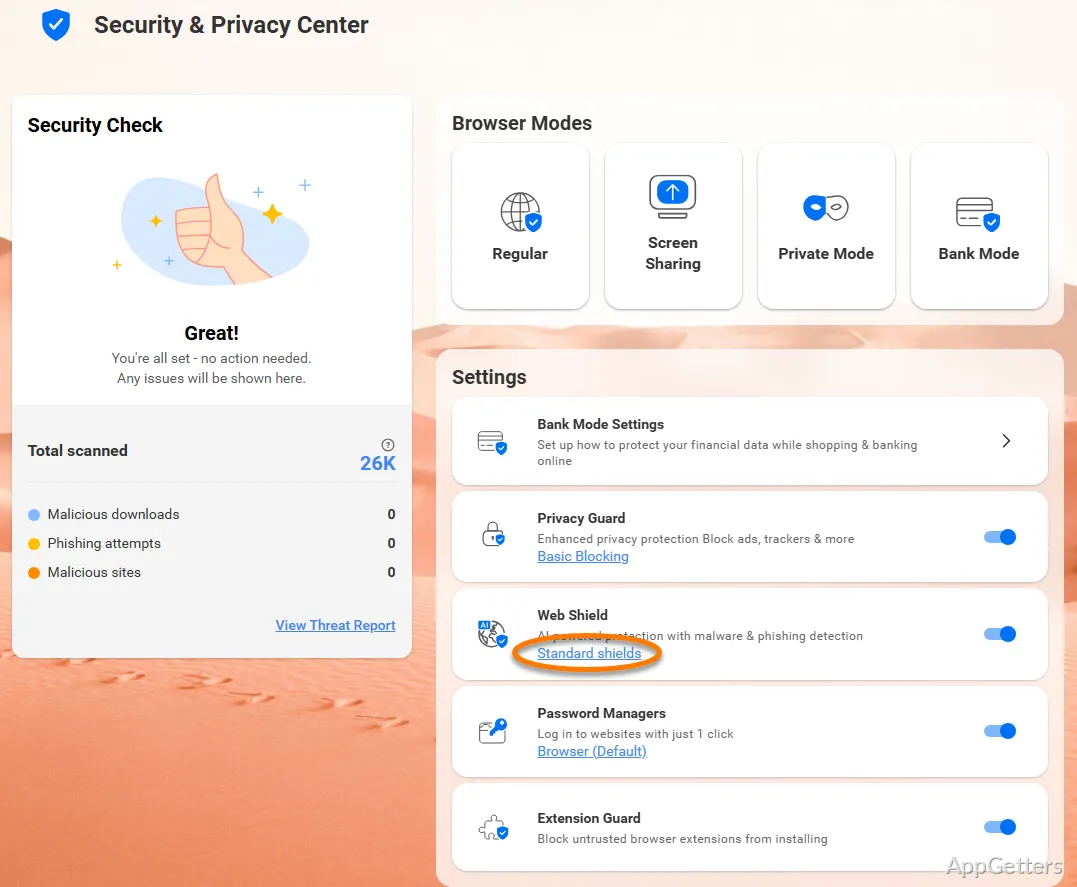
The main reason to install it is browser-level protection. Avast highlights AdBlock, Privacy Guard, Bank Mode, anti-tracking, anti-fingerprinting, webcam control, and tools inside the Security & Privacy Center. Those features matter most when the browser is used for shopping, banking, account sign-ins, and pages that show too many trackers or intrusive ads.
Use the version shown on Avast’s official download page, Microsoft Store listing, or supplied download card when you need the exact build. Avoid copying version numbers or file sizes from older software directories. Browser builds and protection components can change, so the installed browser’s own version screen is the better reference after setup.
Set It Up Around the Sites That Need Extra Privacy
The first launch should focus on the pages where Avast Secure Browser will actually be useful. Open a shopping site, a banking page, a webmail login, and one news page with heavy advertising. That gives a better first read than checking only a blank tab or speed test. The browser’s privacy tools are easier to judge on real pages.
Do not replace your main browser too quickly
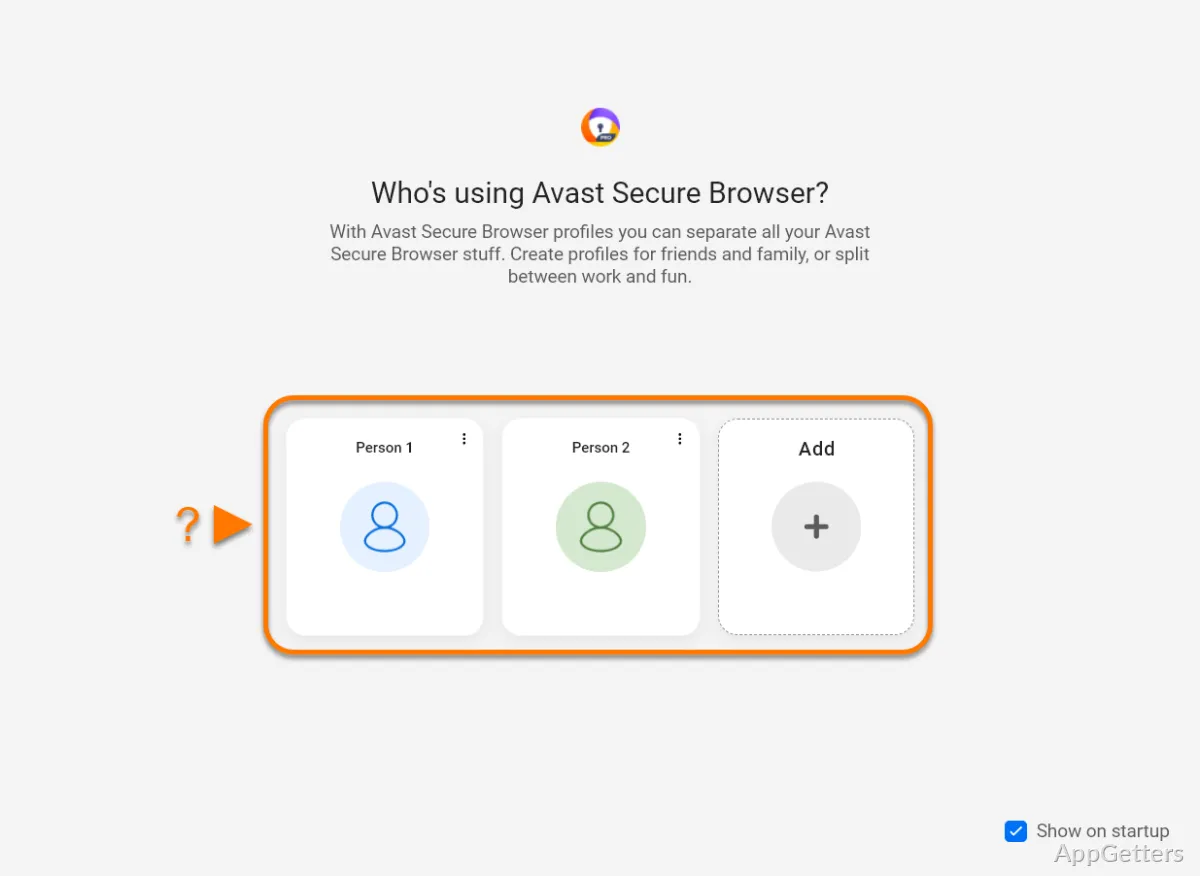
Keep your existing default browser unchanged until Avast Secure Browser proves its role. It can import bookmarks, browsing history, and saved passwords, but importing everything on the first run may not be necessary. Start with a smaller browser role, then decide whether it belongs as your main browser or only for sensitive sign-ins.
Users who want a familiar general-purpose baseline can compare the same pages in Google Chrome. Chrome is a useful reference for extension behavior, account sync, and broad website compatibility. Avast Secure Browser makes more sense when the privacy center, ad blocking, and banking features are the reason for changing browsers.
Review the Security & Privacy Center early
Avast Secure Browser places several controls in its Security & Privacy Center. Open it before logging into important accounts. Check the tiles for privacy, security, Bank Mode, ad blocking, webcam access, and related browser tools. Some controls affect how pages load, so it is better to understand them before a payment page or login form behaves differently.
Download Avast Secure Browser With a Careful First Setup
Use the official developer source, Microsoft Store listing, or the supplied download card for Avast Secure Browser for Windows. Continue only when the file came from the official developer source or another trusted source you intentionally chose. Avoid modified installers, cracked editions, serial key pages, and unknown mirror downloads, especially for a browser that may handle passwords, cookies, payment pages, and account sessions.
Windows may show a security warning during setup. Check that the installer came from the official developer source before continuing. If Windows security or another protection tool shows a warning for the installer or one of its components, read the warning text and verify the file source. Do not turn off protection just to finish the installation.
After setup, use the browser’s About screen when the exact version matters. If you rely on Bank Mode, AdBlock, or privacy controls for specific sites, keep a note of the version details currently being used before updating. That gives you a reference point if a later browser update changes a page, extension, or protection tile.
AdBlock and Privacy Guard Need Page-by-Page Testing
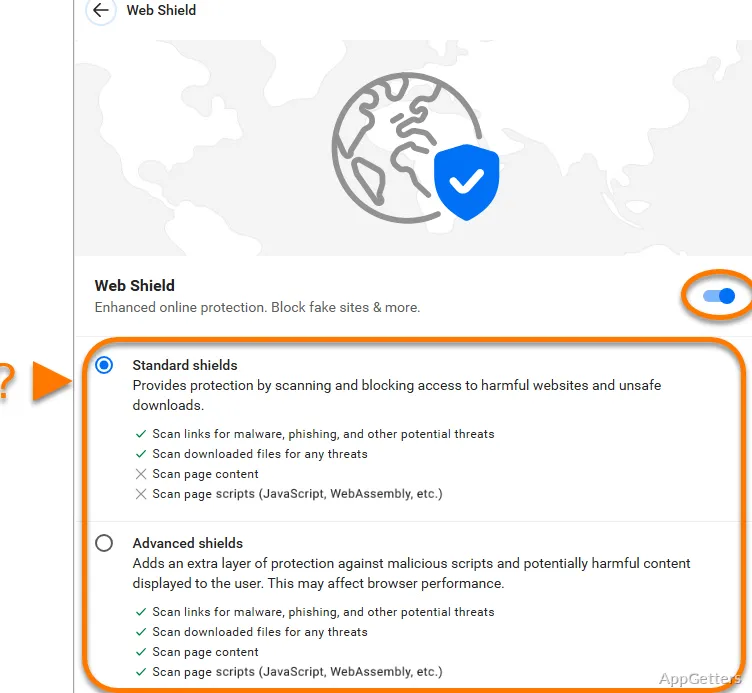
Avast promotes built-in ad blocking and anti-tracking through the browser. Those tools can make some pages less cluttered, but they can also change how scripts, pop-ups, embedded videos, or login panels behave. Test the pages you use most before assuming the same setting should stay active everywhere.
Ads disappearing is not the only test
A page with fewer ads may still have a broken video player, missing checkout button, or blocked comment area. After turning on stronger blocking, check the site as a visitor would actually use it. Open the article, play the video, sign in if needed, and check whether buttons still appear in the right places.
If a page stops behaving normally, reduce the blocking level or review the site controls before blaming the whole browser. Some websites react aggressively to ad blockers. Others load payment or media features from domains that privacy tools may treat as trackers. A small setting change often matters more than reinstalling Avast Secure Browser.
Privacy tools do not hide everything
The free Avast browser helps reduce tracking and ads, but it does not automatically make every browsing action private from every network, website, or account provider. Avast also offers a Pro edition with additional privacy features, so read the feature labels before assuming a free feature covers every use case. Privacy claims should match the tool that is actually turned on.
Bank Mode Should Be Checked Before a Payment Day
Bank Mode is one of Avast Secure Browser’s key features for financial pages. Avast describes it as an isolated browsing space for online banking and shopping. It should be tested before the moment you need to pay a bill, move money, or complete a purchase. A banking feature is only useful if the user knows where to find it.
Open Bank Mode from the browser controls
Avast support points users to Bank Mode through the Security & Privacy Center or browser menu. Open it once on a normal day, then try a harmless login page or test session. Check whether the page opens in the expected protected window and whether your keyboard, password manager, and payment flow still work the way you need.
If Bank Mode does not appear, check the browser’s own support path and installed components before reinstalling. Some Avast features may depend on browser updates or related Avast security products. Read the feature label inside the browser rather than assuming every device has the same Bank Mode behavior.
Password managers need a separate check
A banking window is the wrong place to discover that a password manager extension does not fill the form. Test saved passwords, one-time codes, copy-and-paste behavior, and payment confirmation pages before relying on Bank Mode for a real transaction. If a bank blocks autofill, that may come from the bank’s page rather than Avast Secure Browser.
Extensions Can Undercut a Privacy Browser
Avast Secure Browser can work with browser extensions, but extensions deserve more caution inside a privacy-focused browser. A new extension may request access to pages, browsing data, downloads, or clipboard behavior. That can weaken the reason for using a browser with built-in privacy controls in the first place.
Add extensions only when they serve a real need
Start with Avast’s built-in controls before adding another ad blocker, shopping coupon extension, download helper, or password tool. Too many overlapping extensions can make page problems harder to diagnose. Add one extension, test the pages that matter, then add the next only if the first one did not break logins, payments, or downloads.
Users who want deep browser customization rather than Avast’s security-focused setup may compare Vivaldi. Vivaldi focuses on tabs, panels, shortcuts, themes, and layout control. Avast Secure Browser is a better fit when the priority is privacy controls, ad blocking, and safer banking tools inside one browser.
Broken pages may come from an extension
If a site loads in another browser but fails in Avast Secure Browser, check extensions before changing privacy settings. Disable the newest extension first. Then reload the page and test the exact action that failed. Login loops, missing buttons, broken downloads, and empty payment frames often come from browser additions rather than the main browser.
VPN, Pro Features, and Free Features Should Not Be Mixed Up
Avast Secure Browser is available as a free browser, and Avast also promotes a Pro version with additional privacy features. The free browser page describes privacy and security tools, but not every advanced feature belongs to the free edition. Read the installed browser’s feature labels before building a privacy routine around VPN access, encryption claims, or paid tools.
Check the feature tile before using it
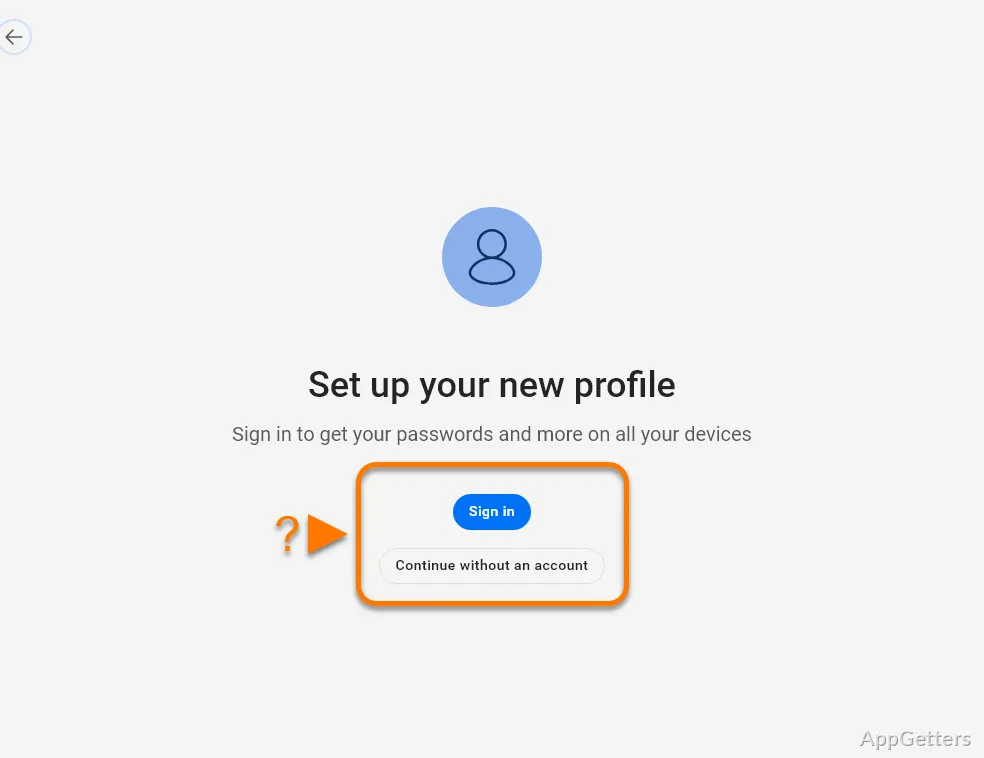
A feature tile may open directly, ask for sign-in, or point toward a paid upgrade. That difference matters. If you need VPN-style privacy, check whether the installed edition actually includes the feature you intend to use. Do not assume that a product page headline means the same feature is available in every edition on every device.
Users who want a mainstream privacy-first browser with built-in blocking can also compare Brave Browser. That comparison is useful when the goal is tracker blocking and a less service-heavy browser. Avast Secure Browser is more relevant when Bank Mode and Avast’s security center are the features you plan to use.
Free privacy still needs good account habits
A private browser cannot repair weak passwords, reused logins, fake websites, or careless downloads. Use the browser’s phishing and privacy protections as one layer, not the whole plan. For banking and shopping, type important addresses carefully, check the site name, and avoid logging in from links you did not expect to receive.
Webcam, Permissions, and Notifications Need a First Pass
Avast Secure Browser includes controls for site permissions such as camera access, notifications, and related browser privacy settings. These settings can matter on meeting sites, online classrooms, banking pages with identity checks, and support portals. Review them before the browser is needed for a call or verification step.
Camera prompts should not be accepted out of habit
If a website asks for webcam access, check the site first and decide whether camera access belongs there. Meeting pages and identity checks may need it. Random content pages usually do not. A privacy browser gives better results when permission prompts are handled one by one instead of being accepted automatically.
Notifications deserve the same treatment. A browser used for banking, shopping, and private account work should not become noisy with alerts from every website. Allow only the sites where alerts are useful. If pop-ups become distracting, review site permissions before changing unrelated browser settings.
When Avast Secure Browser Fits the Windows PC
Avast Secure Browser fits users who want a browser focused on ad blocking, anti-tracking, safer banking sessions, privacy controls, webcam permissions, and Avast’s security-centered browser interface. It is not the most direct choice for someone who only wants a plain browser with no extra privacy panels. For a calmer general browser, Opera Air is a different type of comparison.
A useful first week with Avast Secure Browser for Windows should stay practical. Test the Security & Privacy Center, AdBlock behavior, Bank Mode, extension compatibility, webcam prompts, notification settings, and the payment or shopping sites you actually use. If those checks make sensitive browsing easier to manage without breaking the pages that matter, Avast Secure Browser has a clear role on the PC.