Arc for Windows Changes the Browser Layout First
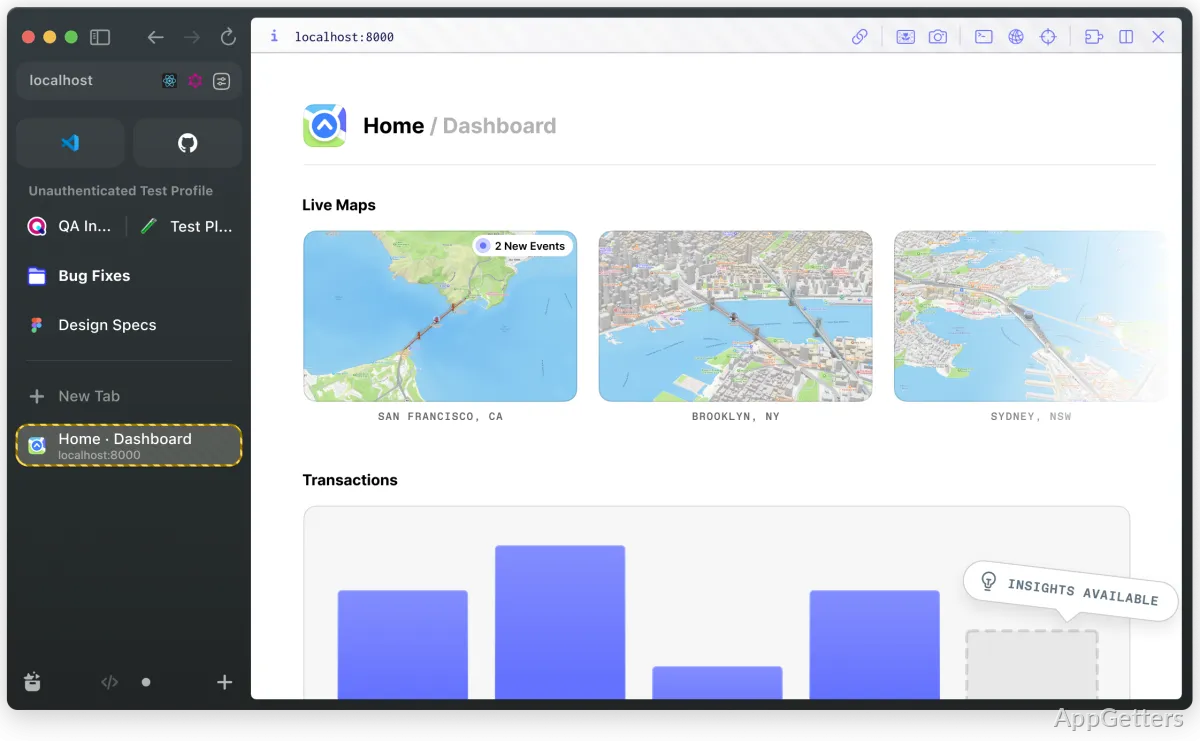
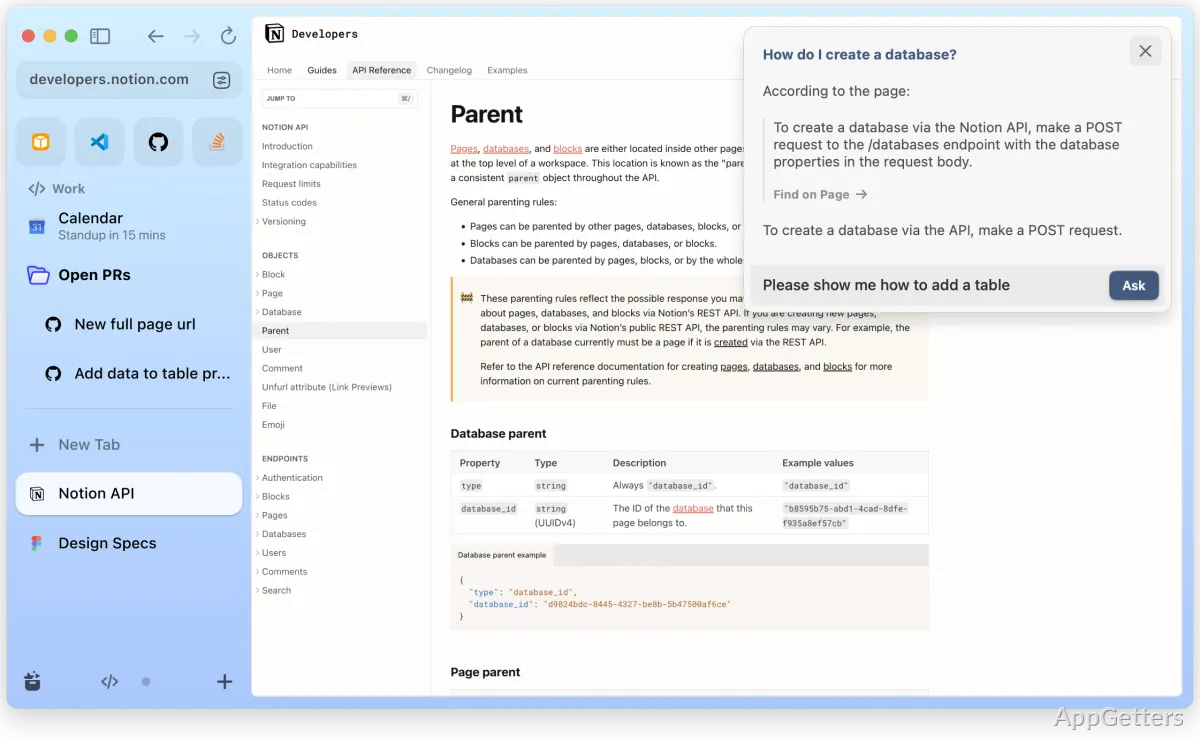
Moving from a familiar browser to Arc for Windows can feel strange before any web page even opens, because the tabs move into a sidebar and the browser expects you to sort work into Spaces. Arc is a Chromium-based browser from The Browser Company, built around a different layout for tabs, profiles, pinned pages, search, and repeated web app use.
The first decision is whether that layout actually fits your day. Arc is not only another place to type URLs. It tries to turn the browser into a workspace where projects, personal browsing, pinned sites, and temporary tabs can live in separate areas. That works well for people who spend the whole day in web apps, but it can feel busy if you only want a plain browser window.
Windows users should install Arc from the official Arc download page or the Microsoft Store listing when it is available for their device. Continue only when the file came from the official developer source or another trusted source you intentionally chose. If an installer asks for unrelated device credentials or looks different from the expected Arc package, stop and check the source again.
Windows Support and First Install Choices
Arc for Windows is available for supported Windows PCs, but older Windows builds may not qualify. If the installer refuses to run or the Store page does not offer the app, check the Windows version, pending system updates, and device policy before trying the same download again.
The Microsoft Store route suits users who prefer Windows to handle app installation and updates. The direct download route from Arc’s official site may suit users who do not want to use the Store or cannot access it on a particular PC. Compare the download card with the version shown inside the browser after installation.
Arc accounts also matter. The browser’s setup flow may ask you to sign in or create an account, because Arc Sync and cross-device workspace features depend on account-based behavior. If you are testing Arc only as a secondary browser, create a small test Space first instead of importing every habit from your main browser on day one.
When Arc Will Not Install
A failed install may point to Windows version support, Store restrictions, account policy, or a protection warning. On a managed work PC, the administrator may block Store apps or downloads from outside approved channels. Check the Windows version, install permissions, and the source of the package before repeating the same setup attempt.
Windows may show a security warning during setup. Check that the installer came from the official developer source before continuing. If the warning names a changed file, unknown publisher behavior, or a location you did not choose, stop and download again from the official source or the supplied download card.
Spaces Are the Main Arc Habit
Arc’s main adjustment is the Space. A Space can hold a set of tabs, pinned sites, folders, and visual choices for one part of your life. Work, personal browsing, research, shopping, and side projects can each sit in separate Spaces instead of fighting for room across one long tab strip.
That organization only works when the Spaces have clear jobs. A “Work” Space with email, calendar, documents, and dashboard sites makes sense. Five almost identical Spaces with the same pinned tabs will only create confusion. Start with two or three Spaces, then add more once the sidebar starts to feel crowded for a real reason.
Arc for Windows also uses profiles to separate browsing data. Profiles can scope logins, cookies, browsing history, archive timing, and other settings to one or more Spaces. This matters when you use two accounts on the same website, such as a personal Gmail account and a work Google Workspace login.
Spaces and Profiles Are Not the Same
A Space changes how your browser workspace is arranged. A Profile controls browser data such as cookies and sign-ins. If a work site keeps opening with your personal account, the issue may be profile assignment rather than the Space name. Put the work Space on the work Profile before blaming the website.
Users coming from Google Chrome may expect profiles to behave like separate browser identities with their own windows. Arc uses a different mental model. The sidebar, Space, and Profile can overlap, so a little setup time prevents login mix-ups later.
Sidebar Tabs, Pinned Sites, and Archived Pages
Arc’s sidebar replaces the traditional horizontal tab strip. Pinned sites stay near the top for pages you return to often, while temporary tabs sit lower and can be cleared as you browse. This can reduce tab clutter, but only if pinned pages stay selective.
If every frequently visited page becomes pinned, the sidebar turns into another messy bookmark bar. Keep pinned sites for pages that act like apps: mail, project boards, notes, calendars, dashboards, music, or communication tools. Regular articles, shopping pages, and one-time searches should usually remain temporary tabs.
Arc can archive temporary tabs based on timing behavior. That is useful when you open many pages during research, but it can surprise users who expect every tab to stay forever. Before using Arc for a long project, check the archive timing in settings so pages do not disappear from view earlier than expected.
Missing Tabs After a Restart
When a tab seems missing, check the Space first, then the archived tabs area, then the Profile. A page can appear lost simply because the active Space changed. If Sync is enabled across devices, wait for the sidebar to finish updating before assuming the tab has been removed.
Arc Sync can keep Sidebar items, Spaces, Folders, and Tabs available on supported devices when the same account and sync settings are active. Mac users moving to Windows should check the current Sync option in Arc rather than assuming an older sync method will carry the same workspace into Windows. If Sync looks incomplete, verify the account and Sync setting on both devices.
Extensions, Web Apps, and Site Behavior
Because Arc is built on Chromium technology, many users expect familiar extension behavior. Most everyday web extensions should feel familiar, but the sidebar layout and profile system can change where problems appear. An extension that works in one Space but not another may be tied to profile data, site permissions, or login state.
Install extensions slowly when setting up Arc for the first time. Add password managers, ad blockers, note clippers, or developer tools one at a time, then test the sites you care about. If several extensions are imported at once, it becomes harder to find the one causing broken buttons, blocked sign-ins, or missing page elements.
Work apps deserve extra testing. Banking sites, workplace dashboards, video meeting tools, and browser-based editors may depend on cookies, pop-ups, microphone access, camera access, or third-party sign-in flows. If a site behaves oddly in Arc, check the same page in Microsoft Edge before changing account settings.
When a Website Opens in the Wrong Place
Arc includes routing ideas that can send links into specific Spaces or keep web activity organized. If a website opens somewhere unexpected, review the Space and Profile connected with that route. The fix may be a routing rule or profile choice, not a broken website.
Default browser settings can also confuse link handling. Windows may send links from mail, chat, or documents to the browser chosen in system settings. After installing Arc for Windows, check Default Apps in Windows if links still open in the browser you used before.
Privacy, Accounts, and Browser Data
Arc uses an account-based setup for parts of its experience, so users should think about what they want synced before moving sensitive workflows into it. Browser data can include tabs, spaces, folders, cookies, history, permissions, and extension behavior depending on the feature and profile involved.
A shared Windows account is a weak starting point for private browsing separation. If two people use the same Windows login, Arc profiles may separate cookies inside the browser, but they do not protect the rest of the PC. Use separate Windows accounts when the device itself is shared by different people.
Before importing bookmarks or making Arc the default browser, review your existing browser data. Export bookmarks when supported by the old browser, keep password manager access available, and confirm that important work sites still sign in correctly. Avoid deleting old browser data until the new Arc workspace has been tested for the sites you use every day.
Feature Direction and Browser Alternatives
Arc is a specific browser choice because its value sits in the sidebar, Spaces, profiles, and workspace model. Users who want a conventional tab strip may not enjoy that shift. Users who live in several web apps all day may find the layout more useful once the sidebar is arranged around real work.
If you want a more conventional Chromium browser with fewer layout changes, Edge or Chrome may feel easier. If you want another browser that experiments with workspace design and customization, Vivaldi is worth comparing. Arc sits in a different lane because its sidebar workflow is not just a skin over standard tabs.
Users who prefer newer browser experiments may also compare Zen Browser, especially if they want a modern interface without committing to Arc’s account and workspace habits. Keep the comparison practical: extension support, default search, profile handling, memory use, and update behavior matter more than screenshots.
Before Making Arc Your Main Browser
Test Arc with the exact sites that run your day: email, banking, office apps, school portals, video meetings, password manager pages, and any internal dashboards. A browser can feel excellent while reading articles but still be a poor fit if one required login flow breaks inside the profile or sidebar setup.
Give the sidebar a real trial before importing everything. Create a work Space, a personal Space, and one temporary research Space. Pin only the pages that behave like apps, then leave ordinary browsing as temporary tabs. That small layout test will show whether Arc’s structure reduces clutter or simply moves it to the left edge of the screen.
Arc for Windows makes the most sense when the browser itself is part of your workflow, not just a container for websites. Check Windows support, install from the official developer source or supplied download card, set up Spaces and Profiles deliberately, and test Sync before replacing your old browser. The finished setup should leave web work easier to find, not harder to untangle.